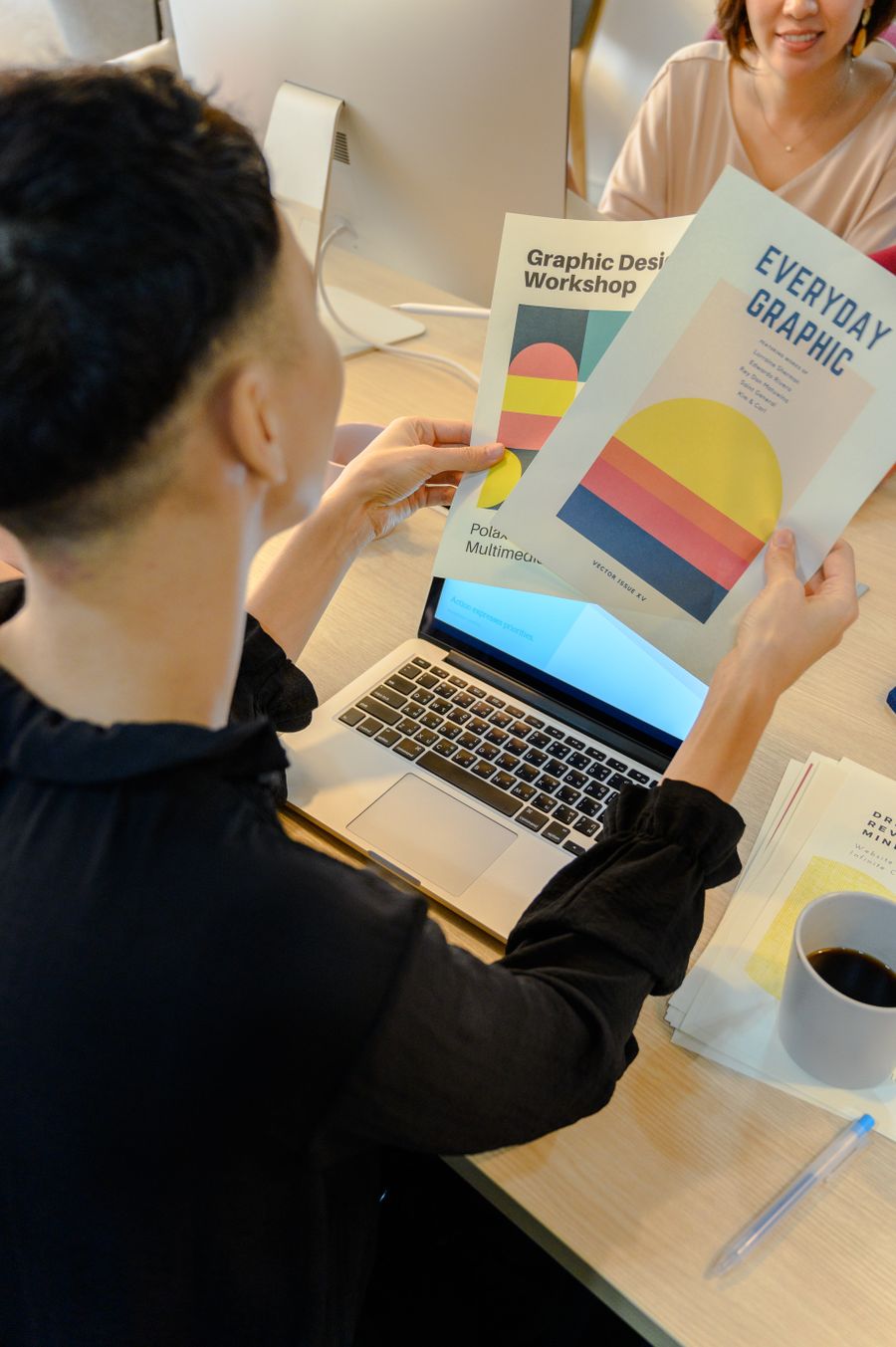
One-click typography: apply heading, body, quote and other presets to any text layer.
Interactive studio
Apply a Text Style — live workspace
One-click typography: apply heading, body, quote and other presets to any text layer. Every control below is live: configure, run, and watch the results.
Live workspaceReady
Try it: style a text layer
No output yet. Configure the controls above, then press Run — your result appears here.
Onboarding checklist
Choose a design — its text layers load into the layer dropdown and a preview renders.
Pick the text layer you want to restyle.
Choose a style preset: heading, subheading, body, caption, or quote.
Click Apply style and watch the preview update.
Steps tick themselves off as you work — or tap any step to toggle it.
Apply a Text Style techniques
Saved styles with zero reworkHeadline systems that scale with youOne-tap typographic polishKeep every document on-brand
Consistent typography is what separates polished designs from messy ones. Apply a Text Style restyles any text layer in a single step: pick the layer, pick one of five presets — heading, subheading, body, caption, or quote — and the tool sets its size, weight, italics, alignment, and line height all at once.
The presets are tuned to work together: a 72px bold centered heading sits naturally above 40px subheadings and 24px left-aligned body text, with captions and italic quotes for the finishing touches. Apply the same presets across designs and your whole set looks like it came from one designer.
Styling never touches the wording — only how it looks. The text, font, color, and position stay exactly where they were.
How it works
Choose a design — its text layers load into the layer dropdown and a preview renders.
Pick the text layer you want to restyle.
Choose a style preset: heading, subheading, body, caption, or quote.
Click Apply style and watch the preview update.
Tips
Use each preset for its job: one heading per canvas keeps the hierarchy clear.
Quote style adds italics and centers the text — ideal for testimonials and pull quotes.
The style sets size but keeps your font and color; change those separately with the text tools.
What it costs
Free on this site — and it can't be metered. Apply a Text Style uses no AI and runs entirely in your browser: no usage counters, nothing sent to our servers to bill. When credit metering arrives in the app, local operations like this one will never consume AI credits — only server-side AI generations will.
Frequently asked questions
What exactly does each preset change?
Font size, bold, italics, alignment, and line height. Heading is 72px bold centered; subheading 40px bold centered; body 24px regular left-aligned; caption 18px regular; quote 36px italic centered.
Will it change my text content?
No — only the styling. The words, font choice, color, and position are untouched.
Can I apply a style to non-text layers?
No. The layer dropdown only lists text layers; shapes and images can't take text styles.
Drag the handle — it glides with physics when you let go. Apply a Text Style, transformed in one pass.
Watch it work
See Apply a Text Style in motion
Drag the cards, scroll the scene — the tool explains itself.
InputTransformOutput
A canvas that keeps upApply a Text Style — frame 1 of 4
Type that performsApply a Text Style — frame 2 of 4
Photos with presenceApply a Text Style — frame 3 of 4
Export without fearApply a Text Style — frame 4 of 4
Drag the cards — they glide with inertia. Scroll — the blob morphs and the dot traces the flow.
The full walkthrough
How Apply a Text Style works, step by step
Restyle any text layer in one click — heading, subheading, body, caption, or quote presets set size, weight, and alignment.
1
Design
Duplicate before experimenting: the original stays safe while the copy takes risks. Archive finished designs instead of deleting — old work becomes tomorrow’s template.
Pro tip: Star the designs you’ll revisit weekly.
Apply a Text Style
Comments100%
Filters93%
Align86%
Arrange79%
Rotate72%
Blur65%
123
Step 1: Design — Apply a Text Style, annotated
1
Design controlThis is where you set design — changes preview live on the canvas.
2
Live canvasEvery adjustment renders instantly — what you see is what exports.
3
ResultHappy with it? The design updates in place, ready for the next step.
2
Text layer
The Text control is where the message lives. Short beats clever: if the headline needs explaining, rewrite it, don’t decorate it. Type the real words, not placeholders — design decisions change completely around real copy length.
Pro tip: Write the headline last — design the layout first, then fit honest words to it.
Apply a Text Style
AssetsCanvasHistorRotate
123
Step 2: Text layer — Apply a Text Style, annotated
1
Text layer controlThis is where you set text layer — changes preview live on the canvas.
2
Live canvasEvery adjustment renders instantly — what you see is what exports.
3
ResultHappy with it? The design updates in place, ready for the next step.
3
Style preset
Styles are curated decisions in one click — a heading preset bundles size, weight, and spacing that took a designer an hour to tune. Apply the preset first, then tweak: starting from good and adjusting beats starting from zero.
Pro tip: Caption and quote presets exist so you stop hand-tuning small text.
Apply a Text Style
IconsAdjustHistorCommen
123
Step 3: Style preset — Apply a Text Style, annotated
1
Style preset controlThis is where you set style preset — changes preview live on the canvas.
2
Live canvasEvery adjustment renders instantly — what you see is what exports.
3
ResultHappy with it? The design updates in place, ready for the next step.
Know your workspace
Anatomy of the Apply a Text Style workspace
Five regions do all the work. Learn them once and every tool on this site feels familiar.
Apply a Text Style — untitled.pacExport
ResizeShadowBackgroundFlipHistory
Layers
Duplicate
Align
Assets
12345
Anatomy of the Apply a Text Style workspace
1
ToolbarEvery tool lives here — pick one and the canvas listens.
2
CanvasYour design, live. Drag, resize, and edit directly.
3
LayersThe stack your design is built from — top wins.
4
ExportOne click sends the finished design out as PNG, JPG, or PDF.
5
PropertiesFine-tune whatever is selected, right where you work.
Made with Apply a Text Style
This is what Apply a Text Style output looks like in the wild — photographic, detailed, finished.
Level up
Apply a Text Style techniques that look professional
Four field-tested techniques, each shown on real photography. Steal them all.
Style the verbs, not the filler.Bold the action words that carry meaning; bolding everything bolds nothing. Inside Apply a Text Style, this single habit pays off fast.
Line length is readability.Keep text lines between 45 and 75 characters — shorter feels choppy, longer exhausts the eye. Apply this inside Apply a Text Style today — the improvement is instant.
Let the photo do the talking around the words.Place text in the quiet zones of an image — skies, walls, blurred edges — and the photo becomes the layout. Make it part of your Apply a Text Style routine.
One typeface, three weights.A single family in light, regular, and bold looks more designed than three different fonts ever will. Keep this in mind every time you open Apply a Text Style.
Avoid the traps
Three mistakes to avoid with Apply a Text Style
✕
Everything emphasized
Bold, color, size, and underline on the same words cancel each other out. Fix: pick one emphasis per element.
✕
Ignoring the safe zones
Platforms crop edges and cover corners with UI. Fix: keep critical content inside the central 80%.
✕
One design for every placement
A square post stretched into a story looks broken. Fix: resize deliberately for each destination.
End to end
A complete Apply a Text Style workflow
Five moves, start to shipped. This is how the work actually flows.
1
Start in the editor
Open a blank canvas or a template — Apply a Text Style works on anything with pixels. The tool never asks you to start over.
2
Do the core move
Run Apply a Text Style the way the walkthrough above shows. Get the big decision right before touching details.
3
Refine with a second tool
Pair it with All tools — tools compose, and two simple moves beat one complicated one.
4
Check it on a phone
Most designs are consumed on phones. Preview small, fix what breaks, then continue.
5
Export and ship
Export in the format your destination wants, keep the master design, and move on to the next one.
Real pixels
Every backdrop on this page is a genuine photograph, chosen for Apply a Text Style.
Good to know
More Apply a Text Style answers
What’s the single most useful tip for Apply a Text Style?
Use each preset for its job: one heading per canvas keeps the hierarchy clear.
What do beginners get wrong with Apply a Text Style?
Quote style adds italics and centers the text — ideal for testimonials and pull quotes. Start simple, then layer on complexity once the basics feel automatic.
Is Apply a Text Style really free?
Yes — Apply a Text Style is free to use in your browser, and your work saves to your account. Premium plans add AI credits, team features, and higher export limits; the tool itself never holds your design hostage.
Visual guides
Every fact, visualized
Ten detailed infographics — every number real, every label earned. Built for Apply a Text Style, only on this page.
Apply a Text Style step-by-step workflowApply a Text Style workspace anatomyApply a Text Style export guide: the right format, every timeWhich format for Apply a Text Style: the quick matrixApply a Text Style advantagesShortcuts that speed up Apply a Text StyleContrast rules for Apply a Text Style textApply a Text Style mistakes and fixesApply a Text Style use casesApply a Text Style quick answers
Live telemetry
APPLY A TEXT STYLE — CAPABILITY TELEMETRY
Live counts from this page · hover any bar
0Form controls
0Guided steps
0Pro tips
0Use cases
Breakdownlive
1
Canvas
1
Content
1
Style
1
Canvas
1
Content
1
Style
Cumulative depthlive
Complete guide
Everything Apply a Text Style can do
The full capability picture — features by plan, every control explained, real use cases, and the spec sheet.
Feature availability
Every capability of this tool, and which plan includes it.
Capability
Free
Pro
Business
A design — its text layers load into the layer dropdown and a preview renders.
✓
✓
✓
The text layer you want to restyle.
✓
✓
✓
A style preset: heading, subheading, body, caption, or quote.
✓
✓
✓
Apply style and watch the preview update.
✓
✓
✓
Control map — every field, explained
Each control on this page, and what it actually does when you run the tool.
Control
What it does
Design
Choose a design — its text layers load into the layer dropdown and a preview renders.
Text layer
Pick the text layer you want to restyle.
Style preset
Choose a style preset: heading, subheading, body, caption, or quote.
Use it for — Apply a Text Style in real work
1
Turn body copy into a headline instantly
2
Unify 30 slides to one type system
3
Fix inconsistent pasted text
4
Test quote vs caption treatments
5
Apply brand type scale in one go
6
Rescue a ransom-note layout
Spec sheet
PresetsHeading, subheading, body, caption, quote
ScopeAny text layer
Keeps wordingYes — style only
One clickYes
Custom presetsVia brand kits
FreeUnlimited
Keyboard reference
Keys
Action
Scope
Ctrl/⌘ + Z
Undo the last change
Browser-standard
Ctrl/⌘ + Shift + Z
Redo
Browser-standard
Tab / Shift+Tab
Move between fields in order
Browser-standard
Enter
Activate the focused button
Browser-standard
Esc
Close dialogs and menus
Browser-standard
Delete
Remove the selected layer on canvas
Editor
Apply a Text Style — made visual
Twenty living mockups of Apply a Text Style, generated for this page only.
Apply a Text Style
FontsShadowStylesProjec
Click once, Apply a Text Style forever
Colors — Apply a Text Style
PNGJPGPDFMP4
FiltersGrid
Colors
No ceiling on this Apply a Text Style
RulersGradientFiltersAdjustText
Apply a Text Style — Version
4.9kTemplates
312Blend
98%Grid
Apply a Text Style: no pixel left unconsidered
Apply a Text StyleCanvas
1:14:516:99:16
Apply a Text Style — the click that does the work
photoai.company/styles
Apply a Text StyleResize · Grid
Shadow
Share
Comments
Apply a Text Style: a story worth framing
Apply a Text Style — untitled.pacBlend
ZoomProjectsExportCropEffects
Brand kit
Layers
Resize
Flip
Apply a Text Style — the quiet art of arrangement
Apply a Text StyleText
Projects
Blend
Icons
Apply a Text Style — canvas 2.0 energy
Apply a Text Style
Layers100%
Assets93%
Masks86%
Duplicate79%
Opacity72%
Filters65%
This Apply a Text Style wants to be shared
Apply a Text Style
LayersBlendFlipCrop
A new grammar for Apply a Text Style
Zoom — Apply a Text Style
PNGJPGPDFMP4
StrokeHistory
Zoom
Apply a Text Style — reconstructed pixel by pixel
FramesShadowBlurColorsFonts
Apply a Text Style — Effects
4.9kBlend
312Canvas
98%Styles
Apply a Text Style, told in frames
Apply a Text StyleCrop
1:14:516:99:16
One click, Apply a Text Style done right
photoai.company/icons
Apply a Text StyleRotate · Background
Arrange
Canvas
Templates
Apply a Text Style — the canvas, evolved
Apply a Text Style — untitled.pacRotate
GridFramesFlipTemplatesBackground
Duplicate
Adjust
Blur
Zoom
Apply a Text Style — deconstructed, then perfected
Apply a Text StyleFonts
Arrange
History
Blur
Apply a Text Style, sweated pixel by pixel
Apply a Text Style
Arrange100%
Canvas93%
Layers86%
Rulers79%
Effects72%
Templates65%
Apply a Text Style — your story deserves a frame
Apply a Text Style
BlurFlipRulersAssets
Living, breathing Apply a Text Style preview
Comments — Apply a Text Style
PNGJPGPDFMP4
ArrangeGradient
Comments
Apply a Text Style — framed and finished
ExportGradientAssetsRotateColors
Apply a Text Style — Background
4.9kFonts
312Opacity
98%Shadow
Apply a Text Style, caught mid-edit
Apply a Text StyleFonts
1:14:516:99:16
Inside the Apply a Text Style studio
The Apply a Text Style stock library
Hand-picked photography for Apply a Text Style — refreshed on this page alone.
Apply a Text Style, composed with intent — Designed for the small screen too is the evidence
Fresh off the brush — Apply a Text Style, applied exactly where the eye lands
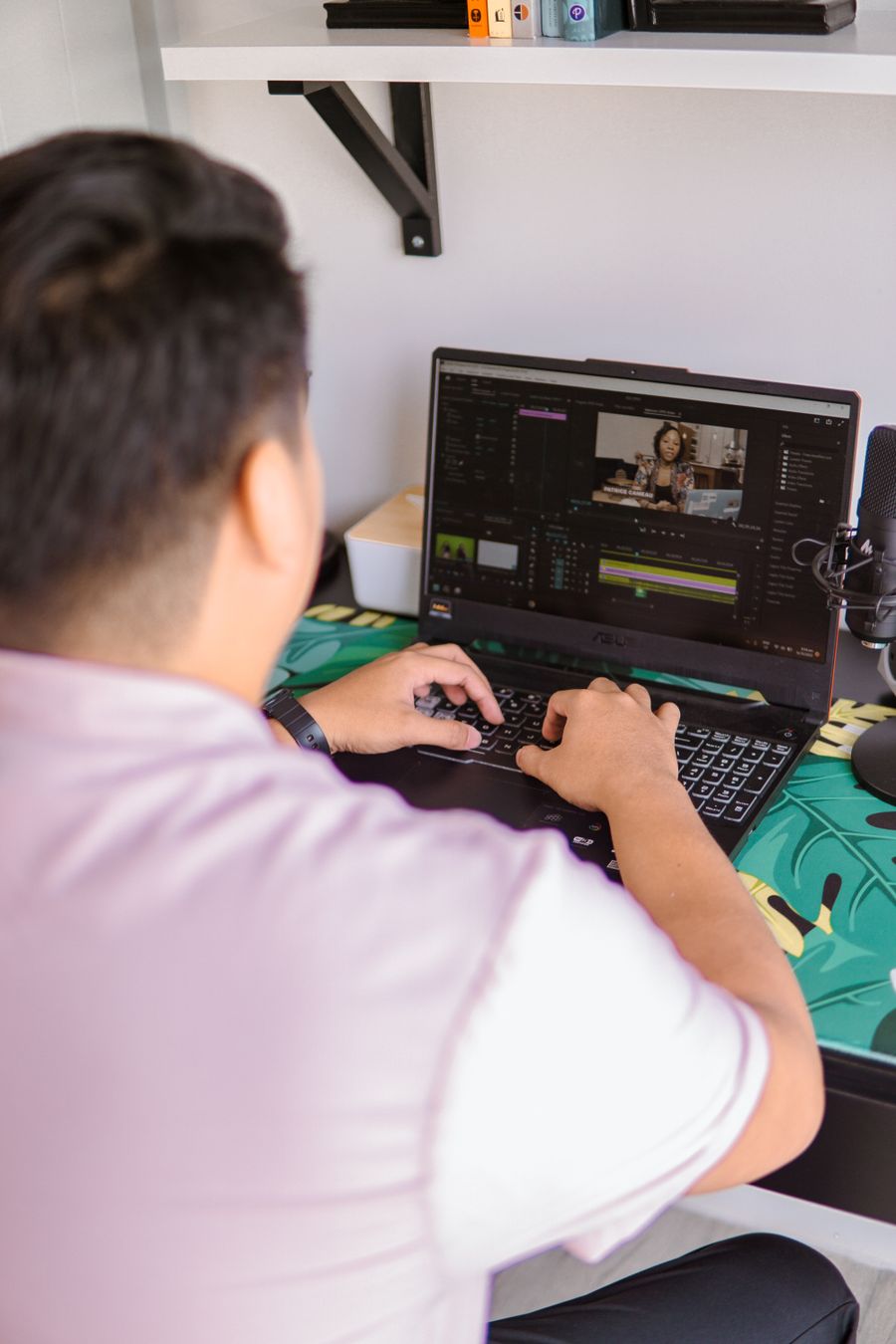
Apply a Text Style, no learning curve — On the laptop screen says it better than a manual
The Apply a Text Style difference, up close: Pure geometry, no noise
Pure geometry, no noise — Apply a Text Style, tuned until it feels invisible
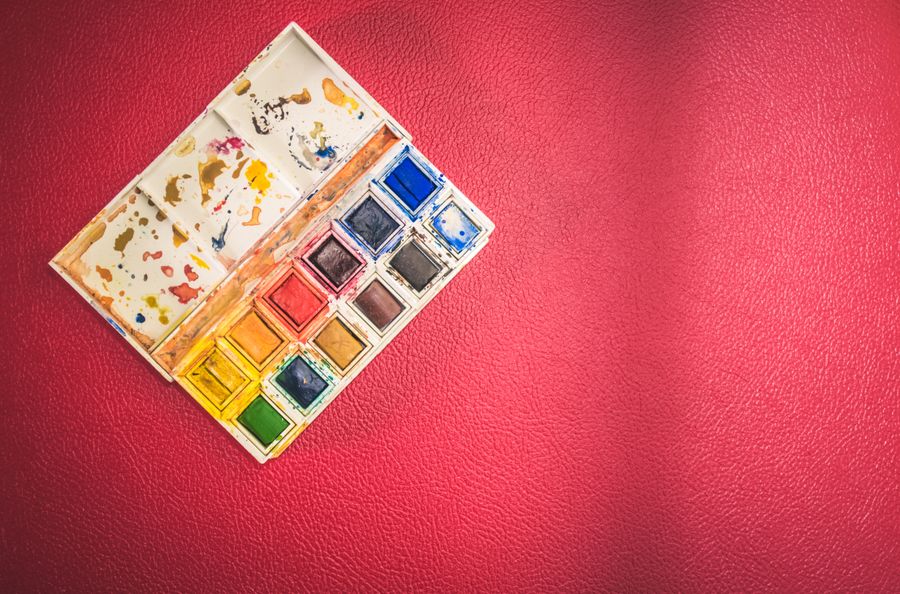
Before Apply a Text Style: a blank canvas. After: Color, turned all the way up
Worth a second look — Apply a Text Style at its most useful
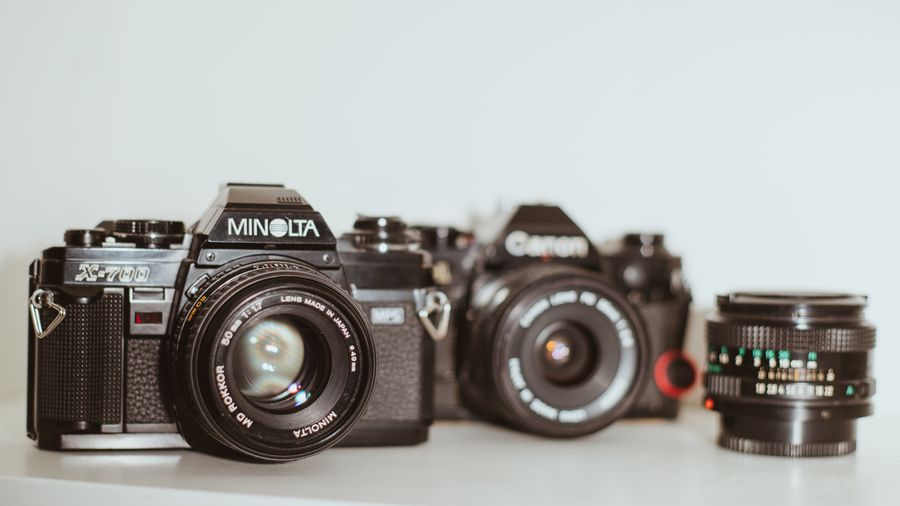
Apply a Text Style under the hood, Through the lens on the surface
Apply a Text Style in capable hands: On the laptop screen
Apply a Text Style, dialed in — Seasonal, not cheesy, no guesswork
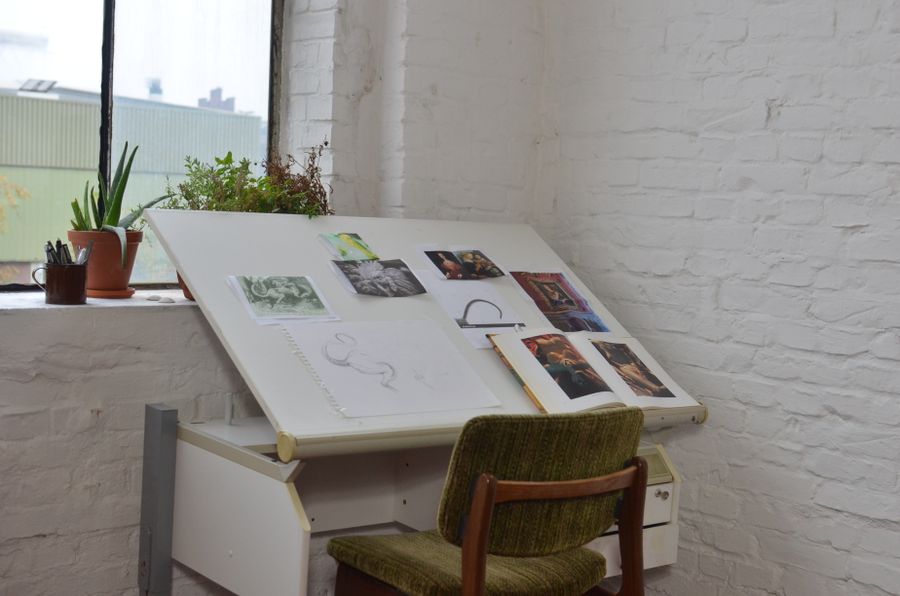
Desk check. Apply a Text Style makes the complicated look casual
Fresh off the brush: this is what Apply a Text Style looks like in real hands
Proof of Apply a Text Style, exhibit A: Color, turned all the way up
Paper first, pixels after. Apply a Text Style turns "someday" designs into done designs
Pure geometry, no noise. Every pixel of this passed through Apply a Text Style
No templates were harmed: Pure geometry, no noise, built freehand with Apply a Text Style
Through the lens. This is the output Apply a Text Style was built for
Color, turned all the way up. Apply a Text Style handles the fiddly part, you keep the vision
 photoaicompany