Place images from a URL or your asset library onto any canvas.
Interactive studio
Add an Image — live workspace
Place images from a URL or your asset library onto any canvas. Every control below is live: configure, run, and watch the results.
Live workspaceReady
Try it: add an image
— or —
No output yet. Configure the controls above, then press Run — your result appears here.
Onboarding checklist
Choose the design to add the image to.
Either paste a public image URL or pick an uploaded asset from your library.
Optionally set the width and height in pixels (leave blank for sensible defaults).
Click Add image — the layer appears with a live preview below.
Steps tick themselves off as you work — or tap any step to toggle it.
Add an Image techniques
Drop product shots straight onto the canvasLayer photography under bold display typeBuild client mood boards in minutesComposite scenes without leaving the browser
Photos make designs. Add an Image places an image element onto any canvas two ways: paste a public image URL, or pick a file you've already uploaded to your asset library. The image lands centered by default; set a custom width and height to control its exact footprint.
Added images are real layers: reposition them with the layer tools, run them through photo filters, adjust brightness and contrast, or restyle them with your brand kit. They're stored as part of the design document, so they travel with it through duplication and export.
A note on URLs: the image must be publicly reachable. For reliable results — and offline-safe designs — upload the file first on the upload-asset page, then add it from your library.
How it works
Choose the design to add the image to.
Either paste a public image URL or pick an uploaded asset from your library.
Optionally set the width and height in pixels (leave blank for sensible defaults).
Click Add image — the layer appears with a live preview below.
Tips
Prefer uploaded assets over hotlinked URLs: they can't break if the remote site goes down.
Large photos are fine — the preview scales them, and PNG/JPG export renders at full canvas resolution.
After adding, use the apply-photo-filter page for one-click looks like Vivid, Warm, or Noir.
What it costs
Free on this site — and it can't be metered. Add an Image uses no AI and runs entirely in your browser: no usage counters, nothing sent to our servers to bill. When credit metering arrives in the app, local operations like this one will never consume AI credits — only server-side AI generations will.
Frequently asked questions
Which is better: URL or uploaded asset?
Uploaded assets. A URL depends on the remote server staying up and allowing hotlinking; an uploaded asset is stored locally in your browser and always renders.
What image formats work?
Anything the browser can display — PNG, JPG, WebP, GIF, and SVG all place fine. Animated GIFs render their first frame on export.
Why does my image show as “image unavailable”?
The URL couldn't be loaded — it may be wrong, private, or blocking hotlinks. Try uploading the file on the upload-asset page instead.
Drag the handle — it glides with physics when you let go. Add an Image, transformed in one pass.
Watch it work
See Add an Image in motion
Drag the cards, scroll the scene — the tool explains itself.
InputTransformOutput
A canvas that keeps upAdd an Image — frame 1 of 4
Type that performsAdd an Image — frame 2 of 4
Photos with presenceAdd an Image — frame 3 of 4
Export without fearAdd an Image — frame 4 of 4
Drag the cards — they glide with inertia. Scroll — the blob morphs and the dot traces the flow.
The full walkthrough
How Add an Image works, step by step
Place an image on any photoaicompany design — from a public URL or one of your uploaded assets — with optional size and position.
1
Design
Duplicate before experimenting: the original stays safe while the copy takes risks. Archive finished designs instead of deleting — old work becomes tomorrow’s template.
Pro tip: One design, one job. Split multi-purpose files early.
Add an Image — untitled.pacFonts
ResizeDuplicateIconsStylesRulers
Align
Gradient
Share
Templates
123
Step 1: Design — Add an Image, annotated
1
Design controlThis is where you set design — changes preview live on the canvas.
2
Live canvasEvery adjustment renders instantly — what you see is what exports.
3
ResultHappy with it? The design updates in place, ready for the next step.
2
Image URL
The Upload control brings your own imagery into the design. Real photos beat stock when the subject is your product, your team, or your place. Uploads land as new layers, so you can resize, filter, and reposition them without touching anything else.
Pro tip: One strong photo beats a collage of five weak ones.
Projects — Add an Image
PNGJPGPDFMP4
StrokeFill
Projects
123
Step 2: Image URL — Add an Image, annotated
1
Image URL controlThis is where you set image url — changes preview live on the canvas.
2
Live canvasEvery adjustment renders instantly — what you see is what exports.
3
ResultHappy with it? The design updates in place, ready for the next step.
3
Uploaded asset
Your imagery is your unfair advantage — nobody else has your photos. Lead with them. Compress uploads before adding them if they came straight from a camera; huge files slow the canvas.
Pro tip: One strong photo beats a collage of five weak ones.
Add an ImageDuplicate
1:14:516:99:16
123
Step 3: Uploaded asset — Add an Image, annotated
1
Uploaded asset controlThis is where you set uploaded asset — changes preview live on the canvas.
2
Live canvasEvery adjustment renders instantly — what you see is what exports.
3
ResultHappy with it? The design updates in place, ready for the next step.
4
Width (px, optional)
Dimensions decide where this design is allowed to live. A square post, a story, a thumbnail — each has its own grammar. Set dimensions before styling: reflowing a finished design is surgery, starting at the right size is hygiene.
Pro tip: Lock aspect ratio when scaling photos; free-scale only graphics.
Add an Image — untitled.pacGrid
FlipAdjustFillLayersTemplates
History
Blend
Rulers
Masks
123
Step 4: Width (px, optional) — Add an Image, annotated
1
Width (px, optional) controlThis is where you set width (px, optional) — changes preview live on the canvas.
2
Live canvasEvery adjustment renders instantly — what you see is what exports.
3
ResultHappy with it? The design updates in place, ready for the next step.
5
Height (px, optional)
Dimensions decide where this design is allowed to live. A square post, a story, a thumbnail — each has its own grammar. Set dimensions before styling: reflowing a finished design is surgery, starting at the right size is hygiene.
Pro tip: 1080px wide covers nearly every social placement as a starting point.
photoai.company/masks
Add an ImageCanvas · Colors
Version
Fonts
Filters
123
Step 5: Height (px, optional) — Add an Image, annotated
1
Height (px, optional) controlThis is where you set height (px, optional) — changes preview live on the canvas.
2
Live canvasEvery adjustment renders instantly — what you see is what exports.
3
ResultHappy with it? The design updates in place, ready for the next step.
Know your workspace
Anatomy of the Add an Image workspace
Five regions do all the work. Learn them once and every tool on this site feels familiar.
Add an Image — untitled.pacCrop
FontsTemplatesAdjustEffectsAssets
Styles
Align
Export
Canvas
12345
Anatomy of the Add an Image workspace
1
ToolbarEvery tool lives here — pick one and the canvas listens.
2
CanvasYour design, live. Drag, resize, and edit directly.
3
LayersThe stack your design is built from — top wins.
4
ExportOne click sends the finished design out as PNG, JPG, or PDF.
5
PropertiesFine-tune whatever is selected, right where you work.
Made with Add an Image
This is what Add an Image output looks like in the wild — photographic, detailed, finished.
Level up
Add an Image techniques that look professional
Four field-tested techniques, each shown on real photography. Steal them all.
Real beats perfect.A slightly imperfect real photo outperforms a flawless generic one — authenticity reads instantly. Your Add an Image work will show the difference immediately.
Consistent light, consistent story.Photos shot in similar light sit together naturally; mixed lighting needs a unifying grade. This is doubly true when the job is Add an Image.
Mind the edges.Check what touches the frame: stray elbows, half-logos, and bright corners all steal attention. Keep this in mind every time you open Add an Image.
Faces beat objects.Human faces pull the eye first — lead with people when the message allows it. Inside Add an Image, this single habit pays off fast.
Avoid the traps
Three mistakes to avoid with Add an Image
✕
Ignoring the safe zones
Platforms crop edges and cover corners with UI. Fix: keep critical content inside the central 80%.
✕
Decorating before messaging
Effects applied before the words are final get redone. Fix: lock the copy first, style second.
✕
Five fonts in one design
Every extra typeface dilutes the message. Fix: one family, up to three weights — restraint reads as confidence.
End to end
A complete Add an Image workflow
Five moves, start to shipped. This is how the work actually flows.
1
Start in the editor
Open a blank canvas or a template — Add an Image works on anything with pixels. The tool never asks you to start over.
2
Do the core move
Run Add an Image the way the walkthrough above shows. Get the big decision right before touching details.
3
Refine with a second tool
Pair it with All tools — tools compose, and two simple moves beat one complicated one.
4
Check it on a phone
Most designs are consumed on phones. Preview small, fix what breaks, then continue.
5
Export and ship
Export in the format your destination wants, keep the master design, and move on to the next one.
Made with Add an Image
This is what Add an Image output looks like in the wild — photographic, detailed, finished.
Good to know
More Add an Image answers
What’s the single most useful tip for Add an Image?
Prefer uploaded assets over hotlinked URLs: they can't break if the remote site goes down.
What do beginners get wrong with Add an Image?
Large photos are fine — the preview scales them, and PNG/JPG export renders at full canvas resolution. Start simple, then layer on complexity once the basics feel automatic.
Is Add an Image really free?
Yes — Add an Image is free to use in your browser, and your work saves to your account. Premium plans add AI credits, team features, and higher export limits; the tool itself never holds your design hostage.
Visual guides
Every fact, visualized
Ten detailed infographics — every number real, every label earned. Built for Add an Image, only on this page.
Add an Image step-by-step workflowAdd an Image workspace anatomyAdd an Image export guide: the right format, every timeWhich format for Add an Image: the quick matrixAdd an Image advantagesShortcuts that speed up Add an ImageContrast rules for Add an Image textAdd an Image mistakes and fixesAdd an Image use casesAdd an Image quick answers
Live telemetry
ADD AN IMAGE — CAPABILITY TELEMETRY
Live counts from this page · hover any bar
0Form controls
0Guided steps
0Pro tips
0Use cases
Breakdownlive
2
Canvas
1
Content
2
Position
2
Canvas
1
Content
2
Position
Cumulative depthlive
Complete guide
Everything Add an Image can do
The full capability picture — features by plan, every control explained, real use cases, and the spec sheet.
Feature availability
Every capability of this tool, and which plan includes it.
Capability
Free
Pro
Business
The design to add the image to.
✓
✓
✓
Either paste a public image URL or pick an uploaded asset from your library.
✓
✓
✓
The width and height in pixels (leave blank for sensible defaults).
✓
✓
✓
Add image — the layer appears with a live preview below.
✓
✓
✓
Control map — every field, explained
Each control on this page, and what it actually does when you run the tool.
Control
What it does
Design
Choose the design to add the image to.
Image URL
Click Add image — the layer appears with a live preview below.
Uploaded asset
Prefer uploaded assets over hotlinked URLs: they can't break if the remote site goes down.
Width (px, optional)
Optionally set the width and height in pixels (leave blank for sensible defaults).
Height (px, optional)
Optionally set the width and height in pixels (leave blank for sensible defaults).
Use it for — Add an Image in real work
1
Drop a product shot onto a promo layout
2
Layer a logo over a campaign background
3
Build before/after frames with two photos
4
Place a portrait inside a testimonial card
5
Composite a scene from URL + uploaded assets
6
Mock up packaging on a lifestyle photo
Spec sheet
SourcesURL, upload, or asset library
SizingOptional width/height in px
FormatsJPG, PNG, WebP, GIF
LayersFully repositionable
FreeUnlimited
WatermarkNever
Keyboard reference
Keys
Action
Scope
Ctrl/⌘ + Z
Undo the last change
Browser-standard
Ctrl/⌘ + Shift + Z
Redo
Browser-standard
Tab / Shift+Tab
Move between fields in order
Browser-standard
Enter
Activate the focused button
Browser-standard
Esc
Close dialogs and menus
Browser-standard
Delete
Remove the selected layer on canvas
Editor
Add an Image — made visual
Twenty living mockups of Add an Image, generated for this page only.
VersionRotateBlurStylesFilters
Add an Image — Colors
4.9kFill
312History
98%Opacity
Zero-effort Add an Image that looks like effort
Duplicate — Add an Image
PNGJPGPDFMP4
LayersBlur
Duplicate
The studio takes on Add an Image
Add an ImageComments
Canvas
Text
Zoom
Add an Image goes feral (in a good way)
Add an ImageStroke
1:14:516:99:16
Add an Image — go past good enough
Add an Image
Layers100%
Grid93%
Stroke86%
Filters79%
Rotate72%
Masks65%
Studio quality Add an Image, on demand
Add an Image
CanvasExportCropStroke
Add an Image, told in frames
Add an Image — untitled.pacBlur
AssetsRulersCommentsTextTemplates
Export
Duplicate
Colors
Resize
The framed Add an Image edition
photoai.company/crop
Add an ImageShadow · Icons
Comments
Adjust
Zoom
One click between you and Add an Image
MasksBrand kitShareGridShadow
Add an Image — Assets
4.9kFonts
312Canvas
98%Fill
Add an Image, beautifully composed
Layers — Add an Image
PNGJPGPDFMP4
ShareGrid
Layers
Add an Image, spotted in the wild
Add an ImageComments
Assets
Frames
Crop
Add an Image — pixel-perfect export
Add an ImageFlip
1:14:516:99:16
Real results, Add an Image ease
Add an Image
Share100%
Shadow93%
Frames86%
Opacity79%
Canvas72%
Masks65%
Add an Image — a little mockup sorcery
Add an Image
CommenFlipFramesIcons
Framing the Add an Image narrative
Add an Image — untitled.pacRulers
GridFillStylesFiltersDuplicate
Blur
Layers
Crop
Share
Composed Add an Image: balance you can feel
photoai.company/background
Add an ImageOpacity · Arrange
Blend
History
Align
Add an Image — the click that does the work
IconsCropAlignFiltersGradient
Add an Image — Masks
4.9kBackground
312Adjust
98%Blend
Add an Image, caught mid-edit
Frames — Add an Image
PNGJPGPDFMP4
ArrangeStroke
Frames
A mockup that sells the Add an Image
Add an ImageStroke
Grid
Flip
Version
Rethinking Add an Image from scratch
Add an ImageArrange
1:14:516:99:16
Add an Image, straight from the studio floor
The Add an Image stock library
Hand-picked photography for Add an Image — refreshed on this page alone.
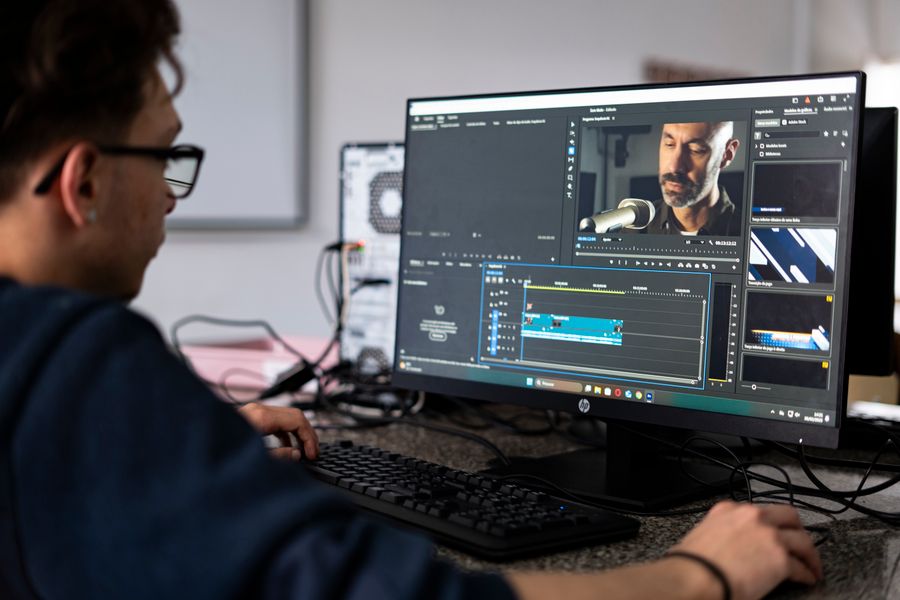
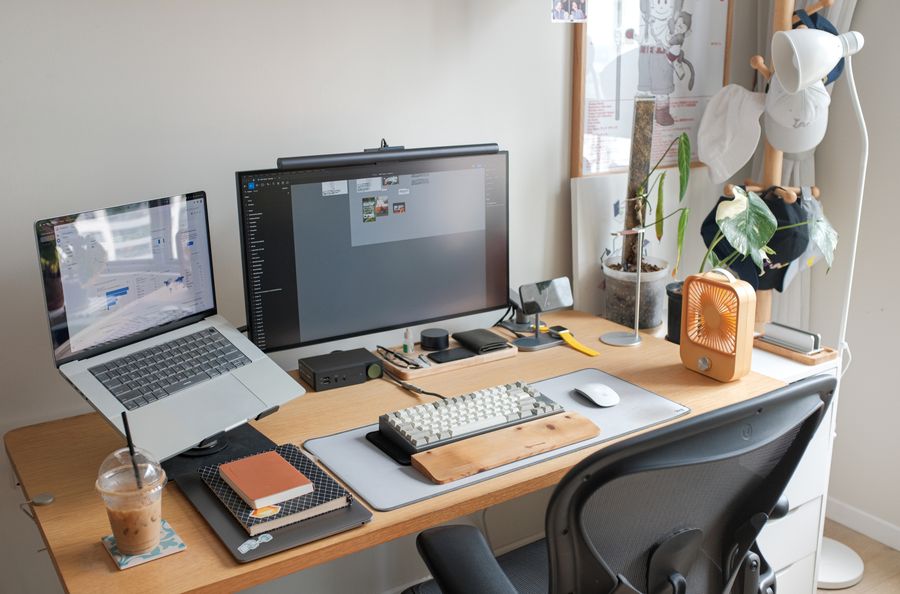
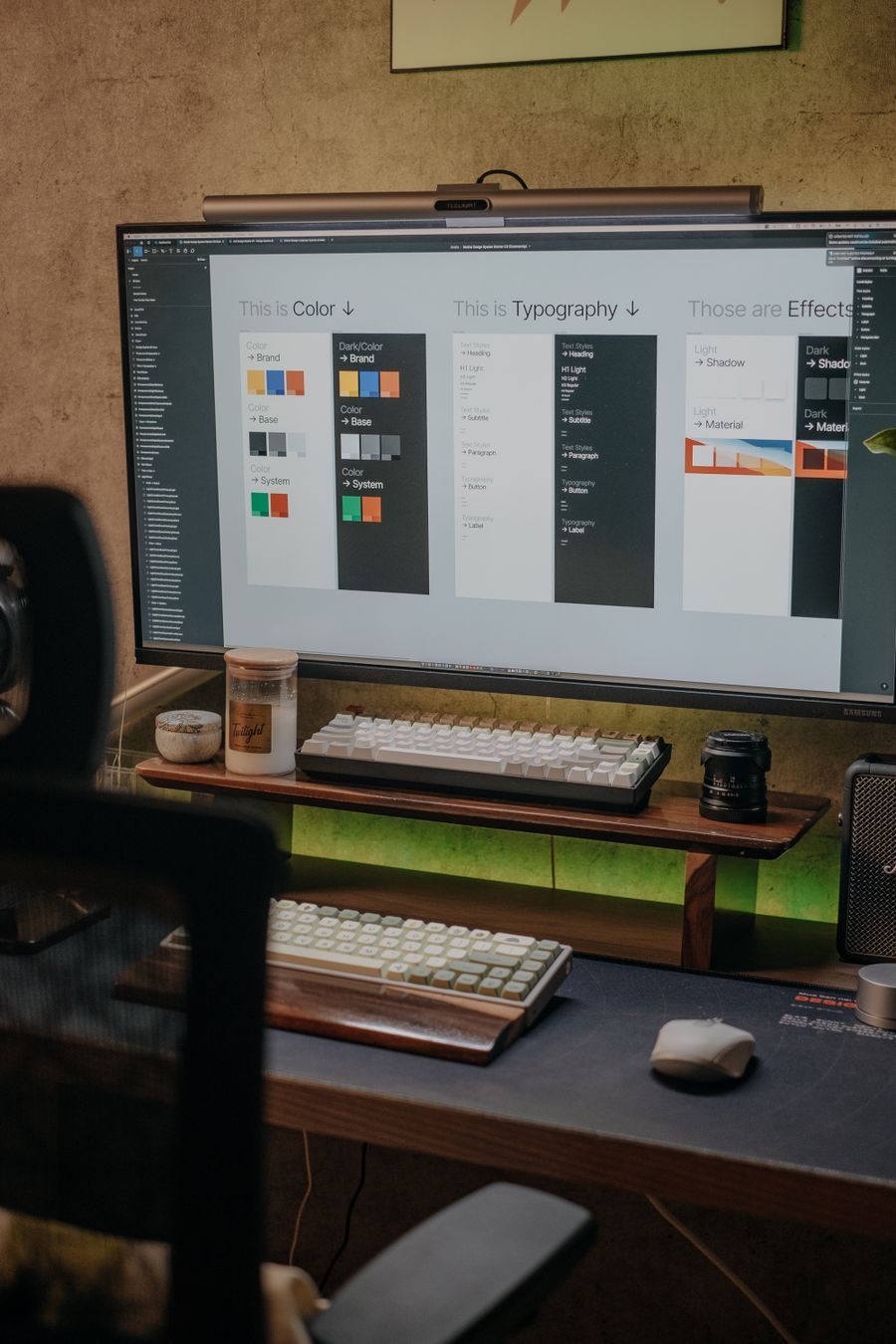
Desk check — proof that Add an Image is a working tool, not a demo
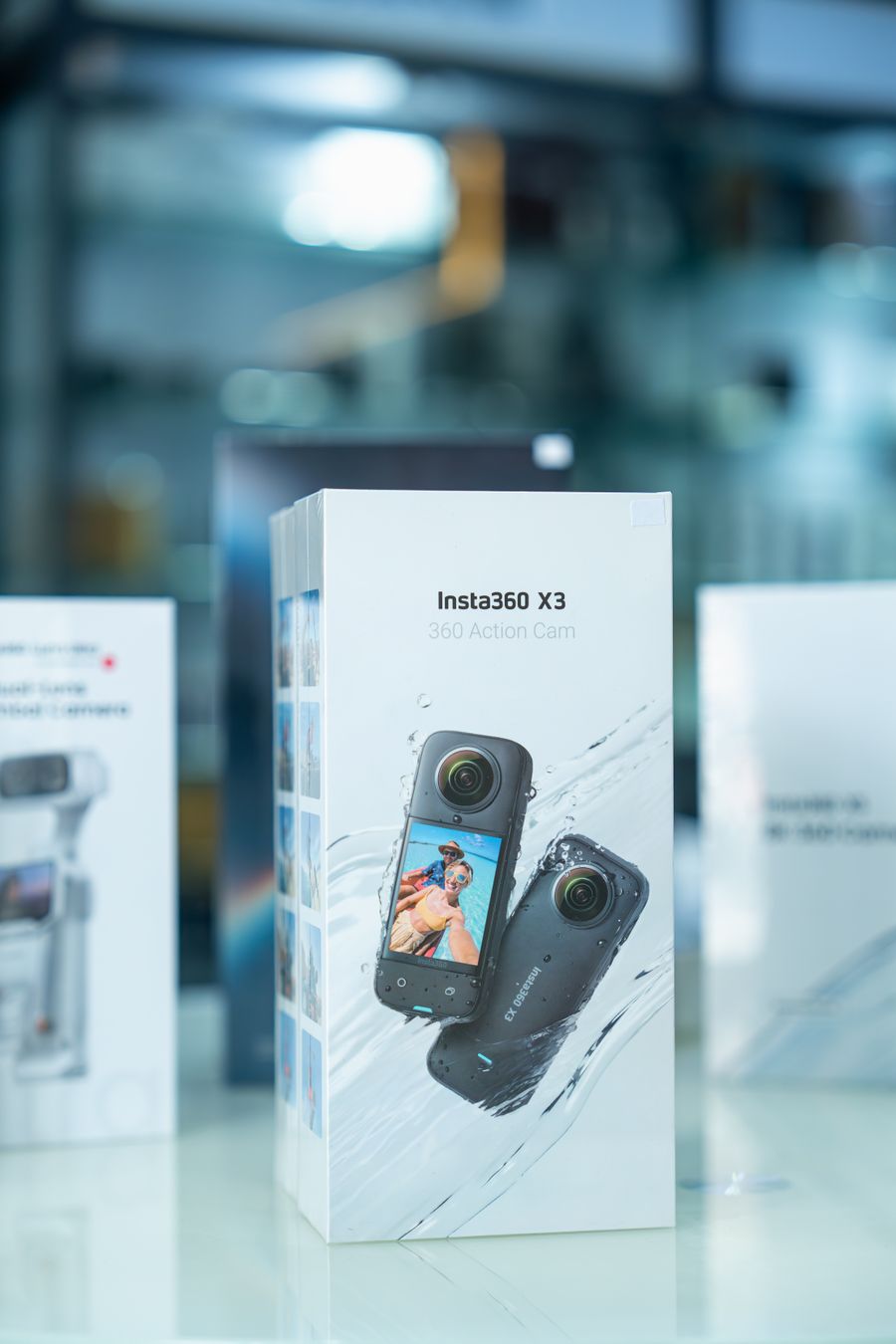
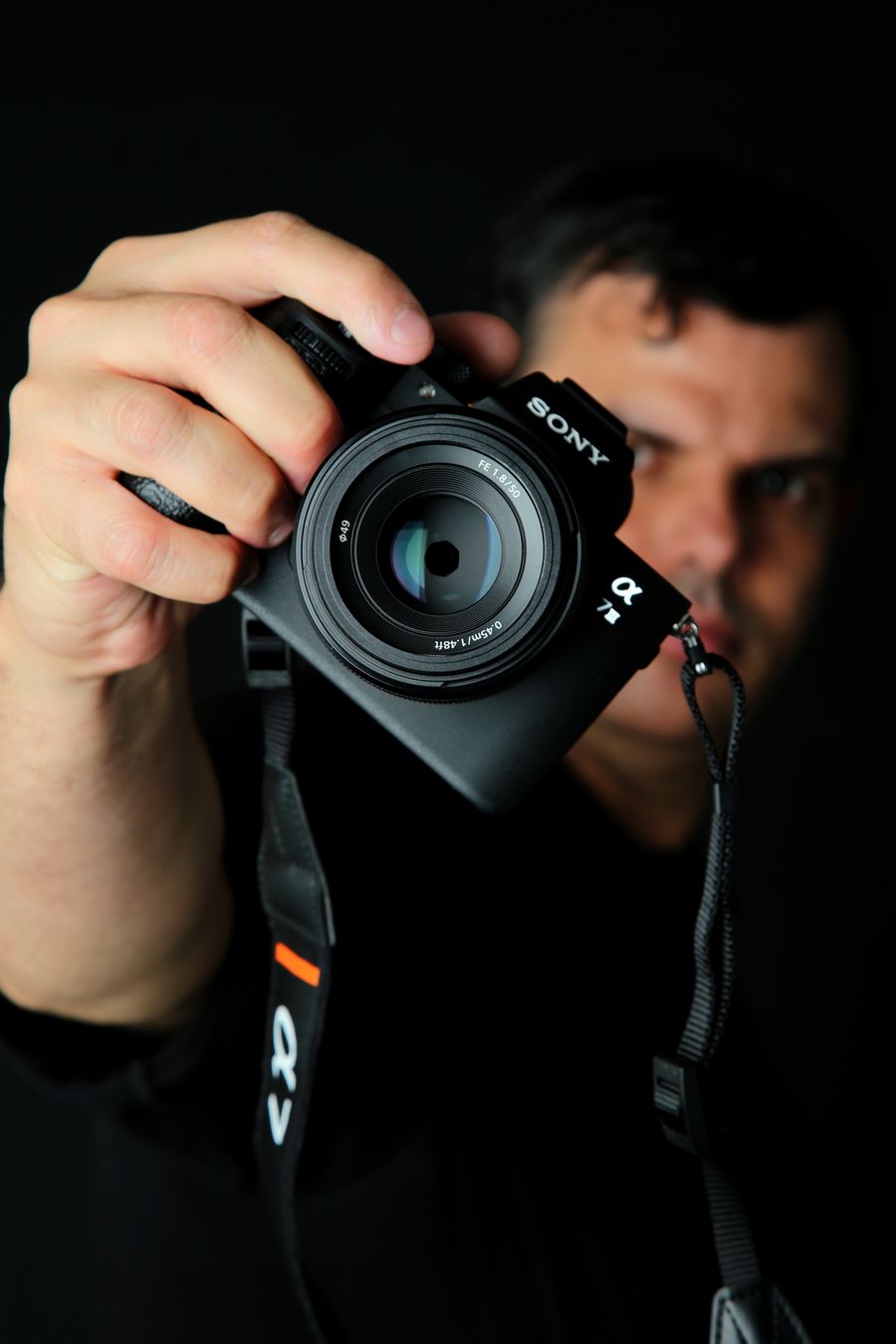
Through the lens. Add an Image handles the fiddly part, you keep the vision
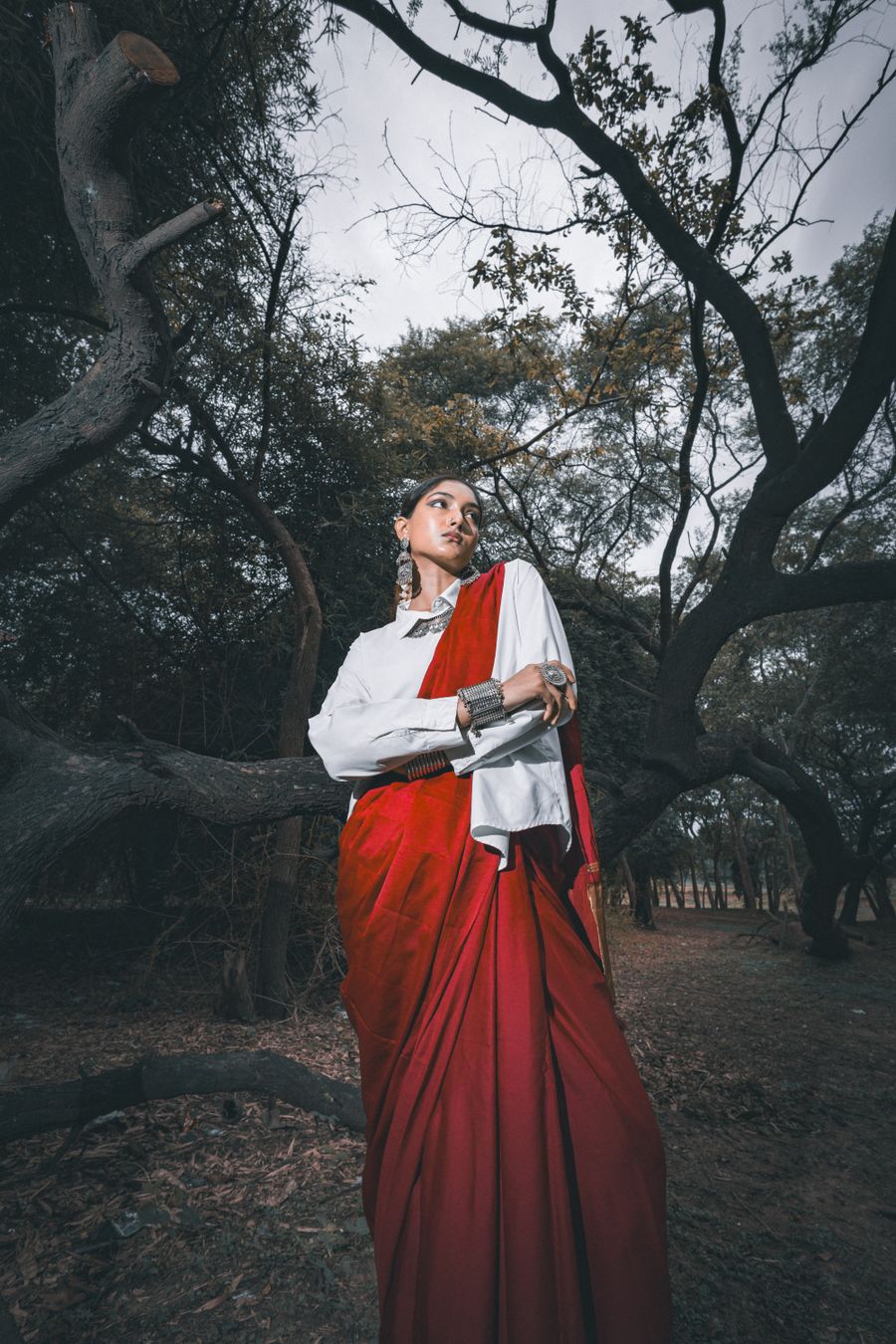
Texture you can almost feel — the Add an Image standard, held
Made to be looked at. This is the output Add an Image was built for
Inside the studio — the kind of result Add an Image makes routine
From rough to Through the lens: the Add an Image workflow, end to end
Through the lens. Every pixel of this passed through Add an Image
Worth a second look — Add an Image at its most useful
The Add an Image payoff, illustrated: No filler, all craft
Fuelled and focused. Add an Image turns "someday" designs into done designs
Inside the studio. Add an Image makes the complicated look casual
Add an Image, dialed in — Pure geometry, no noise, no guesswork
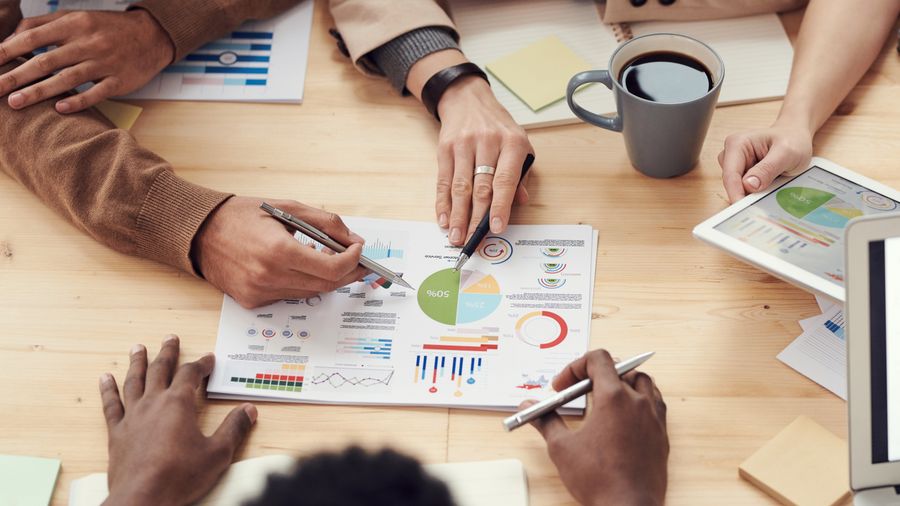
The Add an Image difference, up close: Paper first, pixels after
Fresh off the brush — Add an Image doing what it was designed to do
Desk check — Add an Image, applied exactly where the eye lands
Add an Image in the wild — Faces first, shipped in minutes
Before Add an Image: a blank canvas. After: Faces first
 photoaicompany