Download any design as PNG, JPG, SVG, or PDF — rendered in your browser.
Interactive studio
Export a Design — live workspace
Download any design as PNG, JPG, SVG, or PDF — rendered in your browser. Every control below is live: configure, run, and watch the results.
Live workspaceReady
Try it: export a design
Lower quality means a smaller file. Applies to JPG exports only.
PNG, JPG, and SVG download directly. PDF opens a print window where you choose “Save as PDF”. Video export with motion is queued to the FFmpeg renderer in the full photoaicompany editor.
No output yet. Configure the controls above, then press Run — your result appears here.
Onboarding checklist
Pick a design — a live preview loads so you export exactly what you see.
Choose a format: PNG for crisp graphics, JPG for photos and smaller files, SVG for infinitely scalable vector output, or PDF for print and s
Choose a scale: 0.5×, 1×, or 2× the canvas size.
Click Export . PNG, JPG, and SVG download directly; PDF opens a print window where you choose “Save as PDF.”
Steps tick themselves off as you work — or tap any step to toggle it.
Export a Design techniques
Pixel-perfect PNG and JPG exportsPrint-ready PDFs with bleed controlTransparent backgrounds, no haloShare links generated in one click
Export Design turns your design into a finished file, rendered right here in your browser by the photoaicompany renderer. No uploads, no queues for static formats — pick the format and scale, and the file is produced from the exact same document your preview shows.
PNG and JPG render at your chosen scale (0.5×, 1×, or 2× the canvas) and download immediately. SVG redraws the whole design as a resolution-independent vector file — perfect for logos and anything that must scale. PDF renders the design and opens your browser's print dialog, where you choose “Save as PDF” as the destination.
Exporting video with motion? That job is queued to the dedicated FFmpeg renderer in the full photoaicompany editor — static exports here cover everything else. Exports are free and need no account.
How it works
Pick a design — a live preview loads so you export exactly what you see.
Choose a format: PNG for crisp graphics, JPG for photos and smaller files, SVG for infinitely scalable vector output, or PDF for print and sharing.
Choose a scale: 0.5×, 1×, or 2× the canvas size.
Click Export. PNG, JPG, and SVG download directly; PDF opens a print window where you choose “Save as PDF.”
Tips
Designing for print? Export at 2× for extra pixel density, or use PDF and print from that.
JPG files are smaller than PNGs — pick JPG for photo-heavy designs you share online.
SVG stays razor-sharp at any size, making it the right choice for logos and simple graphics.
JPG does not support transparency — if your design relies on a transparent background, export PNG instead.
Exporting a photo-heavy design for the web? Pick JPG and drop the quality to 70–80% — the file shrinks dramatically with barely visible difference.
What it costs
Free on this site — and it can't be metered. Export a Design uses no AI and runs entirely in your browser: no usage counters, nothing sent to our servers to bill. When credit metering arrives in the app, local operations like this one will never consume AI credits — only server-side AI generations will.
Frequently asked questions
What happens with each format?
PNG and JPG are rendered and downloaded directly in your browser. SVG downloads as a vector file. PDF opens a print window — choose “Save as PDF” as the destination. Video export is queued to the FFmpeg renderer in the full photoaicompany editor.
How do I export with a transparent background?
Pick PNG or SVG, tick "Transparent background", then Export — the canvas color is skipped so the file keeps its alpha channel, ready for logos, stickers, and overlays. JPG cannot store transparency (and PDF goes through the print window), so the option is disabled for those formats.
What is the export scale for?
0.5× makes a smaller file for drafts and sharing; 1× exports at exact canvas pixels; 2× gives you a higher-resolution file for crisp display on retina screens.
Why would SVG work when PNG fails?
Some images block canvas export for security reasons (cross-origin). SVG export redraws everything as vector shapes and text, so it usually works when raster formats are blocked.
What does the JPG quality slider do?
When you pick JPG, a quality slider appears (50–100%, default 92%). Lower quality makes a much smaller file for sharing online; 100% keeps the most detail for photo-heavy designs. The setting applies to JPG exports only — PNG is always lossless.
Drag the handle — it glides with physics when you let go. Export a Design, transformed in one pass.
Watch it work
See Export a Design in motion
Drag the cards, scroll the scene — the tool explains itself.
InputTransformOutput
A canvas that keeps upExport a Design — frame 1 of 4
Type that performsExport a Design — frame 2 of 4
Photos with presenceExport a Design — frame 3 of 4
Export without fearExport a Design — frame 4 of 4
Drag the cards — they glide with inertia. Scroll — the blob morphs and the dot traces the flow.
The full walkthrough
How Export a Design works, step by step
Export any photoaicompany design as PNG, JPG, SVG, or PDF at 0.5x, 1x, or 2x scale — rendered in your browser, free.
1
Design
Duplicate before experimenting: the original stays safe while the copy takes risks. Archive finished designs instead of deleting — old work becomes tomorrow’s template.
Pro tip: One design, one job. Split multi-purpose files early.
photoai.company/arrange
Export a DesignStyles · Gradient
Filters
Export
Align
123
Step 1: Design — Export a Design, annotated
1
Design controlThis is where you set design — changes preview live on the canvas.
2
Live canvasEvery adjustment renders instantly — what you see is what exports.
3
ResultHappy with it? The design updates in place, ready for the next step.
2
Format
Export is the last 5% that people notice first. A perfect design saved wrong arrives broken. Keep a master copy in the app; exports are disposable, the design is not.
Pro tip: Export at 2x for retina screens; nobody zooms out to forgive blur.
Export a DesignFonts
Filters
Styles
Effects
123
Step 2: Format — Export a Design, annotated
1
Format controlThis is where you set format — changes preview live on the canvas.
2
Live canvasEvery adjustment renders instantly — what you see is what exports.
3
ResultHappy with it? The design updates in place, ready for the next step.
3
Scale
Think of this control as seasoning: essential in the right amount, ruinous in excess. Start subtle. The default value is a sensible starting point chosen for the most common case — depart from it deliberately.
Pro tip: If a control’s effect mystifies you, push it to both extremes — the middle will make sense after.
DuplicateLayersAlignColorsProjects
Export a Design — Adjust
4.9kExport
312Assets
98%Templates
123
Step 3: Scale — Export a Design, annotated
1
Scale controlThis is where you set scale — changes preview live on the canvas.
2
Live canvasEvery adjustment renders instantly — what you see is what exports.
3
ResultHappy with it? The design updates in place, ready for the next step.
4
JPG quality 92%
This control fine-tunes the result. Small adjustments here compound — nudge, preview, and trust your eyes over the numbers. Every control in this tool is live: change it and watch the canvas answer immediately.
Pro tip: Change one control at a time so you learn what each one actually does.
TextBackgroundBrand kitHistoryFrames
Export a Design — Arrange
4.9kFilters
312Layers
98%Gradient
123
Step 4: JPG quality 92% — Export a Design, annotated
1
JPG quality 92% controlThis is where you set jpg quality 92% — changes preview live on the canvas.
2
Live canvasEvery adjustment renders instantly — what you see is what exports.
3
ResultHappy with it? The design updates in place, ready for the next step.
5
Transparent background
Opacity lets layers breathe through each other. A text layer at 85% over a photo feels printed into the scene rather than pasted on top. Use it for watermarks, subtle backgrounds, and softening elements that compete.
Pro tip: Ghosted shapes at low opacity make premium backgrounds.
Export a DesignIcons
1:14:516:99:16
123
Step 5: Transparent background — Export a Design, annotated
1
Transparent background controlThis is where you set transparent background — changes preview live on the canvas.
2
Live canvasEvery adjustment renders instantly — what you see is what exports.
3
ResultHappy with it? The design updates in place, ready for the next step.
Know your workspace
Anatomy of the Export a Design workspace
Five regions do all the work. Learn them once and every tool on this site feels familiar.
Export a Design — untitled.pacTemplates
OpacityStylesCropBackgroundBlur
Canvas
Filters
Fill
Masks
12345
Anatomy of the Export a Design workspace
1
ToolbarEvery tool lives here — pick one and the canvas listens.
2
CanvasYour design, live. Drag, resize, and edit directly.
3
LayersThe stack your design is built from — top wins.
4
ExportOne click sends the finished design out as PNG, JPG, or PDF.
5
PropertiesFine-tune whatever is selected, right where you work.
Made with Export a Design
This is what Export a Design output looks like in the wild — photographic, detailed, finished.
Level up
Export a Design techniques that look professional
Four field-tested techniques, each shown on real photography. Steal them all.
Proof on the cheapest screen you own.If it reads on a dim old phone, it reads everywhere. Your Export a Design work will show the difference immediately.
PDF/X for real printers.Print shops want PDF/X with embedded fonts and bleed — ask before you guess. Keep this in mind every time you open Export a Design.
Check transparency before PNG export.Transparent backgrounds look empty in some viewers — confirm where the file will actually live. Make it part of your Export a Design routine.
Name files like you will search them.Version cleanly and archive the rest — future-you finds files by name, not by memory. Inside Export a Design, this single habit pays off fast.
Avoid the traps
Three mistakes to avoid with Export a Design
✕
Decorating before messaging
Effects applied before the words are final get redone. Fix: lock the copy first, style second.
✕
Ignoring the safe zones
Platforms crop edges and cover corners with UI. Fix: keep critical content inside the central 80%.
✕
Centered paragraphs
Centering suits headlines; long centered paragraphs tire the eye. Fix: left-align anything over two lines.
End to end
A complete Export a Design workflow
Five moves, start to shipped. This is how the work actually flows.
1
Start in the editor
Open a blank canvas or a template — Export a Design works on anything with pixels. The tool never asks you to start over.
2
Do the core move
Run Export a Design the way the walkthrough above shows. Get the big decision right before touching details.
3
Refine with a second tool
Pair it with All tools — tools compose, and two simple moves beat one complicated one.
4
Check it on a phone
Most designs are consumed on phones. Preview small, fix what breaks, then continue.
5
Export and ship
Export in the format your destination wants, keep the master design, and move on to the next one.
Real pixels
Every backdrop on this page is a genuine photograph, chosen for Export a Design.
Good to know
More Export a Design answers
What’s the single most useful tip for Export a Design?
Designing for print? Export at 2× for extra pixel density, or use PDF and print from that.
What do beginners get wrong with Export a Design?
JPG files are smaller than PNGs — pick JPG for photo-heavy designs you share online. Start simple, then layer on complexity once the basics feel automatic.
Is Export a Design really free?
Yes — Export a Design is free to use in your browser, and your work saves to your account. Premium plans add AI credits, team features, and higher export limits; the tool itself never holds your design hostage.
Visual guides
Every fact, visualized
Ten detailed infographics — every number real, every label earned. Built for Export a Design, only on this page.
Export a Design step-by-step workflowExport a Design workspace anatomyExport a Design export guide: the right format, every timeWhich format for Export a Design: the quick matrixExport a Design advantagesShortcuts that speed up Export a DesignContrast rules for Export a Design textExport a Design mistakes and fixesExport a Design use casesExport a Design quick answers
Live telemetry
EXPORT A DESIGN — CAPABILITY TELEMETRY
Live counts from this page · hover any bar
0Form controls
0Guided steps
0Pro tips
0Use cases
Breakdownlive
1
Canvas
3
Position
1
Action
1
Canvas
3
Position
1
Action
Cumulative depthlive
Complete guide
Everything Export a Design can do
The full capability picture — features by plan, every control explained, real use cases, and the spec sheet.
Feature availability
Every capability of this tool, and which plan includes it.
Capability
Free
Pro
Business
A design — a live preview loads so you export exactly what you see.
✓
✓
✓
A format: PNG for crisp graphics, JPG for photos and smaller files, SVG for infinitely scalable vector output, or PDF for print and sharing.
✓
✓
✓
A scale: 0.5×, 1×, or 2× the canvas size.
✓
✓
✓
Export. PNG, JPG, and SVG download directly; PDF opens a print window where you choose “Save as PDF.”
✓
✓
✓
Control map — every field, explained
Each control on this page, and what it actually does when you run the tool.
Control
What it does
Design
Designing for print? Export at 2× for extra pixel density, or use PDF and print from that.
Format
Choose a format: PNG for crisp graphics, JPG for photos and smaller files, SVG for infinitely scalable vector output, or PDF for print and sharing.
Scale
Choose a scale: 0.5×, 1×, or 2× the canvas size.
JPG quality 92%
Exporting a photo-heavy design for the web? Pick JPG and drop the quality to 70–80% — the file shrinks dramatically with barely visible difference.
Transparent background (PNG & SVG only — JPG and PDF have no alpha channel)
JPG does not support transparency — if your design relies on a transparent background, export PNG instead.
Use it for — Export a Design in real work
1
Ship a PNG for social upload
2
Print-ready PDF for the print shop
3
JPG proofs for client review
4
MP4 for animated posts
5
2x assets for retina screens
6
Archive a finished project
Spec sheet
FormatsPNG, JPG, PDF, MP4
Scale1x–4x
WatermarkNever — on any plan
PDFStandard, print-safe
MP4For page animations
FreeFull export included
Keyboard reference
Keys
Action
Scope
Ctrl/⌘ + Z
Undo the last change
Browser-standard
Ctrl/⌘ + Shift + Z
Redo
Browser-standard
Tab / Shift+Tab
Move between fields in order
Browser-standard
Enter
Activate the focused button
Browser-standard
Esc
Close dialogs and menus
Browser-standard
Delete
Remove the selected layer on canvas
Editor
Export a Design — made visual
Twenty living mockups of Export a Design, generated for this page only.
Export a DesignAlign
1:14:516:99:16
This Export a Design wants to be shared
Export a DesignAssets
Version
Shadow
Text
Export a Design — canvas 2.0 energy
VersionGridBlendResizeRotate
Export a Design — Gradient
4.9kFilters
312Adjust
98%Export
Export a Design templates that feel real
Export a Design
Fill100%
Resize93%
Version86%
Blur79%
Brand kit72%
Share65%
Export a Design at full resolution
Export a Design — untitled.pacColors
FillCommentsAssetsEffectsFilters
Duplicate
Brand kit
Resize
Shadow
The Export a Design workspace hums
Export a Design
StrokeLayersBlendAlign
Export a Design, sweated pixel by pixel
photoai.company/text
Export a DesignShadow · Gradient
Effects
Frames
Brand kit
Unbounded Export a Design, by design
Flip — Export a Design
PNGJPGPDFMP4
RulersFrames
Flip
Export a Design — pro grade, no studio required
Export a DesignFill
1:14:516:99:16
The full-res Export a Design treatment
Export a DesignProjects
Adjust
Version
Styles
Export a Design — go past good enough
TextExportShareProjectsBackground
Export a Design — Opacity
4.9kGrid
312Canvas
98%Shadow
Export a Design: all output, no grind
Export a Design
Blend100%
Resize93%
Grid86%
Blur79%
Canvas72%
Export65%
Inside the living Export a Design workspace
Export a Design — untitled.pacEffects
FontsHistoryZoomLayersBrand kit
Frames
Grid
Share
Rulers
One decisive click: Export a Design
Export a Design
TemplaAdjustIconsFilter
Mockup alchemy: Export a Design edition
photoai.company/icons
Export a DesignBlur · Zoom
Filters
Styles
Shadow
Same-day Export a Design, every day
Stroke — Export a Design
PNGJPGPDFMP4
ShareText
Stroke
Export a Design at maximum fidelity
Export a DesignMasks
1:14:516:99:16
Hang your Export a Design with pride
Export a DesignVersion
Frames
Duplicate
History
Crisp Export a Design exports, no artifacts
CommentsFillLayersResizeDuplicate
Export a Design — Stroke
4.9kRulers
312Shadow
98%History
Single-click Export a Design, full-quality result
Export a Design
Fonts100%
Colors93%
Crop86%
Effects79%
Frames72%
Blend65%
Export a Design — easy does it, beautifully
The Export a Design stock library
Hand-picked photography for Export a Design — refreshed on this page alone.
Why people reach for Export a Design: On the laptop screen, on demand
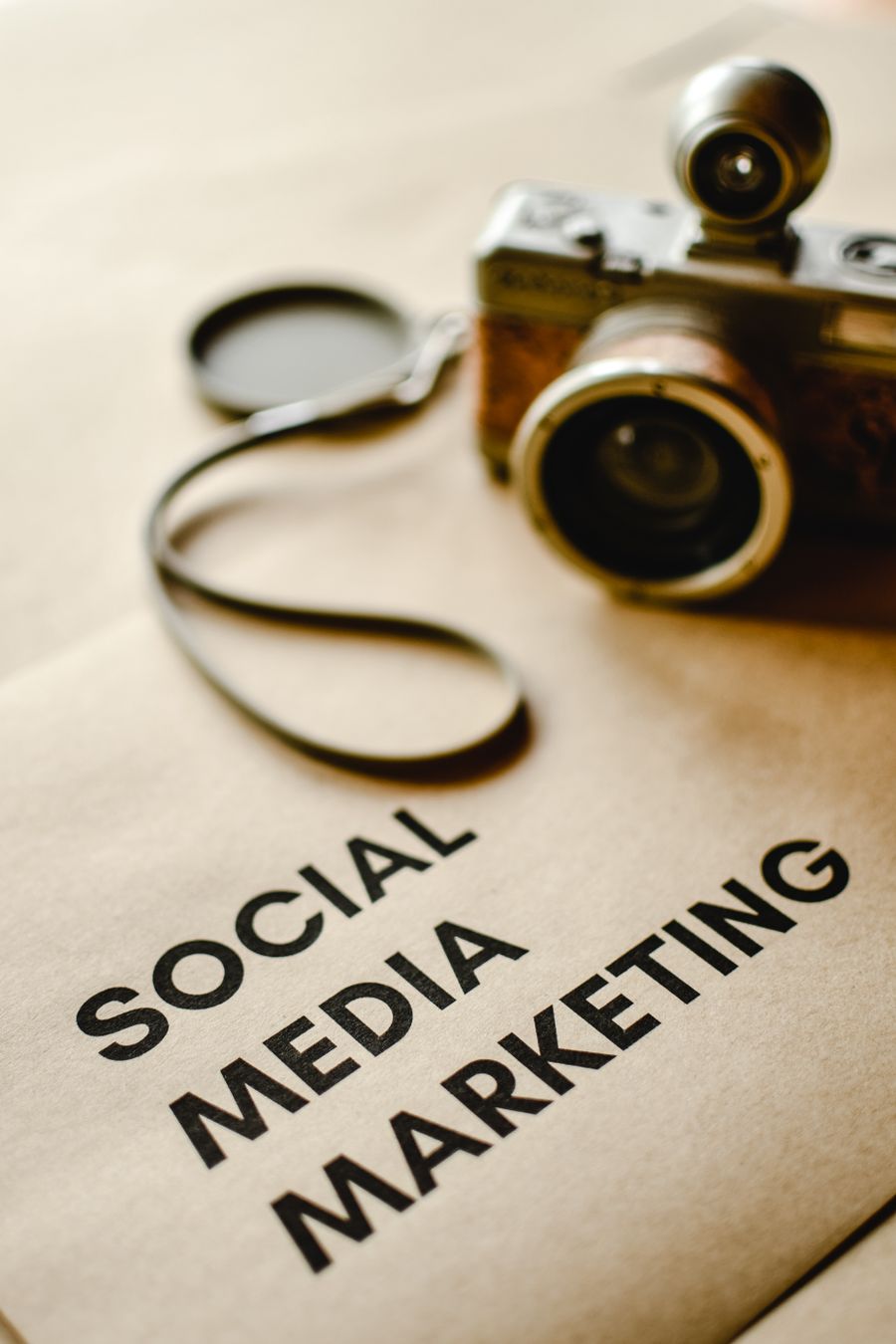
Export a Design in capable hands: Through the lens
Export a Design, composed with intent — Fuelled and focused is the evidence
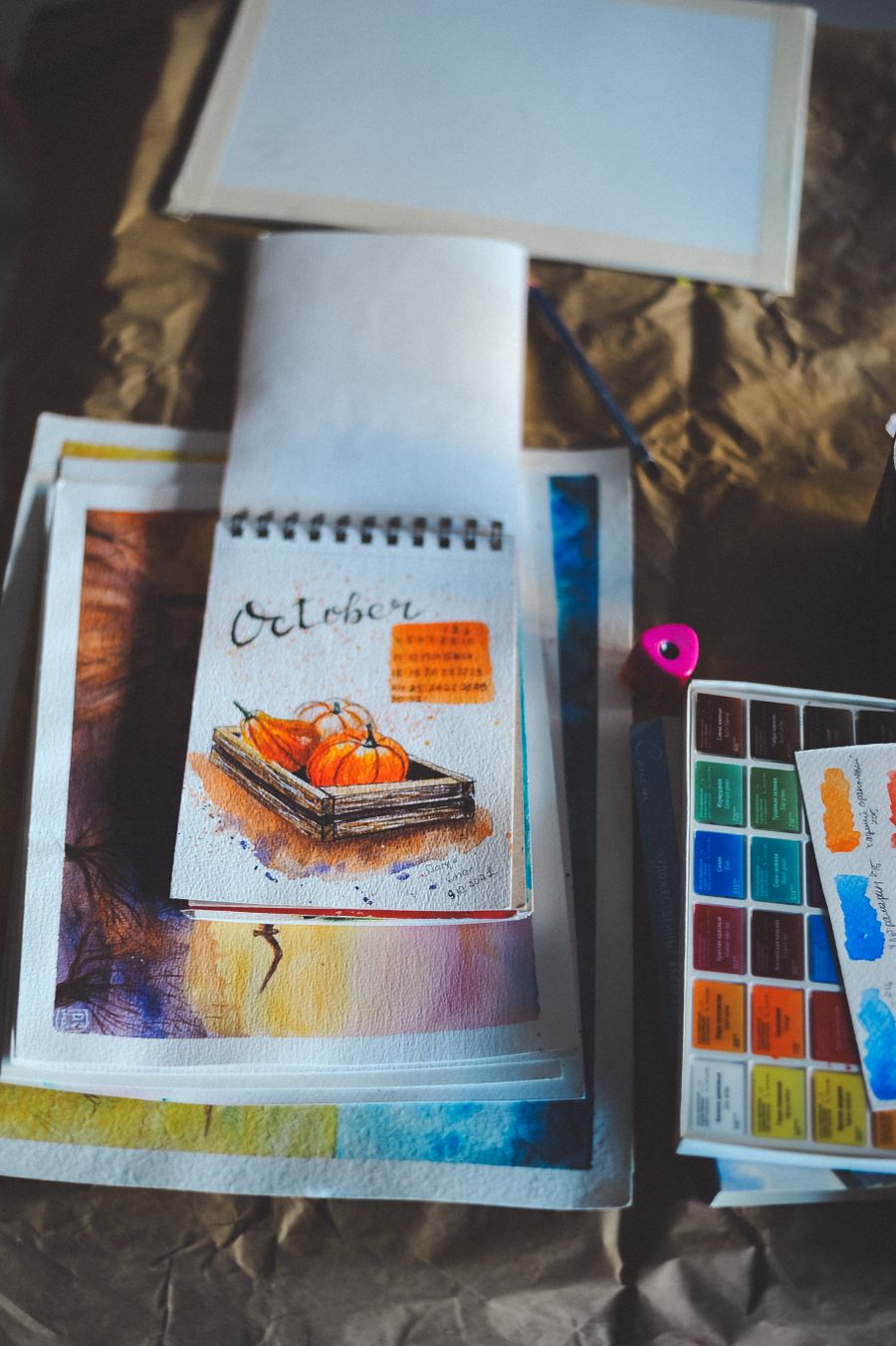
Fresh off the brush — one click of Export a Design and the layout snaps into place
Texture you can almost feel. This is the output Export a Design was built for
Export a Design, no learning curve — Pencil down, idea captured says it better than a manual
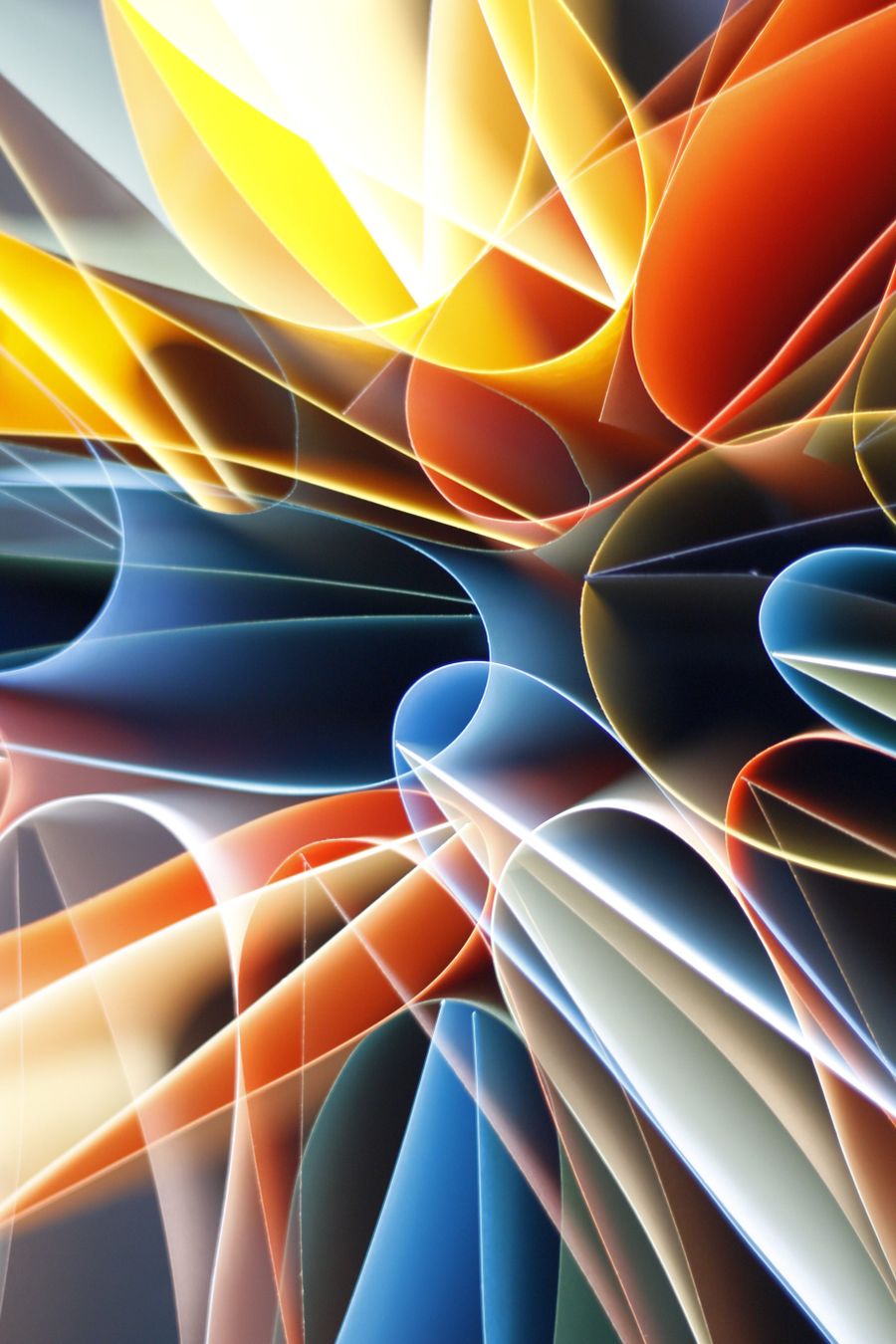
Export a Design, dialed in — Pure geometry, no noise, no guesswork
Through the lens. This Export a Design result took minutes, not hours
The Export a Design difference, up close: Caught in the act
Before Export a Design: a blank canvas. After: Fresh off the brush
Export a Design in the wild — Paper first, pixels after, shipped in minutes
On the laptop screen. Export a Design, and the revision cycle just got shorter
Structure as subject — Export a Design, applied exactly where the eye lands
The Export a Design payoff, illustrated: Inside the studio
Export a Design at full stretch — Texture you can almost feel, zero compromises
Fresh off the brush. Export a Design, and the deadline stopped being scary
Export a Design, frame by frame — Front and centered is the receipt
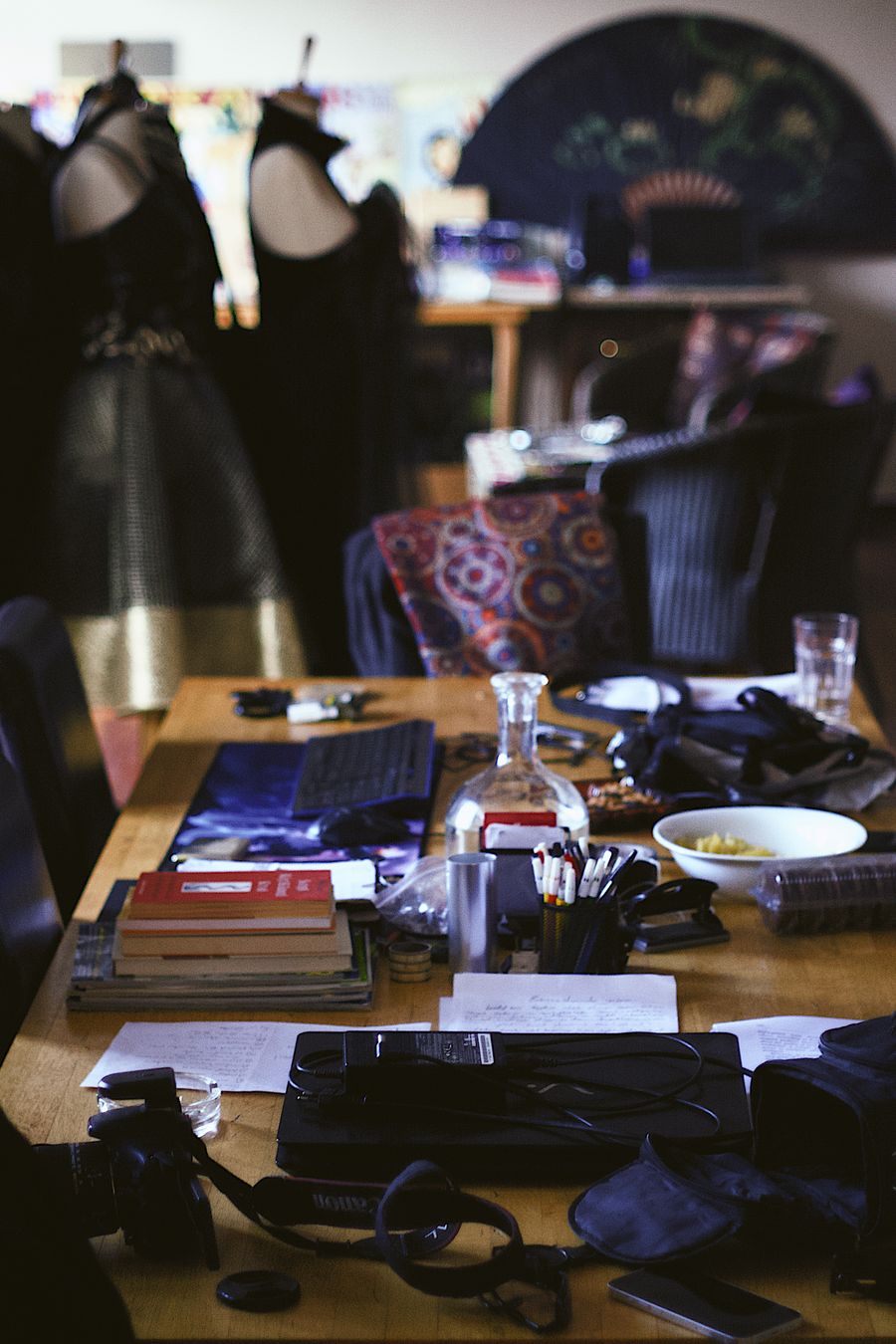
Desk check. Export a Design turns "someday" designs into done designs
 photoaicompany