Browse production-ready starter layouts, rendered live, for social, marketing, documents, and presentations.
Interactive studio
Browse Design Templates — live workspace
Browse production-ready starter layouts, rendered live, for social, marketing, documents, and presentations. Every control below is live: configure, run, and watch the results.
Live workspaceReady
Try it: browse the template gallery
No output yet. Configure the controls above, then press Run — your result appears here.
Onboarding checklist
Filter the gallery by category — Social, Marketing, Document, or Presentation — or browse everything.
Each card shows a live-rendered thumbnail, the canvas size, and the layer count.
Click Use this template to jump to the apply-template tool with that template pre-selected.
Give the new design a name and start editing immediately.
Steps tick themselves off as you work — or tap any step to toggle it.
Browse Design Templates techniques
Thousands of proven starting pointsFilter templates by size and moodPreview before you applyFresh template drops every week
A blank canvas is the slowest way to start. List Templates opens photoaicompany's starter catalog — production-ready layouts for social posts, stories, thumbnails, marketing promos, documents, and presentations — each rendered live on this page as a real thumbnail at its true proportions.
Every template shows its category, canvas size, and layer count, so you know exactly what you're starting from. Thumbnails are rendered from the actual template data by the photoaicompany renderer — never mockups — so the proportions and styling you see are what lands in your design.
Applying a template starts a brand-new, fully editable design: every element becomes a normal layer you can move, recolor, retype, or delete. It's a head start, not a locked layout.
How it works
Filter the gallery by category — Social, Marketing, Document, or Presentation — or browse everything.
Each card shows a live-rendered thumbnail, the canvas size, and the layer count.
Click Use this template to jump to the apply-template tool with that template pre-selected.
Give the new design a name and start editing immediately.
Tips
Filter by category to skip straight to the layout family you need.
Check the layer count before applying — fewer layers means a faster customization pass.
Template text is fully editable placeholder copy: swap in your own wording right after applying.
What it costs
Free on this site — and it can't be metered. Browse Design Templates uses no AI and runs entirely in your browser: no usage counters, nothing sent to our servers to bill. When credit metering arrives in the app, local operations like this one will never consume AI credits — only server-side AI generations will.
Frequently asked questions
Does browsing or applying a template change my existing designs?
No. Applying a template starts a new design — your original designs are never modified or deleted.
Can I edit a design after applying a template?
Everything. Every element of a template is a normal, fully editable text, shape, or image layer in the new design — change text, colors, fonts, sizes, or delete elements entirely.
Are the thumbnails accurate?
Template thumbnails render right here on this page from the actual template data, so what you see is the real layout at its true proportions.
Drag the handle — it glides with physics when you let go. Browse Design Templates, transformed in one pass.
Watch it work
See Browse Design Templates in motion
Drag the cards, scroll the scene — the tool explains itself.
InputTransformOutput
A canvas that keeps upBrowse Design Templates — frame 1 of 4
Type that performsBrowse Design Templates — frame 2 of 4
Photos with presenceBrowse Design Templates — frame 3 of 4
Export without fearBrowse Design Templates — frame 4 of 4
Drag the cards — they glide with inertia. Scroll — the blob morphs and the dot traces the flow.
The full walkthrough
How Browse Design Templates works, step by step
Browse photoaicompany's starter template catalog with live-rendered thumbnails — social, marketing, document, and presentation layouts.
1
Category
Think of this control as seasoning: essential in the right amount, ruinous in excess. Start subtle. The default value is a sensible starting point chosen for the most common case — depart from it deliberately.
Pro tip: If a control’s effect mystifies you, push it to both extremes — the middle will make sense after.
Category controlThis is where you set category — changes preview live on the canvas.
2
Live canvasEvery adjustment renders instantly — what you see is what exports.
3
ResultHappy with it? The design updates in place, ready for the next step.
Know your workspace
Anatomy of the Browse Design Templates workspace
Five regions do all the work. Learn them once and every tool on this site feels familiar.
Browse Design Templates — untitled.pacResize
IconsRotateFontsZoomAssets
Fill
Shadow
Crop
Canvas
12345
Anatomy of the Browse Design Templates workspace
1
ToolbarEvery tool lives here — pick one and the canvas listens.
2
CanvasYour design, live. Drag, resize, and edit directly.
3
LayersThe stack your design is built from — top wins.
4
ExportOne click sends the finished design out as PNG, JPG, or PDF.
5
PropertiesFine-tune whatever is selected, right where you work.
The Browse Design Templates standard
No flat colors, no gradients — just real imagery, composed with intent.
Level up
Browse Design Templates techniques that look professional
Four field-tested techniques, each shown on real photography. Steal them all.
70% right is the sweet spot.A template that needs no changes taught you nothing; one that needs everything wasted your time. Browse Design Templates rewards this discipline more than most tools do.
Save your version as a template.The customized design becomes the starting line for the next one. Keep this in mind every time you open Browse Design Templates.
Archive the almosts.Templates you nearly used are research — tag them for the next brief. Your Browse Design Templates work will show the difference immediately.
Search by use case, not style.“Sale announcement” finds the right bones faster than “minimal beige” ever will. Inside Browse Design Templates, this single habit pays off fast.
Avoid the traps
Three mistakes to avoid with Browse Design Templates
✕
Decorating before messaging
Effects applied before the words are final get redone. Fix: lock the copy first, style second.
✕
Tiny text on busy photos
Small type disappears into photographic detail. Fix: grow the size, add a soft scrim behind it, or move the copy to a quiet zone.
✕
Ignoring the safe zones
Platforms crop edges and cover corners with UI. Fix: keep critical content inside the central 80%.
End to end
A complete Browse Design Templates workflow
Five moves, start to shipped. This is how the work actually flows.
1
Start in the editor
Open a blank canvas or a template — Browse Design Templates works on anything with pixels. The tool never asks you to start over.
2
Do the core move
Run Browse Design Templates the way the walkthrough above shows. Get the big decision right before touching details.
3
Refine with a second tool
Pair it with All tools — tools compose, and two simple moves beat one complicated one.
4
Check it on a phone
Most designs are consumed on phones. Preview small, fix what breaks, then continue.
5
Export and ship
Export in the format your destination wants, keep the master design, and move on to the next one.
Made with Browse Design Templates
This is what Browse Design Templates output looks like in the wild — photographic, detailed, finished.
Good to know
More Browse Design Templates answers
What’s the single most useful tip for Browse Design Templates?
Filter by category to skip straight to the layout family you need.
What do beginners get wrong with Browse Design Templates?
Check the layer count before applying — fewer layers means a faster customization pass. Start simple, then layer on complexity once the basics feel automatic.
Is Browse Design Templates really free?
Yes — Browse Design Templates is free to use in your browser, and your work saves to your account. Premium plans add AI credits, team features, and higher export limits; the tool itself never holds your design hostage.
Visual guides
Every fact, visualized
Ten detailed infographics — every number real, every label earned. Built for Browse Design Templates, only on this page.
Browse Design Templates step-by-step workflowBrowse Design Templates workspace anatomyBrowse Design Templates export guide: the right format, every timeWhich format for Browse Design Templates: the quick matrixBrowse Design Templates advantagesShortcuts that speed up Browse Design TemplatesContrast rules for Browse Design Templates textBrowse Design Templates mistakes and fixesBrowse Design Templates use casesBrowse Design Templates quick answers
Live telemetry
BROWSE DESIGN TEMPLATES — CAPABILITY TELEMETRY
Live counts from this page · hover any bar
0Form controls
0Guided steps
0Pro tips
0Use cases
Breakdownlive
1
Action
1
Action
Cumulative depthlive
Complete guide
Everything Browse Design Templates can do
The full capability picture — features by plan, every control explained, real use cases, and the spec sheet.
Feature availability
Every capability of this tool, and which plan includes it.
Capability
Free
Pro
Business
Filter the gallery by category — Social, Marketing, Document, or Presentation — or browse everything.
✓
✓
✓
Each card shows a live-rendered thumbnail, the canvas size, and the layer count.
✓
✓
✓
Use this template to jump to the apply-template tool with that template pre-selected.
✓
✓
✓
Give the new design a name and start editing immediately.
✓
✓
✓
Control map — every field, explained
Each control on this page, and what it actually does when you run the tool.
Control
What it does
Category
Filter by category to skip straight to the layout family you need.
Use it for — Browse Design Templates in real work
1
Browse by campaign need
2
Filter to presentation decks
3
Find print-ready layouts
4
Discover new categories
5
Shortlist before committing
6
See what Pro unlocks
Spec sheet
CategoriesFull catalog
FilterBy category
PreviewFull-size
Free tierGenerous selection
ProFull library
New dropsRegularly
Keyboard reference
Keys
Action
Scope
Ctrl/⌘ + Z
Undo the last change
Browser-standard
Ctrl/⌘ + Shift + Z
Redo
Browser-standard
Tab / Shift+Tab
Move between fields in order
Browser-standard
Enter
Activate the focused button
Browser-standard
Esc
Close dialogs and menus
Browser-standard
Delete
Remove the selected layer on canvas
Editor
Browse Design Templates — made visual
Twenty living mockups of Browse Design Templates, generated for this page only.
photoai.company/opacity
Browse Design TemplatesShare · Layers
Background
Fill
Align
Browse Design Templates — every pixel accounted for
HistoryCanvasShadowZoomBrand kit
Browse Design Templates — Effects
4.9kAdjust
312Rotate
98%Text
Mockup magic for Browse Design Templates
Browse Design Templates
CanvasShareRulersEffect
Browse Design Templates — sharp at every zoom
Browse Design TemplatesArrange
Projects
Shadow
Text
Inside the living Browse Design Templates workspace
Browse Design TemplatesOpacity
1:14:516:99:16
Browse Design Templates goes feral (in a good way)
Browse Design Templates — untitled.pacVersion
FontsLayersColorsRotateBlend
Zoom
Arrange
Adjust
Frames
Browse Design Templates — every stroke visible as it happens
Fill — Browse Design Templates
PNGJPGPDFMP4
ExportStroke
Fill
Browse Design Templates, delivered at the speed of thought
Browse Design Templates
Text100%
Frames93%
Flip86%
Layers79%
Crop72%
Templates65%
Share-ready Browse Design Templates, one click away
photoai.company/icons
Browse Design TemplatesFlip · History
Rulers
Crop
Align
Rethink the canvas, remake the Browse Design Templates
FillAlignCanvasTemplatesStroke
Browse Design Templates — Fonts
4.9kIcons
312Grid
98%Layers
Taking Browse Design Templates apart and rebuilding it better
Browse Design Templates
AdjustLayersStylesShadow
Browse Design Templates — the mockup is alive
Browse Design TemplatesHistory
Frames
Adjust
Version
Browse Design Templates — craft every pixel
Browse Design TemplatesText
1:14:516:99:16
Browse Design Templates — context is everything
Browse Design Templates — untitled.pacShadow
StylesAlignShareTemplatesBlur
Grid
Effects
Text
Export
Share the Browse Design Templates, keep the credit
Flip — Browse Design Templates
PNGJPGPDFMP4
BlendFonts
Flip
The Browse Design Templates canvas, reborn
Browse Design Templates
Masks100%
Resize93%
Blur86%
Flip79%
Zoom72%
Fill65%
This Browse Design Templates has a job to do
photoai.company/layers
Browse Design TemplatesArrange · Styles
Opacity
Rulers
Export
Full-res or nothing: Browse Design Templates
AssetsZoomStylesGridRotate
Browse Design Templates — Export
4.9kVersion
312Adjust
98%Colors
Browse Design Templates — maximum output, minimum effort
Browse Design Templates
RotateFlipHistorIcons
Browse Design Templates on a canvas that thinks ahead
Browse Design TemplatesShare
Assets
Fonts
Resize
Watch Browse Design Templates work, live on the canvas
The Browse Design Templates stock library
Hand-picked photography for Browse Design Templates — refreshed on this page alone.
Pure geometry, no noise. Every pixel of this passed through Browse Design Templates
Faces first. This is the output Browse Design Templates was built for
Why people reach for Browse Design Templates: Paper first, pixels after, on demand
From rough to Faces first: the Browse Design Templates workflow, end to end
Browse Design Templates, no learning curve — Pencil down, idea captured says it better than a manual
No templates were harmed: On the laptop screen, built freehand with Browse Design Templates
Faces first. Browse Design Templates makes the complicated look casual
Browse Design Templates, frame by frame — Pure geometry, no noise is the receipt
Structure as subject — proof that Browse Design Templates is a working tool, not a demo
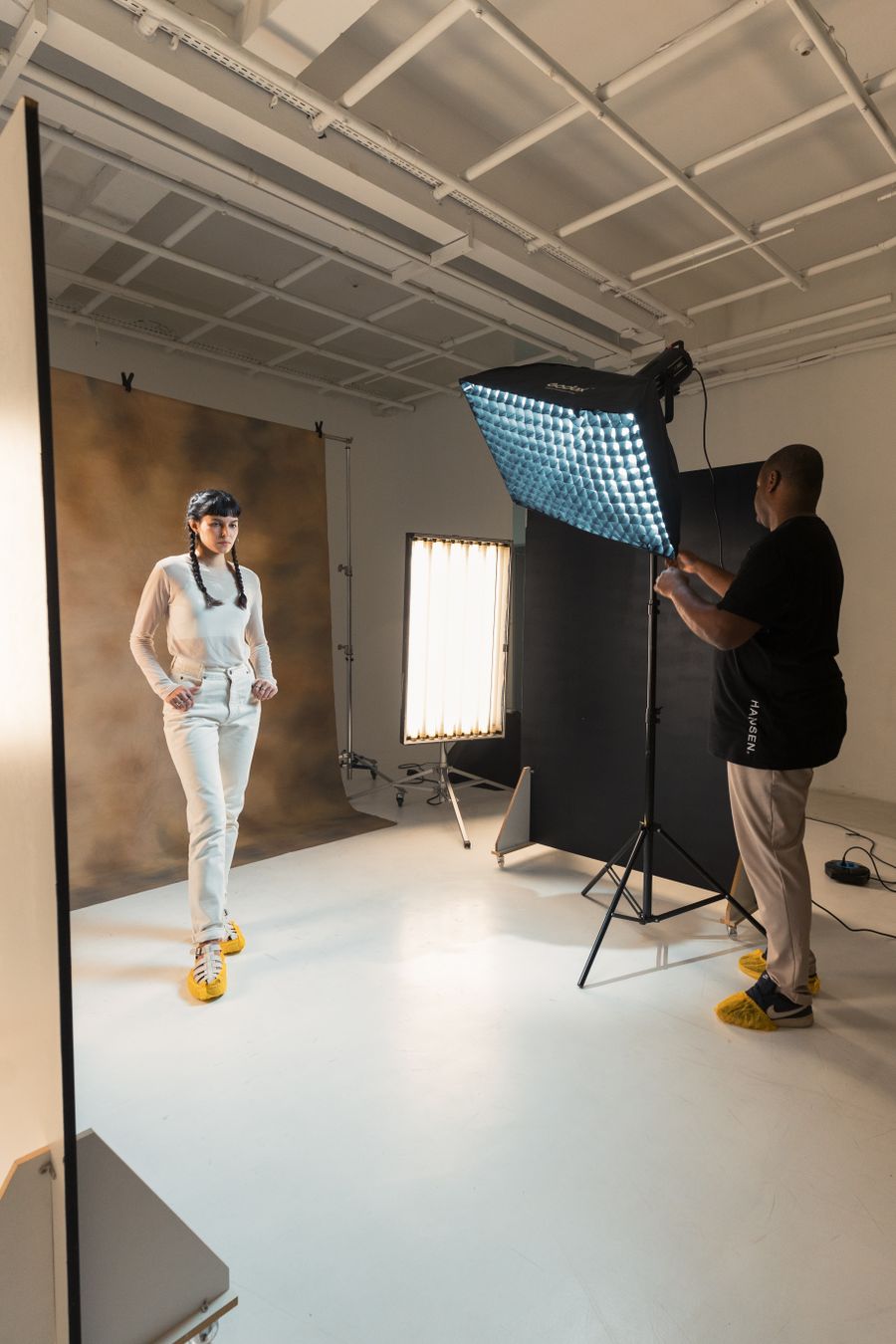
Inside the studio. Browse Design Templates, and the revision cycle just got shorter
Browse Design Templates at full stretch — Sharp at every zoom, zero compromises
Browse Design Templates, dialed in — The details matter, no guesswork
The Browse Design Templates payoff, illustrated: Worth a second look
On the laptop screen — Browse Design Templates at its most useful
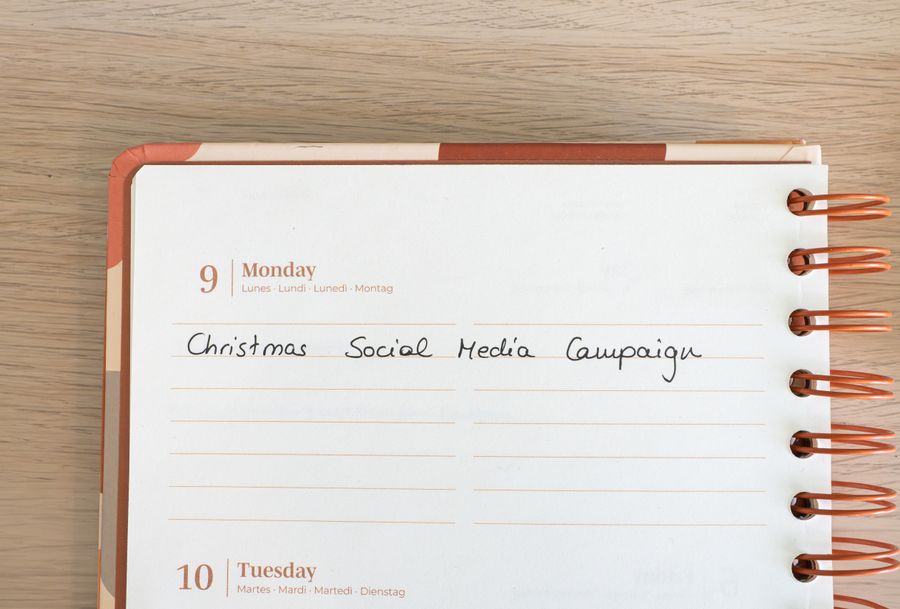
Seasonal, not cheesy — Browse Design Templates, applied exactly where the eye lands
The Browse Design Templates difference, up close: Faces first
Browse Design Templates in capable hands: Paper first, pixels after
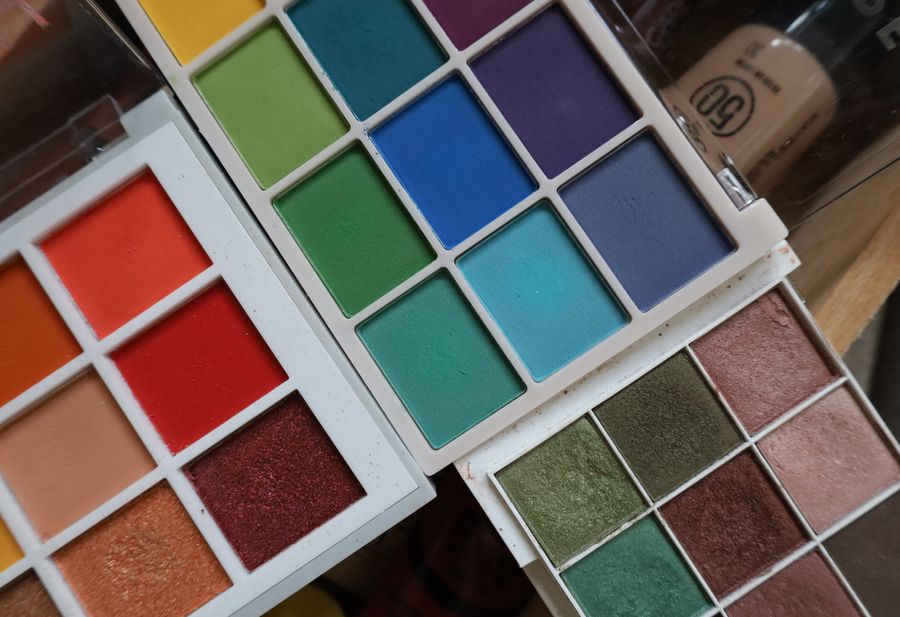
Proof of Browse Design Templates, exhibit A: Color, turned all the way up
 photoaicompany