Headlines, captions, and quotes in real fonts — placed exactly where you want them.
Interactive studio
Add Text — live workspace
Headlines, captions, and quotes in real fonts — placed exactly where you want them. Every control below is live: configure, run, and watch the results.
Live workspaceReady
Try it: add text to a design
No output yet. Configure the controls above, then press Run — your result appears here.
Onboarding checklist
Pick the design you want to add text to.
Type your text — up to 2000 characters, multiple lines allowed.
Choose a font, size, color, and alignment; toggle bold or italic if you like.
Optionally set exact X/Y coordinates, or leave them blank to center the text.
Steps tick themselves off as you work — or tap any step to toggle it.
Add Text techniques
Headlines set and styled in minutesPair display type with quiet body copyArched and curved text effectsType treatments that carry the whole layout
Text carries the message in almost every design — headlines, captions, quotes, calls to action. The Add Text tool places fully styled text onto any of your designs in seconds, with real fonts, precise sizing, and alignment control.
Every text layer stays editable after it's placed. Change the wording, swap the font, or restyle it later with the apply-text-style tool (heading, subheading, body, caption, and quote presets). If you pick a font name that isn't in the catalog, the tool tells you honestly and falls back to Inter rather than silently substituting something unexpected.
Text composes with everything else on the canvas: layer it over shapes for banners, align it with the align tool, or group it with graphics so it moves as one unit. Multi-line text is supported — line breaks in your input become line breaks on the canvas.
How it works
Pick the design you want to add text to.
Type your text — up to 2000 characters, multiple lines allowed.
Choose a font, size, color, and alignment; toggle bold or italic if you like.
Optionally set exact X/Y coordinates, or leave them blank to center the text.
Click Add text. The text renders on the live preview immediately as a fully editable layer.
Tips
Headlines read best at 48px and up; body copy sits comfortably between 18 and 28px.
Center alignment suits quotes and headlines; left alignment suits paragraphs and lists.
Pair this with the suggest-font-pairing tool when you're unsure which fonts go together.
What it costs
Free on this site — and it can't be metered. Add Text uses no AI and runs entirely in your browser: no usage counters, nothing sent to our servers to bill. When credit metering arrives in the app, local operations like this one will never consume AI credits — only server-side AI generations will.
Frequently asked questions
Which fonts can I use?
21 typefaces across five categories: serif, sans, display, script, and mono. Open the list-fonts page to browse them all rendered in their own typeface.
Can I make the text bold or italic?
Yes — bold and italic toggles are right in the tool, and the apply-text-style page can restyle any text layer in one click afterward.
Where does the text appear on the canvas?
Text is placed at the design's center by default. Leave the X/Y fields blank for that, or enter exact pixel coordinates for precise placement.
Drag the handle — it glides with physics when you let go. Add Text, transformed in one pass.
Watch it work
See Add Text in motion
Drag the cards, scroll the scene — the tool explains itself.
InputTransformOutput
A canvas that keeps upAdd Text — frame 1 of 4
Type that performsAdd Text — frame 2 of 4
Photos with presenceAdd Text — frame 3 of 4
Export without fearAdd Text — frame 4 of 4
Drag the cards — they glide with inertia. Scroll — the blob morphs and the dot traces the flow.
The full walkthrough
How Add Text works, step by step
Add styled text to any photoaicompany design — real fonts, sizes, colors, alignment, bold and italic. Free text tool, works in your browser.
1
Design
The Design picker chooses which canvas receives the work. Keep one design per purpose — mixing campaigns in one file breeds confusion. Name designs by outcome (“Launch-Post-v3”), not by date; future-you searches by intent.
Pro tip: Star the designs you’ll revisit weekly.
TemplatesProjectsFontsCropFrames
Add Text — Rulers
4.9kEffects
312Filters
98%Resize
123
Step 1: Design — Add Text, annotated
1
Design controlThis is where you set design — changes preview live on the canvas.
2
Live canvasEvery adjustment renders instantly — what you see is what exports.
3
ResultHappy with it? The design updates in place, ready for the next step.
2
Text
The Text control is where the message lives. Short beats clever: if the headline needs explaining, rewrite it, don’t decorate it. Type the real words, not placeholders — design decisions change completely around real copy length.
Pro tip: Write the headline last — design the layout first, then fit honest words to it.
Zoom — Add Text
PNGJPGPDFMP4
StrokeTemplates
Zoom
123
Step 2: Text — Add Text, annotated
1
Text controlThis is where you set text — changes preview live on the canvas.
2
Live canvasEvery adjustment renders instantly — what you see is what exports.
3
ResultHappy with it? The design updates in place, ready for the next step.
3
Font
The Font control decides the voice of your design before a single word is read. A bold display face shouts headlines; a quiet sans carries body copy without friction. Headlines earn attention at 48px and up, while body copy sits comfortably between 18 and 28px — the tool renders every typeface live so there are no surprises.
Pro tip: Script faces are seasoning, not the meal: one script accent per design is plenty.
Add Text — untitled.pacAlign
FillProjectsFontsStrokeShadow
Arrange
History
Crop
Canvas
123
Step 3: Font — Add Text, annotated
1
Font controlThis is where you set font — changes preview live on the canvas.
2
Live canvasEvery adjustment renders instantly — what you see is what exports.
3
ResultHappy with it? The design updates in place, ready for the next step.
4
Size (px)
Size creates hierarchy: the eye lands on the largest element first. Set your headline, then size everything else relative to it, not in isolation. If two elements fight for attention, the answer is rarely to enlarge both — shrink one.
Pro tip: On phones, add 20% to any size that looked right on desktop.
ResizeVersionStrokeFramesShadow
Add Text — Zoom
4.9kProjects
312Comments
98%History
123
Step 4: Size (px) — Add Text, annotated
1
Size (px) controlThis is where you set size (px) — changes preview live on the canvas.
2
Live canvasEvery adjustment renders instantly — what you see is what exports.
3
ResultHappy with it? The design updates in place, ready for the next step.
5
Color
Color carries meaning before words do: one accent color for actions, neutrals for everything else. The control keeps your palette honest. Never place body copy on a busy photo region — add a scrim or move the text to quiet space.
Pro tip: Check contrast by converting your design to grayscale mentally — if the text vanishes, the color failed.
Masks — Add Text
PNGJPGPDFMP4
AdjustStyles
Masks
123
Step 5: Color — Add Text, annotated
1
Color controlThis is where you set color — changes preview live on the canvas.
2
Live canvasEvery adjustment renders instantly — what you see is what exports.
3
ResultHappy with it? The design updates in place, ready for the next step.
6
Alignment
Alignment is invisible when it works and jarring when it does not. Pick one alignment per text block and hold it. Centered paragraphs longer than three lines tire the eye — switch long copy to left.
Pro tip: Align text to something — an edge, an image, another block. Floating centered text with no anchor looks lost.
photoai.company/flip
Add TextRotate · Colors
Brand kit
Filters
Frames
123
Step 6: Alignment — Add Text, annotated
1
Alignment controlThis is where you set alignment — changes preview live on the canvas.
2
Live canvasEvery adjustment renders instantly — what you see is what exports.
3
ResultHappy with it? The design updates in place, ready for the next step.
Know your workspace
Anatomy of the Add Text workspace
Five regions do all the work. Learn them once and every tool on this site feels familiar.
Add Text — untitled.pacFonts
VersionCropCanvasTextBlend
Rulers
Export
History
Fill
12345
Anatomy of the Add Text workspace
1
ToolbarEvery tool lives here — pick one and the canvas listens.
2
CanvasYour design, live. Drag, resize, and edit directly.
3
LayersThe stack your design is built from — top wins.
4
ExportOne click sends the finished design out as PNG, JPG, or PDF.
5
PropertiesFine-tune whatever is selected, right where you work.
Shot on real photography
Add Text — every visual on this page is a real photograph, not a placeholder.
Level up
Add Text techniques that look professional
Four field-tested techniques, each shown on real photography. Steal them all.
Line length is readability.Keep text lines between 45 and 75 characters — shorter feels choppy, longer exhausts the eye. Try it on your next Add Text project and compare the result.
Size is hierarchy made visible.Make the most important word the biggest thing on the canvas, then size everything else in service of it. Make it part of your Add Text routine.
Contrast is a promise to the reader.If the headline cannot be read in a two-second glance, the layout failed before the message got its chance. This is doubly true when the job is Add Text.
Hierarchy before decoration.Decide what gets read first, second, third — then use size, weight, and color to enforce that order. Apply this inside Add Text today — the improvement is instant.
Avoid the traps
Three mistakes to avoid with Add Text
✕
Five fonts in one design
Every extra typeface dilutes the message. Fix: one family, up to three weights — restraint reads as confidence.
✕
Ignoring the safe zones
Platforms crop edges and cover corners with UI. Fix: keep critical content inside the central 80%.
✕
Centered paragraphs
Centering suits headlines; long centered paragraphs tire the eye. Fix: left-align anything over two lines.
End to end
A complete Add Text workflow
Five moves, start to shipped. This is how the work actually flows.
1
Start in the editor
Open a blank canvas or a template — Add Text works on anything with pixels. The tool never asks you to start over.
2
Do the core move
Run Add Text the way the walkthrough above shows. Get the big decision right before touching details.
3
Refine with a second tool
Pair it with All tools — tools compose, and two simple moves beat one complicated one.
4
Check it on a phone
Most designs are consumed on phones. Preview small, fix what breaks, then continue.
5
Export and ship
Export in the format your destination wants, keep the master design, and move on to the next one.
The Add Text standard
No flat colors, no gradients — just real imagery, composed with intent.
Good to know
More Add Text answers
What’s the single most useful tip for Add Text?
Headlines read best at 48px and up; body copy sits comfortably between 18 and 28px.
What do beginners get wrong with Add Text?
Center alignment suits quotes and headlines; left alignment suits paragraphs and lists. Start simple, then layer on complexity once the basics feel automatic.
Is Add Text really free?
Yes — Add Text is free to use in your browser, and your work saves to your account. Premium plans add AI credits, team features, and higher export limits; the tool itself never holds your design hostage.
Visual guides
Every fact, visualized
Ten detailed infographics — every number real, every label earned. Built for Add Text, only on this page.
Add Text step-by-step workflowAdd Text workspace anatomyAdd Text export guide: the right format, every timeWhich format for Add Text: the quick matrixAdd Text advantagesShortcuts that speed up Add TextContrast rules for Add Text textAdd Text mistakes and fixesAdd Text use casesAdd Text quick answers
Live telemetry
ADD TEXT — CAPABILITY TELEMETRY
Live counts from this page · hover any bar
0Form controls
0Guided steps
0Pro tips
0Use cases
Breakdownlive
1
Canvas
1
Content
3
Style
3
Position
2
Action
1
Canvas
1
Content
3
Style
3
Position
2
Action
Cumulative depthlive
Complete guide
Everything Add Text can do
The full capability picture — features by plan, every control explained, real use cases, and the spec sheet.
Feature availability
Every capability of this tool, and which plan includes it.
Capability
Free
Pro
Business
The design you want to add text to.
✓
✓
✓
Your text — up to 2000 characters, multiple lines allowed.
✓
✓
✓
A font, size, color, and alignment; toggle bold or italic if you like.
✓
✓
✓
Exact X/Y coordinates, or leave them blank to center the text.
✓
✓
✓
Add text. The text renders on the live preview immediately as a fully editable layer.
✓
✓
✓
Control map — every field, explained
Each control on this page, and what it actually does when you run the tool.
Control
What it does
Design
Pick the design you want to add text to.
Text
Type your text — up to 2000 characters, multiple lines allowed.
Font
Choose a font, size, color, and alignment; toggle bold or italic if you like.
Size (px)
Choose a font, size, color, and alignment; toggle bold or italic if you like.
Color
Choose a font, size, color, and alignment; toggle bold or italic if you like.
Alignment
Center alignment suits quotes and headlines; left alignment suits paragraphs and lists.
X position (px, blank = centered)
Optionally set exact X/Y coordinates, or leave them blank to center the text.
Y position (px, blank = centered)
Optionally set exact X/Y coordinates, or leave them blank to center the text.
Bold
Choose a font, size, color, and alignment; toggle bold or italic if you like.
Italic
Choose a font, size, color, and alignment; toggle bold or italic if you like.
Use it for — Add Text in real work
1
Sale banners with prices that read from across the street
2
Quote cards for social, set in script and centered
3
YouTube thumbnails with 6-word headlines at 120px
4
Watermark-style photo credits tucked in a corner
5
Event posters where the date is the hero
6
Multi-line pull quotes inside blog graphics
Spec sheet
Max length2,000 characters
Fonts21 typefaces, 5 categories
Size range8–1000 px
StylesBold + italic toggles
PositioningExact X/Y or auto-center
Stays editableYes — restyle anytime
Keyboard reference
Keys
Action
Scope
Ctrl/⌘ + Z
Undo the last change
Browser-standard
Ctrl/⌘ + Shift + Z
Redo
Browser-standard
Tab / Shift+Tab
Move between fields in order
Browser-standard
Enter
Activate the focused button
Browser-standard
Esc
Close dialogs and menus
Browser-standard
Delete
Remove the selected layer on canvas
Editor
Add Text — made visual
Twenty living mockups of Add Text, generated for this page only.
Add TextEffects
Stroke
Canvas
Zoom
Add Text at shipping speed
Add Text — untitled.pacBlur
IconsStylesShadowAssetsRotate
Share
Grid
Stroke
Templates
Inside the living Add Text workspace
Add TextShare
1:14:516:99:16
Add Text at studio standard, immediately
Export — Add Text
PNGJPGPDFMP4
IconsEffects
Export
Add Text, rebuilt visually
FlipOpacityBrand kitLayersZoom
Add Text — Icons
4.9kComments
312Rulers
98%Assets
Add Text beyond the canvas
Add Text
AdjustBackgrZoomLayers
Own your Add Text
photoai.company/duplicate
Add TextShadow · Icons
Text
Background
Comments
Add Text goes feral (in a good way)
Add Text
Filters100%
Comments93%
Blend86%
Brand kit79%
Rulers72%
Flip65%
The lazy genius Add Text workflow
Add TextArrange
Templates
Align
Blur
Add Text, remixed into yours
Add Text — untitled.pacRotate
BackgroundAssetsExportEffectsFrames
Icons
Styles
Gradient
Fonts
Real results, Add Text ease
Add TextFilters
1:14:516:99:16
Field notes: Add Text in the wild
Crop — Add Text
PNGJPGPDFMP4
CommentsMasks
Crop
Living, breathing Add Text preview
FlipTextFillDuplicateAssets
Add Text — Rotate
4.9kBlend
312Opacity
98%Fonts
Hand-finished Add Text, pixel by pixel
Add Text
Brand ShadowShareGrid
Your Add Text story, framed
photoai.company/layers
Add TextStyles · Effects
Share
Projects
Filters
Add Text — what you see is what ships
Add Text
Assets100%
Arrange93%
Comments86%
Masks79%
Templates72%
Brand kit65%
Design Add Text without limits
Add TextEffects
Canvas
Share
Gradient
Add Text — your story deserves a frame
Add Text — untitled.pacShare
ArrangeOpacityGradientBackgroundBrand kit
Layers
Templates
Icons
Effects
Add Text — done before the coffee cools
Add TextColors
1:14:516:99:16
Fast Add Text that still looks considered
Share — Add Text
PNGJPGPDFMP4
RotateColors
Share
The Add Text atelier, mid-session
The Add Text stock library
Hand-picked photography for Add Text — refreshed on this page alone.
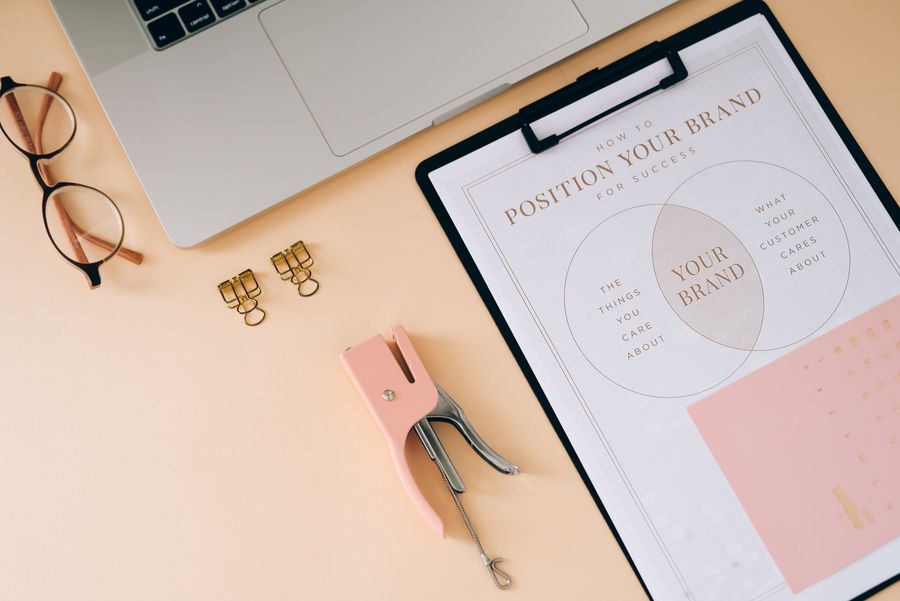
Lit like a sign: this is what Add Text looks like in real hands
Add Text, composed with intent — Designed for the small screen too is the evidence
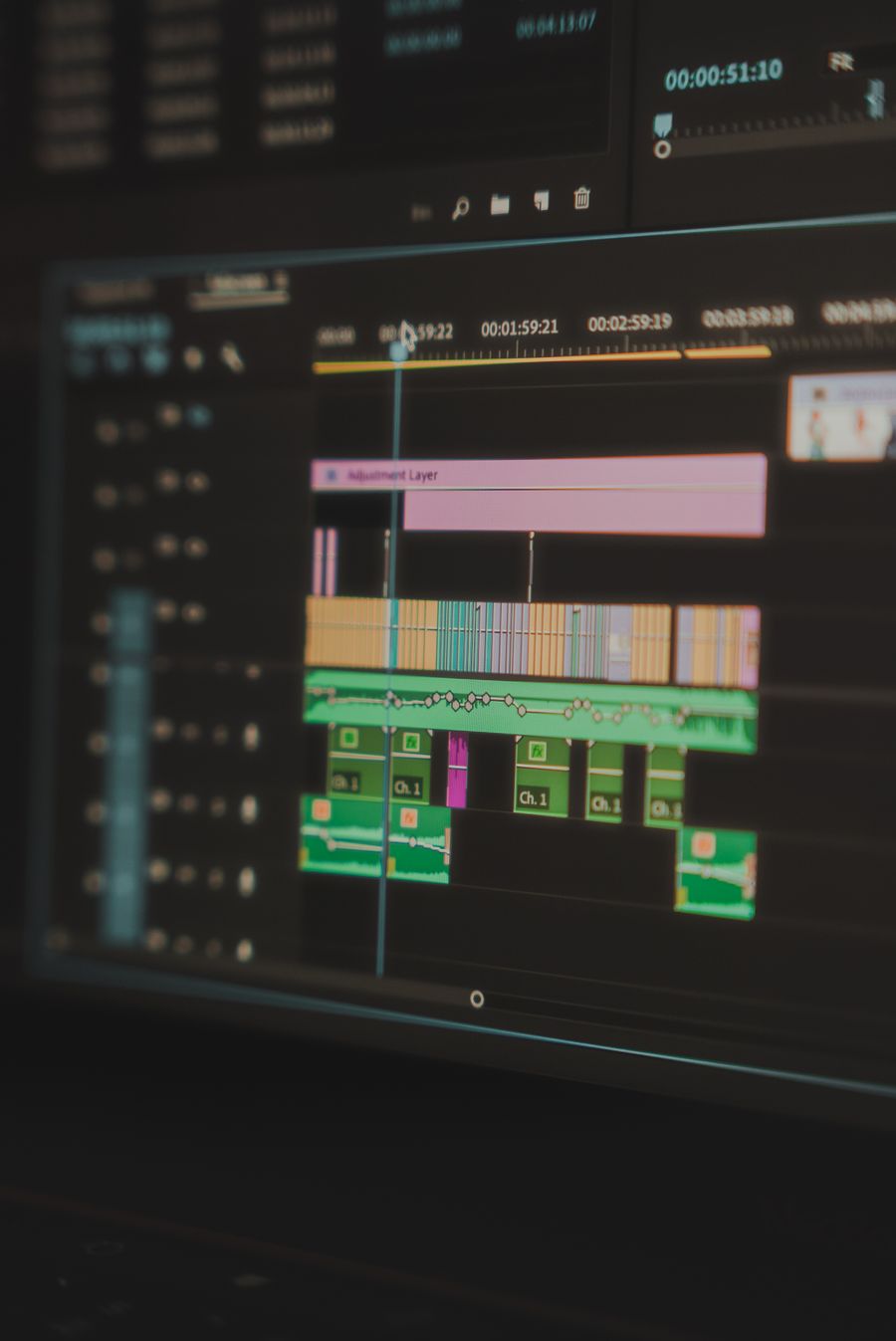
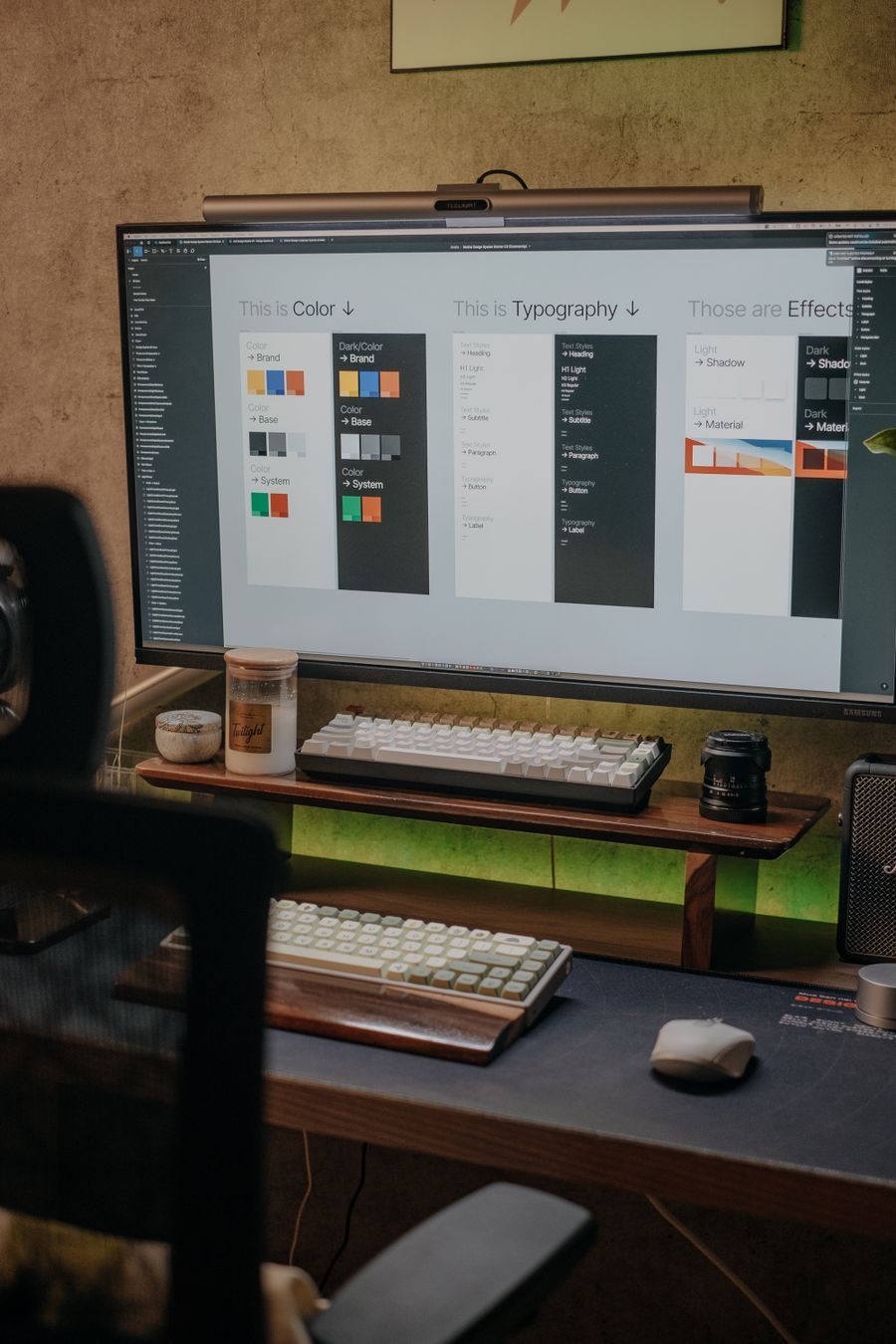
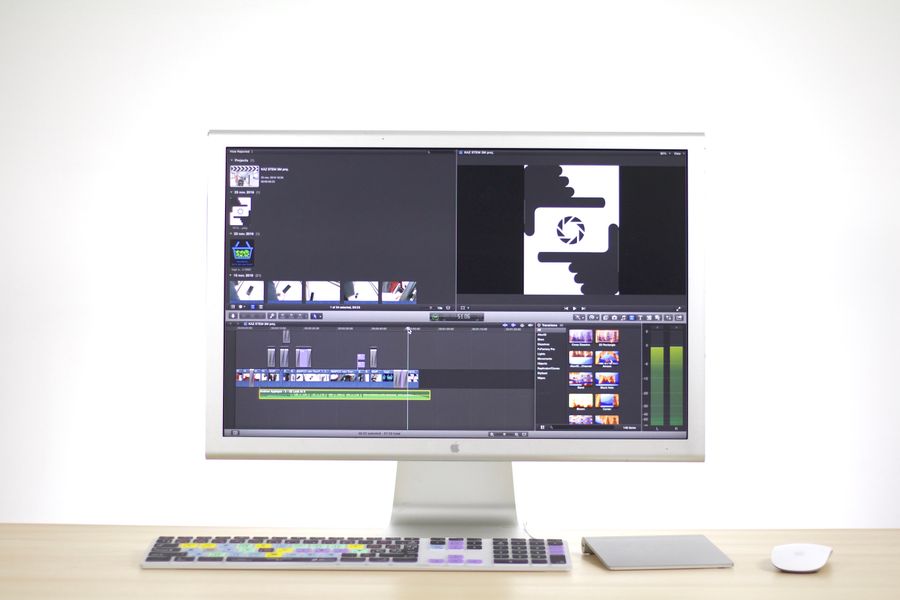
On the laptop screen — one click of Add Text and the layout snaps into place
Out in the wild. Add Text turns "someday" designs into done designs
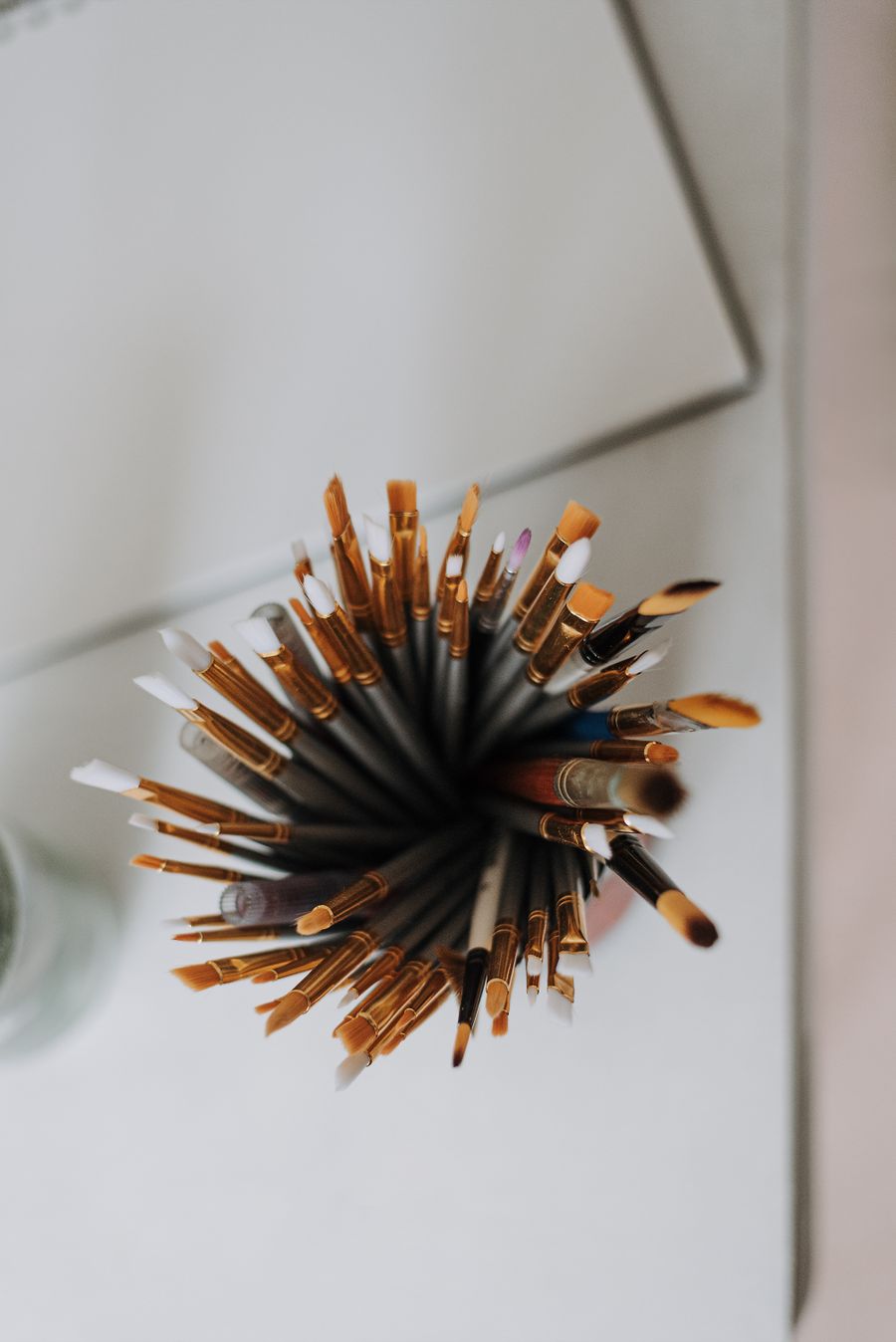
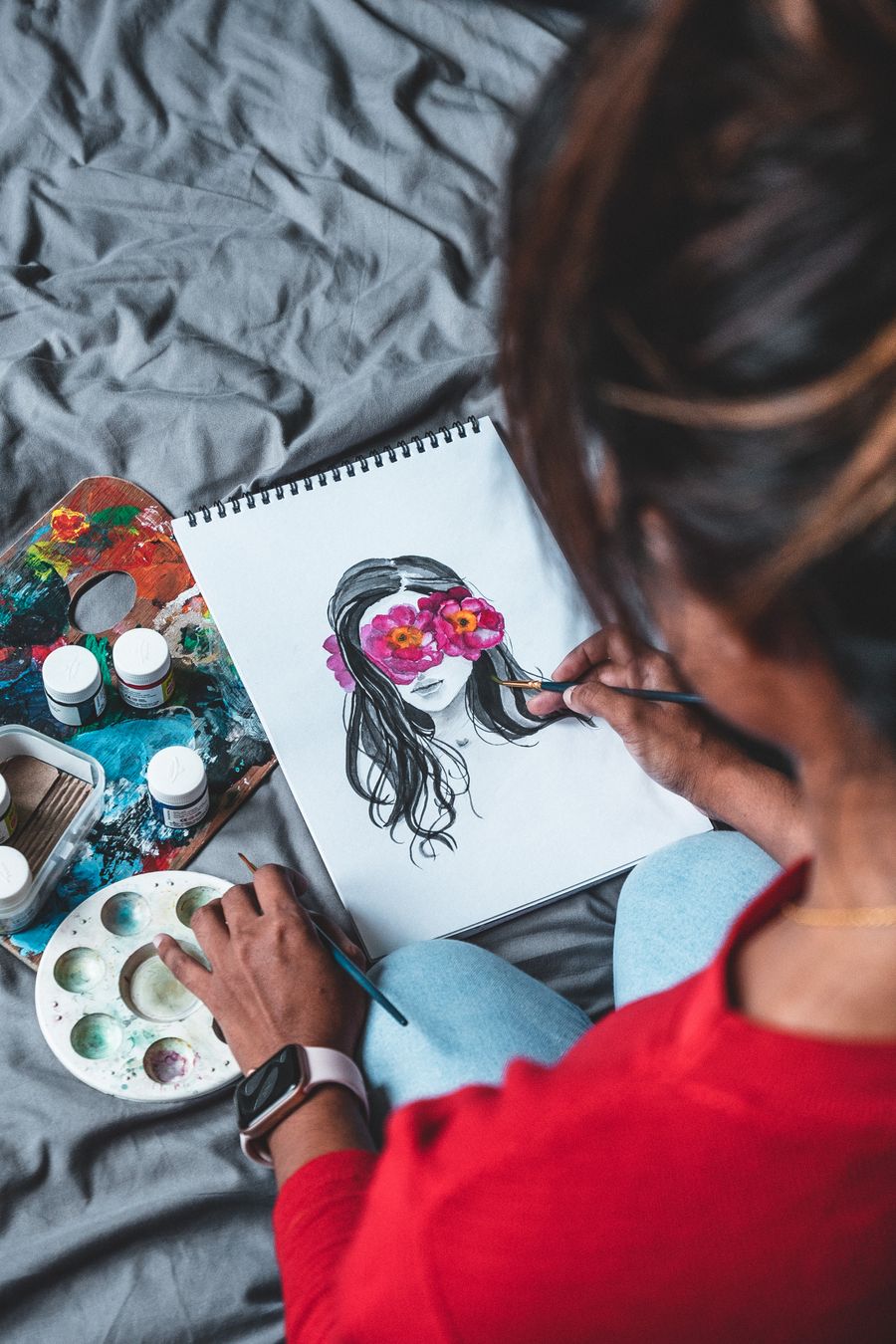
Fresh off the brush. Add Text, and the revision cycle just got shorter
Parked and posing. This Add Text result took minutes, not hours
Faces first — Add Text, applied exactly where the eye lands
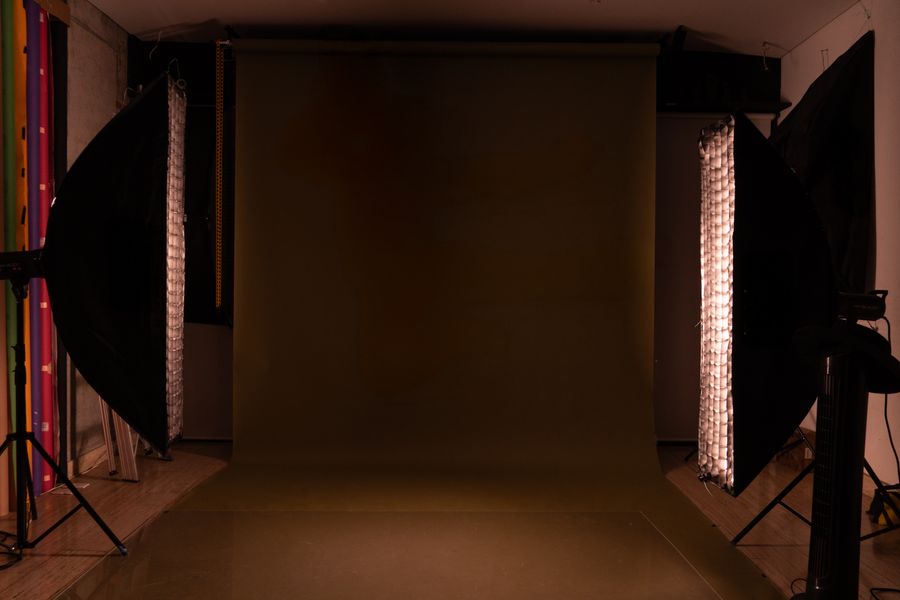
Inside the studio. Add Text makes the complicated look casual
Caught in the act. Add Text, and the deadline stopped being scary
Add Text at full stretch — Desk check, zero compromises
On the laptop screen. Add Text handles the fiddly part, you keep the vision
On the laptop screen — the kind of result Add Text makes routine
Tool of the trade. This is the output Add Text was built for
No templates were harmed: Faces first, built freehand with Add Text
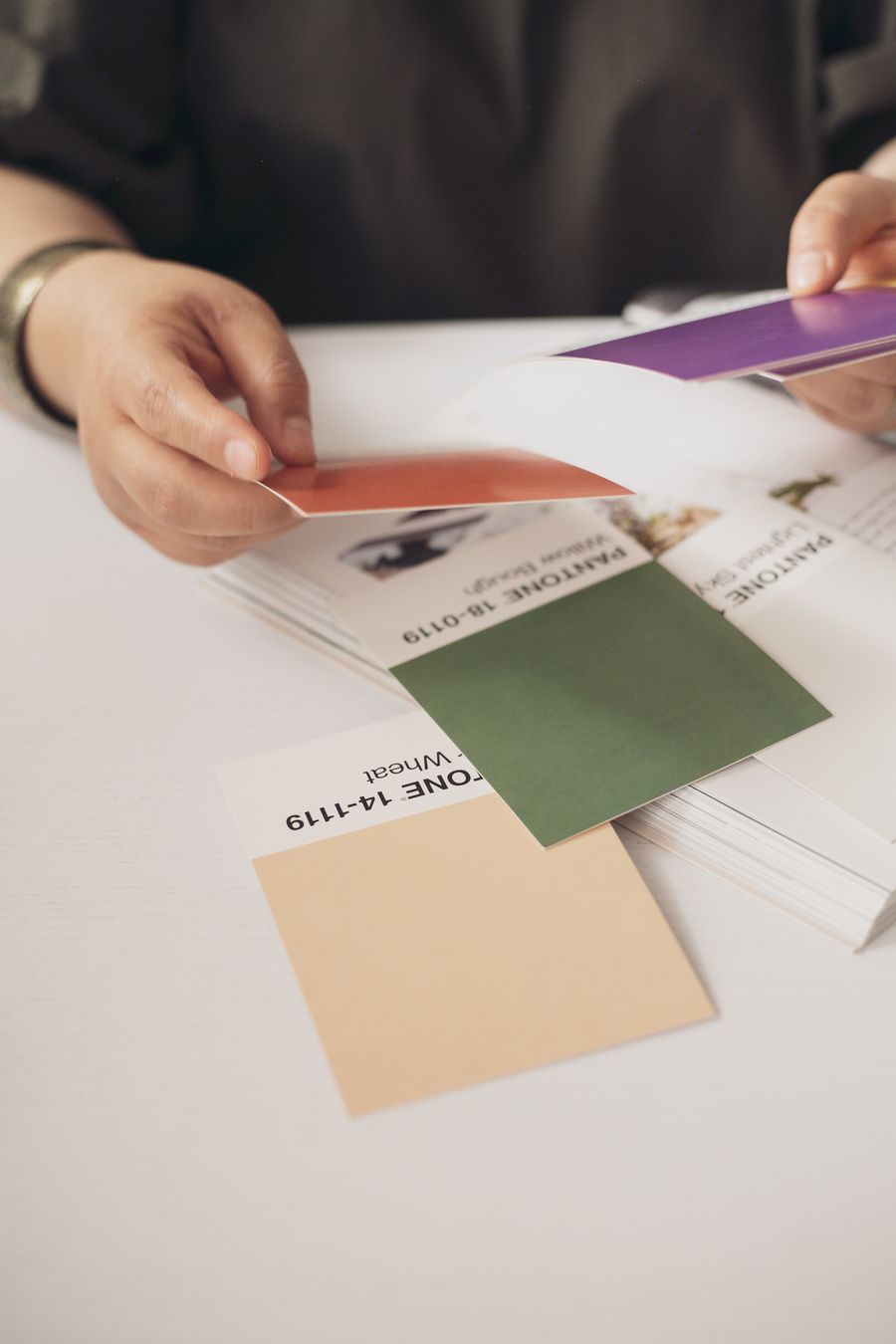
The Add Text difference, up close: Paper first, pixels after
The Add Text payoff, illustrated: Before-and-after energy
Faces first — Add Text keeps the craft, drops the chore
Add Text, frame by frame — On the laptop screen is the receipt
 photoaicompany