Free AI background removal that runs 100% in your browser — upload a photo, get a transparent PNG.
Interactive studio
Remove Background — live workspace
Free AI background removal that runs 100% in your browser — upload a photo, get a transparent PNG. Every control below is live: configure, run, and watch the results.
Live workspaceReady
Try it: remove a background — free
Runs 100% in your browser with an open-source AI model (BiRefNet, MIT license). Your photo never leaves this device — no upload, no key, no credits.
No output yet. Configure the controls above, then press Run — your result appears here.
Onboarding checklist
Upload a photo (JPG, PNG, or WebP) — or pick a design and choose one of its image layers.
Click Remove background — free .
The AI model loads on the first run (one-time download, then cached) and separates your subject from its backdrop.
Compare the before/after, then download the transparent PNG — or replace the design layer in place.
Steps tick themselves off as you work — or tap any step to toggle it.
Remove Background techniques
Transparent cutouts in secondsProduct photos that actually sellPortraits isolated cleanlyStudio looks with no green screen
Background removal is the fastest way to turn a casual photo into a design asset: isolate a product, a person, or an object and drop it onto any backdrop, card, or promo layout. The Remove Background tool is free for everyone — it runs a real open-source AI segmentation model (BiRefNet, MIT license) entirely in your browser.
There is no API key, no credit meter, and no upload: your photo never leaves this device. The first run downloads the model once (about 110 MB) and caches it in your browser, so later cutouts start instantly. The subject keeps its position and size; only the backdrop becomes transparent, with softly feathered edges.
You can cut out any photo you upload, or target an image layer already in one of your designs — the picker lists only image layers, so you can never target text or shapes by mistake. When the cutout is ready, download the transparent PNG or replace the layer in place with one click.
How it works
Upload a photo (JPG, PNG, or WebP) — or pick a design and choose one of its image layers.
Click Remove background — free.
The AI model loads on the first run (one-time download, then cached) and separates your subject from its backdrop.
Compare the before/after, then download the transparent PNG — or replace the design layer in place.
Tips
Photos with a clear subject and a contrasting background give the cleanest cut.
The layer picker only lists image layers, so you can never target text or shapes by mistake.
After removal, style the cutout over a colored shape for an instant promo look.
The model runs on your device — a desktop browser with a few GB of free RAM gives the fastest results.
What it costs
Free and unlimited — on every plan. The AI model (BiRefNet, open source) runs entirely in your browser via Transformers.js. Your photo is never uploaded, so there is no server cost to meter — background removal can't be billed per use, by design.
Frequently asked questions
Is background removal really free?
Yes — free for everyone, no account, no credits, no API key. The AI model (BiRefNet, MIT license) runs entirely in your browser via Transformers.js, so there is no server cost to meter.
Does my photo get uploaded anywhere?
No. The model downloads to your browser once and every cutout is computed locally on your device. Nothing you process is ever sent to a server.
Which layers can be processed?
Image layers only — photos you added with the add-image tool, uploaded assets, or a fresh upload on this page. Text, shapes, and groups are not eligible; the page lists only your image layers for exactly this reason. Layers that link to a remote image URL cannot be read by the browser, so upload the file instead.
What AI model does this use?
BiRefNet (lite ONNX build, MIT license) served through Transformers.js, with the full-size BiRefNet ONNX model as the automatic fallback if the primary model fails to load. Both are open-source and run locally. (U²-Net was evaluated as a fallback but its hosted weights require authentication as of September 2026, so it cannot serve a no-key tool.)
Can I adjust the result afterward?
The cutout keeps soft, feathered edges from the AI mask. For finer control, replace the layer in your design and combine it with shapes, filters, or a new backdrop — everything else on photoaicompany is fully editable.
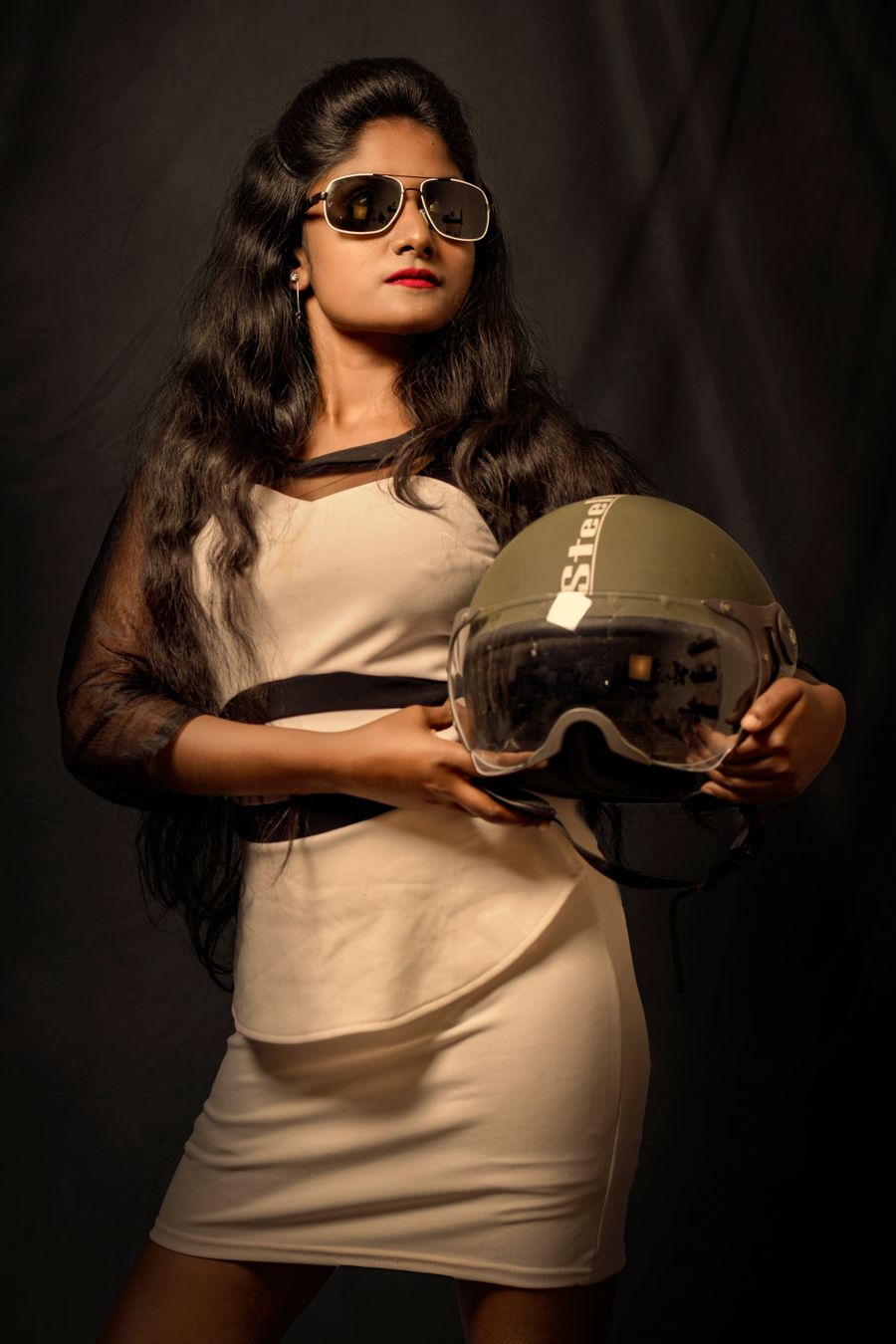
JPG, PNG, or WebP — upload one, or pick an image layer already sitting in your design. This one is a studio portrait from the built-in stock library.
Act II — The scan
AI reads every edge.
BiRefNet — open source under the MIT license — runs entirely in your browser. A scan line sweeps the photo while the model separates subject from backdrop.
Act III — The lift
The background lifts away.
The backdrop layer slides off in parallax. The subject stays exactly where it was — untouched — on transparency. Nothing is ever destructively erased.
Act IV — The edge
Hair-level detail, traced.
The cut line draws itself around the subject — edge-aware, pixel by pixel. This is the actual boundary the model found, not a decoration.
Act V — New scenery
Drop it anywhere.
The cutout flies onto new photographic backdrops — neon studio, red silk. Drag the wipe handle to compare before and after yourself.
Finale
Free. Unlimited. Private.
The model runs on your device, so your photo never leaves it. Export a transparent PNG — no watermark, no credits, no upload.
Original photo
background layer
Subject on transparency
Before
After — new backdrop
Neon studioRed silk
BiRefNet · MIT100% in-browserPhoto never leaves deviceTransparent PNG out
Drag the handle — it glides with physics when you let go. Remove Background, transformed in one pass.
Watch it work
See Remove Background in motion
Drag the cards, scroll the scene — the tool explains itself.
InputTransformOutput
A canvas that keeps upRemove Background — frame 1 of 4
Type that performsRemove Background — frame 2 of 4
Photos with presenceRemove Background — frame 3 of 4
Export without fearRemove Background — frame 4 of 4
Drag the cards — they glide with inertia. Scroll — the blob morphs and the dot traces the flow.
The full walkthrough
How Remove Background works, step by step
Remove photo backgrounds free with open-source AI (BiRefNet, MIT) running entirely in your browser. Upload a photo or pick a design image layer — no API key, no credits, no upload.
1
Upload a photo JPG, PNG, or WebP — processed entirely in thi
Your imagery is your unfair advantage — nobody else has your photos. Lead with them. Compress uploads before adding them if they came straight from a camera; huge files slow the canvas.
Pro tip: One strong photo beats a collage of five weak ones.
Remove BackgroundStyles
1:14:516:99:16
123
Step 1: Upload a photo JPG, PNG, or WebP — processed entirely in thi — Remove Background, annotated
1
Upload a photo JPG, PNG, or WebP — processed entirely in thi controlThis is where you set upload a photo jpg, png, or webp — processed entirely in thi — changes preview live on the canvas.
2
Live canvasEvery adjustment renders instantly — what you see is what exports.
3
ResultHappy with it? The design updates in place, ready for the next step.
2
…or use a photo already in a design
The Upload control brings your own imagery into the design. Real photos beat stock when the subject is your product, your team, or your place. Uploads land as new layers, so you can resize, filter, and reposition them without touching anything else.
Pro tip: Name uploads descriptively — future-you will thank present-you in the layers panel.
Templates — Remove Background
PNGJPGPDFMP4
MasksStroke
Templates
123
Step 2: …or use a photo already in a design — Remove Background, annotated
1
…or use a photo already in a design controlThis is where you set …or use a photo already in a design — changes preview live on the canvas.
2
Live canvasEvery adjustment renders instantly — what you see is what exports.
3
ResultHappy with it? The design updates in place, ready for the next step.
3
Image layer
The Upload control brings your own imagery into the design. Real photos beat stock when the subject is your product, your team, or your place. Uploads land as new layers, so you can resize, filter, and reposition them without touching anything else.
Pro tip: Name uploads descriptively — future-you will thank present-you in the layers panel.
Image layer controlThis is where you set image layer — changes preview live on the canvas.
2
Live canvasEvery adjustment renders instantly — what you see is what exports.
3
ResultHappy with it? The design updates in place, ready for the next step.
Know your workspace
Anatomy of the Remove Background workspace
Five regions do all the work. Learn them once and every tool on this site feels familiar.
Remove Background — untitled.pacResize
ShareHistoryFlipCropZoom
Stroke
Frames
Effects
Comments
12345
Anatomy of the Remove Background workspace
1
ToolbarEvery tool lives here — pick one and the canvas listens.
2
CanvasYour design, live. Drag, resize, and edit directly.
3
LayersThe stack your design is built from — top wins.
4
ExportOne click sends the finished design out as PNG, JPG, or PDF.
5
PropertiesFine-tune whatever is selected, right where you work.
Made with Remove Background
This is what Remove Background output looks like in the wild — photographic, detailed, finished.
Level up
Remove Background techniques that look professional
Four field-tested techniques, each shown on real photography. Steal them all.
Real beats perfect.A slightly imperfect real photo outperforms a flawless generic one — authenticity reads instantly. Your Remove Background work will show the difference immediately.
Backgrounds should disappear.If anyone notices the background, it failed — demote it until the subject owns the frame. Make it part of your Remove Background routine.
Mind the edges.Check what touches the frame: stray elbows, half-logos, and bright corners all steal attention. Inside Remove Background, this single habit pays off fast.
Grade for unity, not for drama.A consistent grade across all photos makes a set feel art-directed instead of assembled. Try it on your next Remove Background project and compare the result.
Avoid the traps
Three mistakes to avoid with Remove Background
✕
Tiny text on busy photos
Small type disappears into photographic detail. Fix: grow the size, add a soft scrim behind it, or move the copy to a quiet zone.
✕
Five fonts in one design
Every extra typeface dilutes the message. Fix: one family, up to three weights — restraint reads as confidence.
✕
Decorating before messaging
Effects applied before the words are final get redone. Fix: lock the copy first, style second.
End to end
A complete Remove Background workflow
Five moves, start to shipped. This is how the work actually flows.
1
Start in the editor
Open a blank canvas or a template — Remove Background works on anything with pixels. The tool never asks you to start over.
2
Do the core move
Run Remove Background the way the walkthrough above shows. Get the big decision right before touching details.
3
Refine with a second tool
Pair it with All tools — tools compose, and two simple moves beat one complicated one.
4
Check it on a phone
Most designs are consumed on phones. Preview small, fix what breaks, then continue.
5
Export and ship
Export in the format your destination wants, keep the master design, and move on to the next one.
Made with Remove Background
This is what Remove Background output looks like in the wild — photographic, detailed, finished.
Good to know
More Remove Background answers
What’s the single most useful tip for Remove Background?
Photos with a clear subject and a contrasting background give the cleanest cut.
What do beginners get wrong with Remove Background?
The layer picker only lists image layers, so you can never target text or shapes by mistake. Start simple, then layer on complexity once the basics feel automatic.
Is Remove Background really free?
Yes — Remove Background is free to use in your browser, and your work saves to your account. Premium plans add AI credits, team features, and higher export limits; the tool itself never holds your design hostage.
Visual guides
Every fact, visualized
Ten detailed infographics — every number real, every label earned. Built for Remove Background, only on this page.
Remove Background step-by-step workflowRemove Background workspace anatomyRemove Background export guide: the right format, every timeWhich format for Remove Background: the quick matrixRemove Background advantagesShortcuts that speed up Remove BackgroundContrast rules for Remove Background textRemove Background mistakes and fixesRemove Background use casesRemove Background quick answers
Live telemetry
REMOVE BACKGROUND — CAPABILITY TELEMETRY
Live counts from this page · hover any bar
0Form controls
0Guided steps
0Pro tips
0Use cases
Breakdownlive
1
Canvas
2
Content
1
Canvas
2
Content
Cumulative depthlive
Complete guide
Everything Remove Background can do
The full capability picture — features by plan, every control explained, real use cases, and the spec sheet.
Feature availability
Every capability of this tool, and which plan includes it.
Capability
Free
Pro
Business
A photo (JPG, PNG, or WebP) — or pick a design and choose one of its image layers.
✓
✓
✓
Remove background — free.
✓
✓
✓
The AI model loads on the first run (one-time download, then cached) and separates your subject from its backdrop.
✓
✓
✓
Compare the before/after, then download the transparent PNG — or replace the design layer in place.
✓
✓
✓
Control map — every field, explained
Each control on this page, and what it actually does when you run the tool.
Control
What it does
Upload a photo JPG, PNG, or WebP — processed entirely in this browser.
Upload a photo (JPG, PNG, or WebP) — or pick a design and choose one of its image layers.
…or use a photo already in a design
Upload a photo (JPG, PNG, or WebP) — or pick a design and choose one of its image layers.
Image layer
The layer picker only lists image layers, so you can never target text or shapes by mistake.
Use it for — Remove Background in real work
1
Cut a product onto a clean backdrop
2
Isolate a portrait for a card
3
Build stickers from photos
4
Composite people into scenes
5
Clean up UGC fast
6
Prep assets for layouts
Spec sheet
InputJPG, PNG, WebP
Where100% in your browser
PrivacyPhoto never leaves device
CostFree, unlimited
QualityEdge-aware cutout
OutputTransparent PNG layer
Keyboard reference
Keys
Action
Scope
Ctrl/⌘ + Z
Undo the last change
Browser-standard
Ctrl/⌘ + Shift + Z
Redo
Browser-standard
Tab / Shift+Tab
Move between fields in order
Browser-standard
Enter
Activate the focused button
Browser-standard
Esc
Close dialogs and menus
Browser-standard
Delete
Remove the selected layer on canvas
Editor
Remove Background — made visual
Twenty living mockups of Remove Background, generated for this page only.
Remove BackgroundFonts
1:14:516:99:16
Remove Background — every stroke visible as it happens
Remove BackgroundShare
Effects
Stroke
Version
Real-time Remove Background, zero waiting
Shadow — Remove Background
PNGJPGPDFMP4
AlignGradient
Shadow
Remove Background — every story needs a frame
HistoryAlignOpacityTextVersion
Remove Background — Blur
4.9kExport
312Duplicate
98%Gradient
Remove Background, straight to studio grade
photoai.company/rotate
Remove BackgroundDuplicate · Canvas
Resize
Effects
Crop
The Remove Background mockup spell
Remove Background
Align100%
Colors93%
Templates86%
Share79%
Brand kit72%
Stroke65%
Every Remove Background pixel earns its place
Remove Background — untitled.pacColors
GridFillOpacityRulersShadow
Flip
Assets
Align
Comments
Framing the Remove Background narrative
Remove Background
CropIconsEffectBlur
Remove Background — speed without the sloppy
Remove BackgroundAdjust
1:14:516:99:16
Remove Background — sharp at every zoom
Remove BackgroundBlend
Styles
Align
Rulers
Remove Background goes feral (in a good way)
History — Remove Background
PNGJPGPDFMP4
MasksFilters
History
Same-day Remove Background, every day
TemplatesIconsVersionZoomStroke
Remove Background — Export
4.9kBackground
312Assets
98%Projects
Instant studio-grade Remove Background
photoai.company/blend
Remove BackgroundVersion · Opacity
Blur
Gradient
Frames
Remove Background — thriving outside the studio
Remove Background
Brand kit100%
Version93%
Rulers86%
Colors79%
Arrange72%
Comments65%
Remove Background — craft every pixel
Remove Background — untitled.pacArrange
AlignStylesBrand kitBlurComments
Canvas
Stroke
Projects
Export
Remove Background — reconstructed pixel by pixel
Remove Background
GridBackgrFillGradie
The Remove Background teardown and rebuild
Remove BackgroundCrop
1:14:516:99:16
The Remove Background export, inspected at 200%
Remove BackgroundFonts
Rotate
Share
Filters
Remove Background, rendering in real time
Colors — Remove Background
PNGJPGPDFMP4
HistoryFilters
Colors
Remove Background, remixed into yours
ProjectsArrangeTemplatesBlendBlur
Remove Background — Effects
4.9kAssets
312Version
98%Layers
Taking Remove Background apart and rebuilding it better
The Remove Background stock library
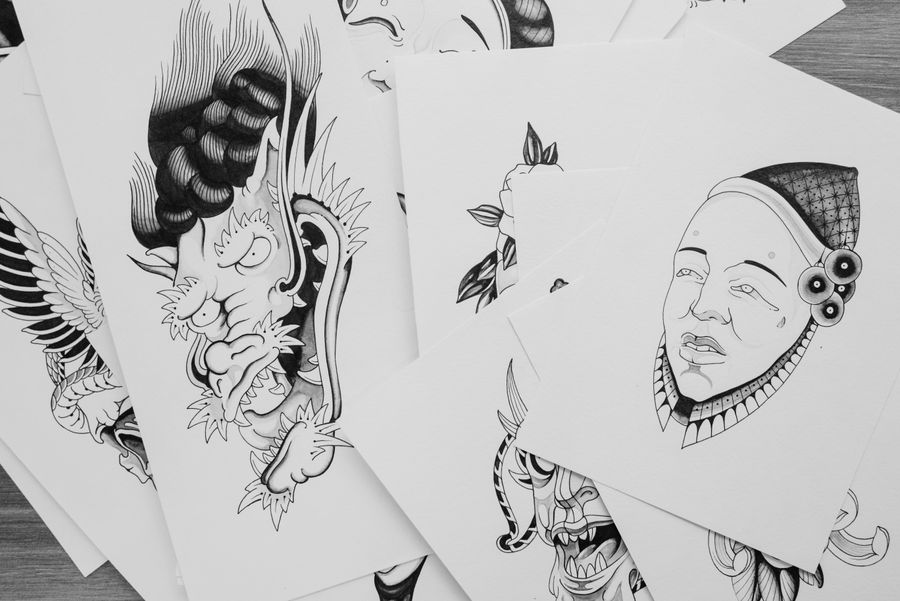
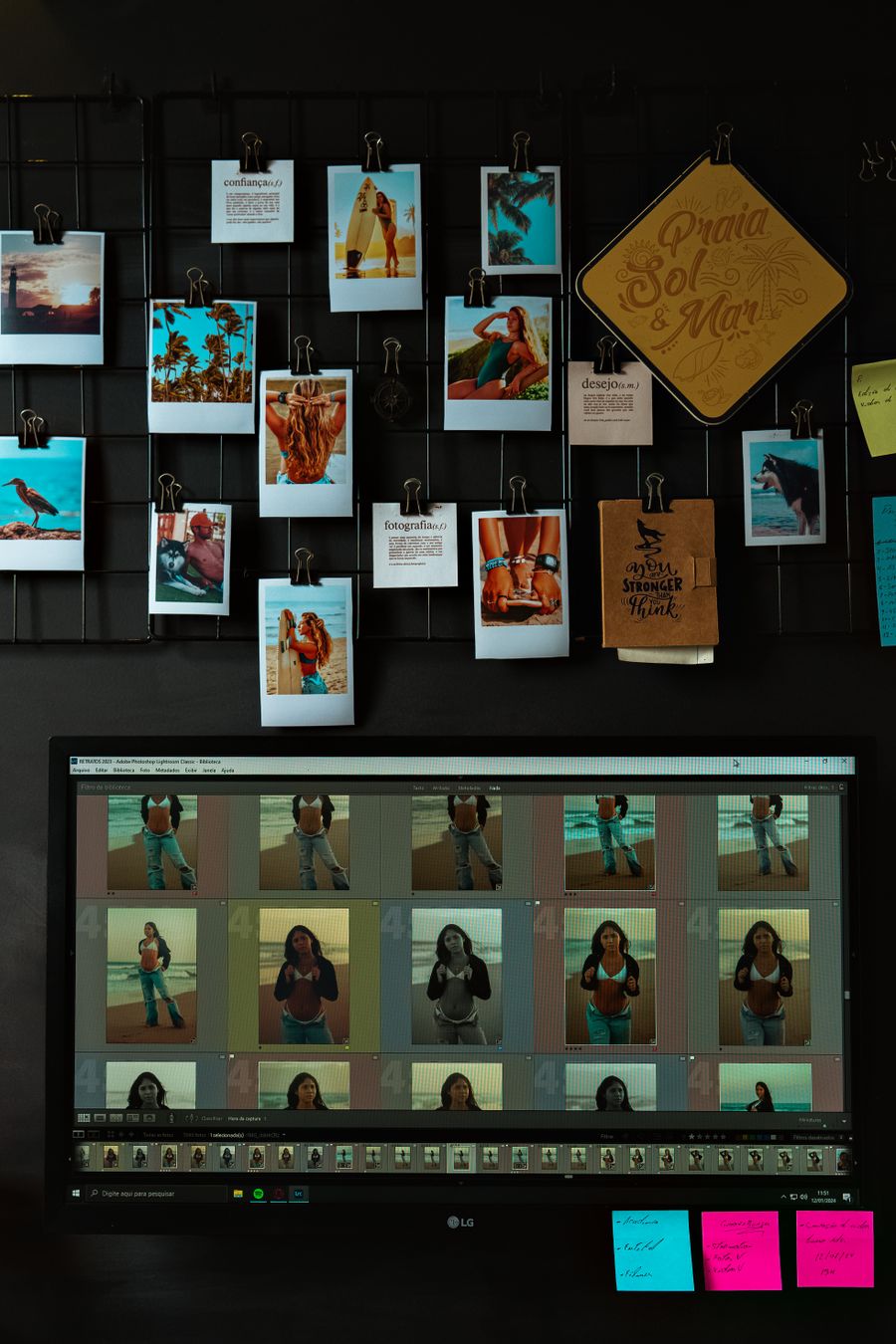
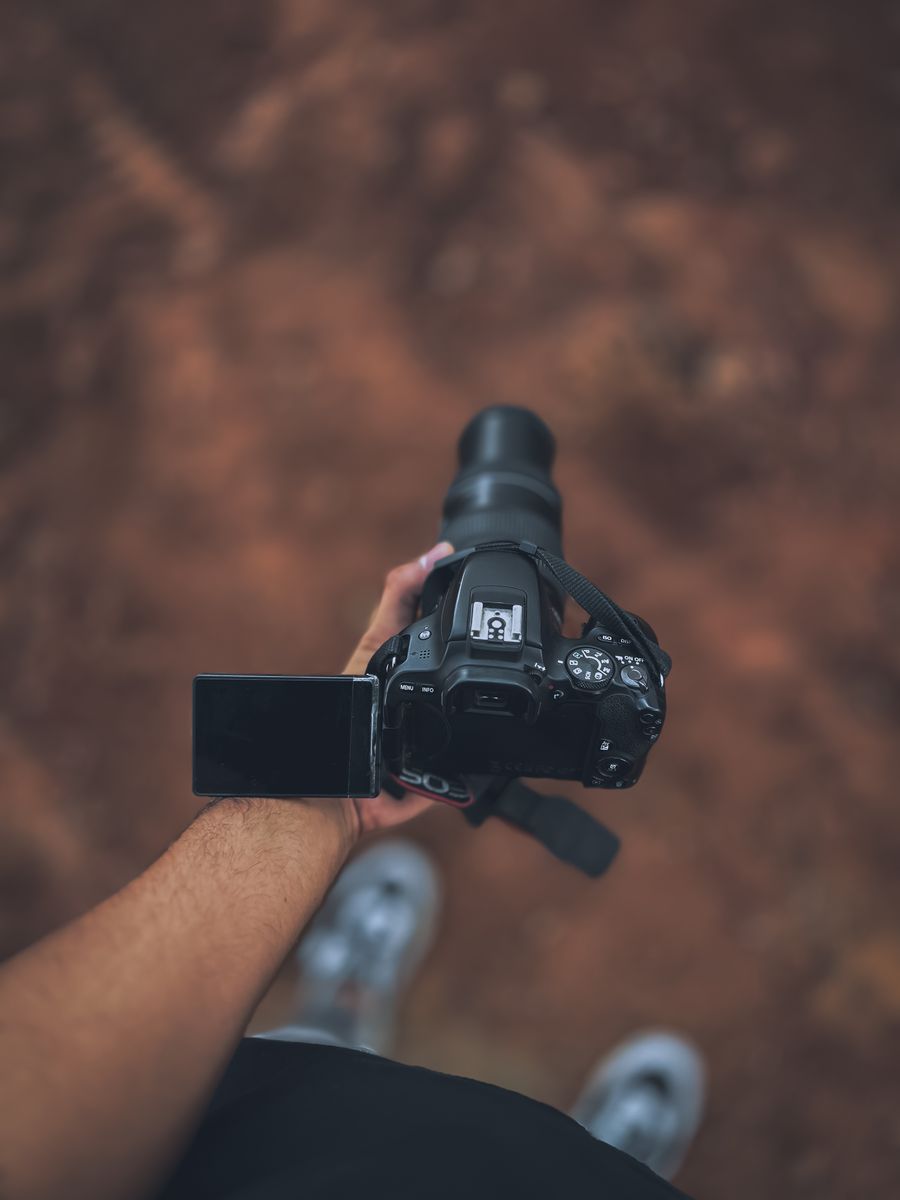
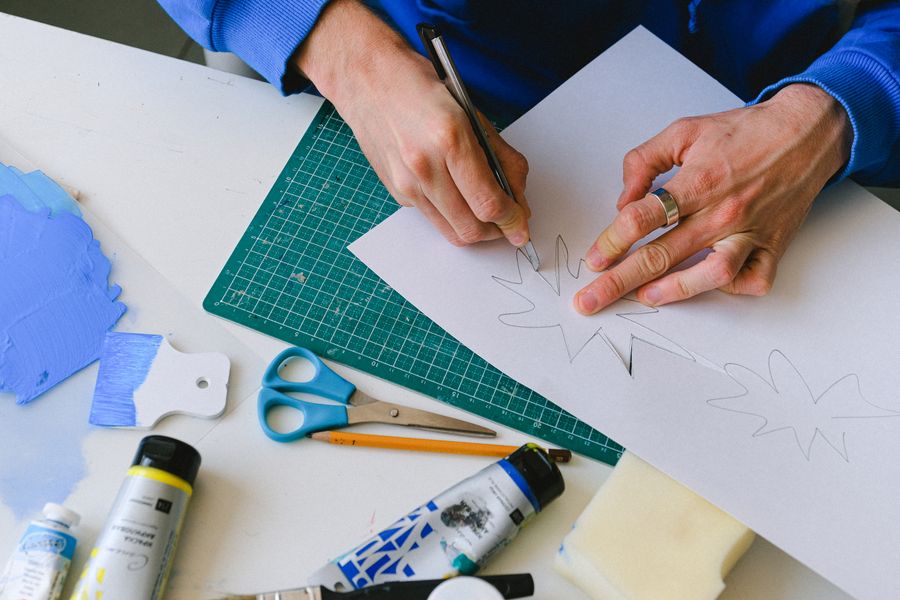
Hand-picked photography for Remove Background — refreshed on this page alone.
No templates were harmed: The details matter, built freehand with Remove Background
Remove Background, dialed in — Paper first, pixels after, no guesswork
Before Remove Background: a blank canvas. After: Through the lens
Proof of Remove Background, exhibit A: Paper first, pixels after
Remove Background under the hood, Fresh off the brush on the surface
Remove Background, no learning curve — Inside the studio says it better than a manual
Color, turned all the way up. Remove Background, and the deadline stopped being scary
Color, turned all the way up — the kind of result Remove Background makes routine
Paper first, pixels after. Remove Background makes the complicated look casual
The details matter. Remove Background, and the revision cycle just got shorter
The Remove Background difference, up close: Through the lens
No filler, all craft — Remove Background at its most useful
Paper first, pixels after — Remove Background, applied exactly where the eye lands
Faces first — Remove Background keeps the craft, drops the chore
Through the lens — Remove Background, tuned until it feels invisible
From rough to Faces first: the Remove Background workflow, end to end
Through the lens — proof that Remove Background is a working tool, not a demo
Faces first. This Remove Background result took minutes, not hours
 photoaicompany