Every photoaicompany project begins as a design document: a canvas with a fixed size, a background color, and a stack of editable layers. The Create a Design tool sets that foundation up in seconds — pick the preset that matches where your design will live, or enter exact pixel dimensions for something custom.
Presets are real production sizes. An Instagram post is 1080 × 1080 pixels, a YouTube thumbnail is 1280 × 720, and A4 print is 2480 × 3508 — the same dimensions professional tools use, so what you design here exports at the right size the first time. Custom canvases accept anything from 16 to 12000 pixels per side.
Your design is saved instantly and appears across the other tools on this site: add text to it, drop in shapes and images, apply your brand kit, then export it. Designs you create here are stored locally in your browser — no account needed to try everything.
How it works
Give your design a name (or leave it blank for an automatic one).
Pick a size preset — or choose “Custom” and enter width and height in pixels.
Optionally set a canvas background color.
Click Create design. Your new design appears below with a live preview, and its ID is shown for use with the other tools.
Tips
Designing for print? Use the A4 or US Letter presets — they're full print resolution (300 DPI equivalents).
The background color is just the starting point; shapes and images can cover any part of it later.
Created the wrong size? The resize-design tool reflows your content proportionally instead of cropping it.
What it costs
Free on this site — and it can't be metered. Create a Design uses no AI and runs entirely in your browser: no usage counters, nothing sent to our servers to bill. When credit metering arrives in the app, local operations like this one will never consume AI credits — only server-side AI generations will.
Frequently asked questions
Is the design creator really free?
Yes. Creating designs, adding elements, and exporting PNG, JPG, and SVG on this site is free and needs no account. Designs are stored locally in your browser.
What canvas sizes are available?
Instagram post, portrait, and story, YouTube thumbnail and channel banner, Facebook post and cover, X/Twitter post and header, LinkedIn post, Pinterest pin, presentation slide (16:9), email header, business card, A5 flyer, A4, A3 poster, US Letter, and 4K wallpaper — plus any custom size from 16 to 12000 pixels per side.
Where is my design saved?
In your browser's local storage, using photoaicompany's proprietary JSON document format. The full photoaicompany editor syncs designs to your account; this site preview keeps them on your device.
Drag the handle — it glides with physics when you let go. Create a Design, transformed in one pass.
Watch it work
See Create a Design in motion
Drag the cards, scroll the scene — the tool explains itself.
InputTransformOutput
A canvas that keeps upCreate a Design — frame 1 of 4
Type that performsCreate a Design — frame 2 of 4
Photos with presenceCreate a Design — frame 3 of 4
Export without fearCreate a Design — frame 4 of 4
Drag the cards — they glide with inertia. Scroll — the blob morphs and the dot traces the flow.
The full walkthrough
How Create a Design works, step by step
Start a new photoaicompany design from a size preset — Instagram post, YouTube thumbnail, A4 and more — or custom dimensions. Free, works in your browser.
1
Design name
The Design picker chooses which canvas receives the work. Keep one design per purpose — mixing campaigns in one file breeds confusion. Name designs by outcome (“Launch-Post-v3”), not by date; future-you searches by intent.
Pro tip: Star the designs you’ll revisit weekly.
Create a Design
Fill100%
Stroke93%
Align86%
Brand kit79%
Filters72%
Assets65%
123
Step 1: Design name — Create a Design, annotated
1
Design name controlThis is where you set design name — changes preview live on the canvas.
2
Live canvasEvery adjustment renders instantly — what you see is what exports.
3
ResultHappy with it? The design updates in place, ready for the next step.
2
Size preset
Size creates hierarchy: the eye lands on the largest element first. Set your headline, then size everything else relative to it, not in isolation. If two elements fight for attention, the answer is rarely to enlarge both — shrink one.
Pro tip: Squint at your canvas: whatever is still readable is your true hierarchy.
FlipShareFramesCommentsText
Create a Design — Projects
4.9kGradient
312Rulers
98%Rotate
123
Step 2: Size preset — Create a Design, annotated
1
Size preset controlThis is where you set size preset — changes preview live on the canvas.
2
Live canvasEvery adjustment renders instantly — what you see is what exports.
3
ResultHappy with it? The design updates in place, ready for the next step.
3
Background color
The Color control is contrast management. Text must survive its background — dark on light, light on dark, with enough distance between them to read at a glance. Sample colors from your photo with the picker instead of guessing hex values; harmony beats novelty.
Pro tip: Check contrast by converting your design to grayscale mentally — if the text vanishes, the color failed.
Create a Design — untitled.pacBlur
ShadowBlendRotateFlipZoom
Text
Arrange
Crop
Comments
123
Step 3: Background color — Create a Design, annotated
1
Background color controlThis is where you set background color — changes preview live on the canvas.
2
Live canvasEvery adjustment renders instantly — what you see is what exports.
3
ResultHappy with it? The design updates in place, ready for the next step.
4
Width (px)
The control speaks pixels, but think in placements: where will eyes meet this, and how big will it be? Design at 2x the smallest size you’ll export — downscaling stays sharp, upscaling never does.
Pro tip: 1080px wide covers nearly every social placement as a starting point.
Create a Design
StrokeLayersFontsAdjust
123
Step 4: Width (px) — Create a Design, annotated
1
Width (px) controlThis is where you set width (px) — changes preview live on the canvas.
2
Live canvasEvery adjustment renders instantly — what you see is what exports.
3
ResultHappy with it? The design updates in place, ready for the next step.
5
Height (px)
Dimensions decide where this design is allowed to live. A square post, a story, a thumbnail — each has its own grammar. Set dimensions before styling: reflowing a finished design is surgery, starting at the right size is hygiene.
Pro tip: 1080px wide covers nearly every social placement as a starting point.
Create a DesignBlend
1:14:516:99:16
123
Step 5: Height (px) — Create a Design, annotated
1
Height (px) controlThis is where you set height (px) — changes preview live on the canvas.
2
Live canvasEvery adjustment renders instantly — what you see is what exports.
3
ResultHappy with it? The design updates in place, ready for the next step.
Know your workspace
Anatomy of the Create a Design workspace
Five regions do all the work. Learn them once and every tool on this site feels familiar.
Create a Design — untitled.pacAdjust
ProjectsVersionFlipCommentsAlign
Export
Gradient
Assets
Zoom
12345
Anatomy of the Create a Design workspace
1
ToolbarEvery tool lives here — pick one and the canvas listens.
2
CanvasYour design, live. Drag, resize, and edit directly.
3
LayersThe stack your design is built from — top wins.
4
ExportOne click sends the finished design out as PNG, JPG, or PDF.
5
PropertiesFine-tune whatever is selected, right where you work.
Shot on real photography
Create a Design — every visual on this page is a real photograph, not a placeholder.
Level up
Create a Design techniques that look professional
Four field-tested techniques, each shown on real photography. Steal them all.
Less, but better.Remove one element and see if the design improves — repeat until it stops improving. Create a Design rewards this discipline more than most tools do.
Finish means exported.A design in the editor is a draft; shipped is the only done that counts. Apply this inside Create a Design today — the improvement is instant.
Consistency compounds.Same spacing, same styles, same voice across every piece — that’s what a brand actually is. This is doubly true when the job is Create a Design.
Preview on the real device.A design judged on desktop and consumed on phones needs a phone check before shipping. Inside Create a Design, this single habit pays off fast.
Avoid the traps
Three mistakes to avoid with Create a Design
✕
Centered paragraphs
Centering suits headlines; long centered paragraphs tire the eye. Fix: left-align anything over two lines.
✕
One design for every placement
A square post stretched into a story looks broken. Fix: resize deliberately for each destination.
✕
Everything emphasized
Bold, color, size, and underline on the same words cancel each other out. Fix: pick one emphasis per element.
End to end
A complete Create a Design workflow
Five moves, start to shipped. This is how the work actually flows.
1
Start in the editor
Open a blank canvas or a template — Create a Design works on anything with pixels. The tool never asks you to start over.
2
Do the core move
Run Create a Design the way the walkthrough above shows. Get the big decision right before touching details.
3
Refine with a second tool
Pair it with All tools — tools compose, and two simple moves beat one complicated one.
4
Check it on a phone
Most designs are consumed on phones. Preview small, fix what breaks, then continue.
5
Export and ship
Export in the format your destination wants, keep the master design, and move on to the next one.
Shot on real photography
Create a Design — every visual on this page is a real photograph, not a placeholder.
Good to know
More Create a Design answers
What’s the single most useful tip for Create a Design?
Designing for print? Use the A4 or US Letter presets — they're full print resolution (300 DPI equivalents).
What do beginners get wrong with Create a Design?
The background color is just the starting point; shapes and images can cover any part of it later. Start simple, then layer on complexity once the basics feel automatic.
Is Create a Design really free?
Yes — Create a Design is free to use in your browser, and your work saves to your account. Premium plans add AI credits, team features, and higher export limits; the tool itself never holds your design hostage.
Visual guides
Every fact, visualized
Ten detailed infographics — every number real, every label earned. Built for Create a Design, only on this page.
Create a Design step-by-step workflowCreate a Design workspace anatomyCreate a Design export guide: the right format, every timeWhich format for Create a Design: the quick matrixCreate a Design advantagesShortcuts that speed up Create a DesignContrast rules for Create a Design textCreate a Design mistakes and fixesCreate a Design use casesCreate a Design quick answers
Live telemetry
CREATE A DESIGN — CAPABILITY TELEMETRY
Live counts from this page · hover any bar
0Form controls
0Guided steps
0Pro tips
0Use cases
Breakdownlive
1
Canvas
1
Style
3
Position
1
Canvas
1
Style
3
Position
Cumulative depthlive
Complete guide
Everything Create a Design can do
The full capability picture — features by plan, every control explained, real use cases, and the spec sheet.
Feature availability
Every capability of this tool, and which plan includes it.
Capability
Free
Pro
Business
Give your design a name (or leave it blank for an automatic one).
✓
✓
✓
A size preset — or choose “Custom” and enter width and height in pixels.
✓
✓
✓
A canvas background color.
✓
✓
✓
Create design. Your new design appears below with a live preview, and its ID is shown for use with the other tools.
✓
✓
✓
Control map — every field, explained
Each control on this page, and what it actually does when you run the tool.
Control
What it does
Design name
Give your design a name (or leave it blank for an automatic one).
Size preset
Pick a size preset — or choose “Custom” and enter width and height in pixels.
Background color
The background color is just the starting point; shapes and images can cover any part of it later.
Width (px)
Pick a size preset — or choose “Custom” and enter width and height in pixels.
Height (px)
Pick a size preset — or choose “Custom” and enter width and height in pixels.
Use it for — Create a Design in real work
1
Start a post at exact platform size
2
Open a print file with bleed-safe dims
3
Kick off a deck from blank
4
Begin a custom-size banner
5
Set up a multi-page document
6
Prototype at any dimension
Spec sheet
PresetsSocial, web, print, video, custom
Custom sizeAny width × height in px
BackgroundAny color or transparent
PagesAdd more anytime
FreeUnlimited designs
SavedAuto, in browser
Keyboard reference
Keys
Action
Scope
Ctrl/⌘ + Z
Undo the last change
Browser-standard
Ctrl/⌘ + Shift + Z
Redo
Browser-standard
Tab / Shift+Tab
Move between fields in order
Browser-standard
Enter
Activate the focused button
Browser-standard
Esc
Close dialogs and menus
Browser-standard
Delete
Remove the selected layer on canvas
Editor
Create a Design — made visual
Twenty living mockups of Create a Design, generated for this page only.
Create a DesignEffects
Assets
Grid
Stroke
Create a Design, minus the old friction
photoai.company/blend
Create a DesignFrames · Background
Crop
Duplicate
Canvas
Create a Design — reconstructed pixel by pixel
Create a DesignRulers
1:14:516:99:16
From idea to shipped Create a Design in minutes
Create a Design
ProjecShareTextBlend
Zero-effort Create a Design that looks like effort
CanvasIconsStrokeFlipRotate
Create a Design — Styles
4.9kTemplates
312Gradient
98%Shadow
Mockup magic for Create a Design
Resize — Create a Design
PNGJPGPDFMP4
DuplicateZoom
Resize
The Create a Design workspace hums
Create a Design
Rulers100%
Resize93%
Assets86%
Fill79%
Layers72%
Icons65%
Pixel-level love for your Create a Design
Create a Design — untitled.pacAdjust
FillCommentsFramesAssetsGradient
Flip
Styles
Brand kit
Templates
Create a Design — a little mockup sorcery
Create a DesignArrange
Styles
Blend
Gradient
Create a Design, sharp enough to print
photoai.company/styles
Create a DesignCanvas · Text
Effects
Rulers
Fill
Instant studio-grade Create a Design
Create a DesignAlign
1:14:516:99:16
The Create a Design mockup spell
Create a Design
AssetsResizeGradieEffect
Create a Design, engineered to win clicks
ZoomShadowGridCommentsTemplates
Create a Design — Stroke
4.9kMasks
312Layers
98%Styles
Framing the Create a Design narrative
History — Create a Design
PNGJPGPDFMP4
EffectsGradient
History
Create a Design — easy does it, beautifully
Create a Design
Shadow100%
Background93%
Blend86%
Align79%
Text72%
Gradient65%
A Create a Design that pulls its weight
Create a Design — untitled.pacShare
ExportOpacityBrand kitStylesFlip
Layers
Duplicate
Text
Assets
Share the Create a Design, keep the credit
Create a DesignLayers
History
Projects
Filters
Create a Design — the upgrade you feel
photoai.company/crop
Create a DesignResize · Fill
Arrange
Rulers
Colors
Your Create a Design story, framed
Create a DesignHistory
1:14:516:99:16
Pure mockup magic, starring Create a Design
Create a Design
ShadowCommenRotateStroke
Unbounded Create a Design, by design
The Create a Design stock library
Hand-picked photography for Create a Design — refreshed on this page alone.
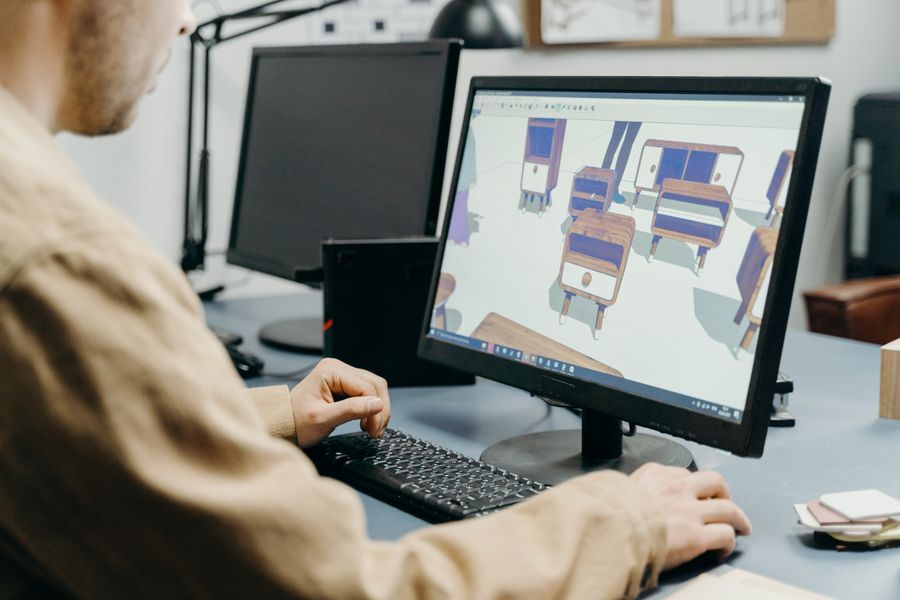
The maker at work: this is what Create a Design looks like in real hands
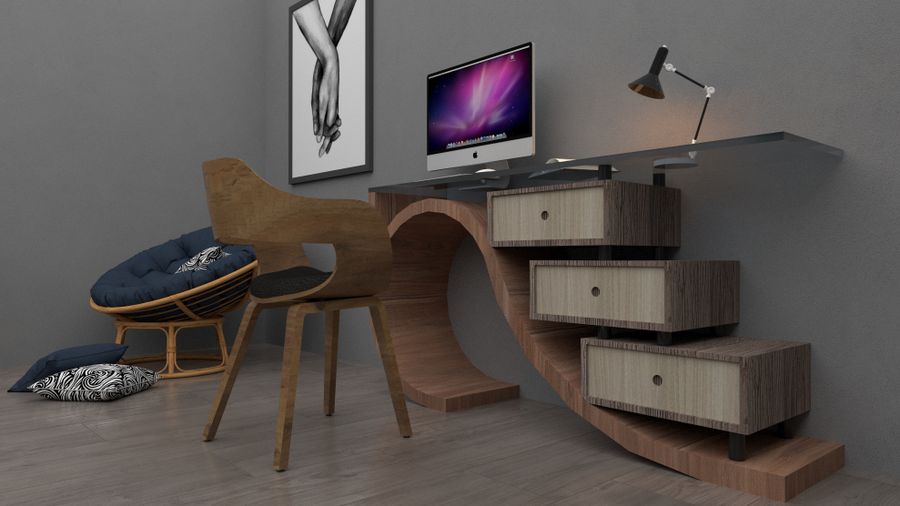
Pure geometry, no noise. Every pixel of this passed through Create a Design
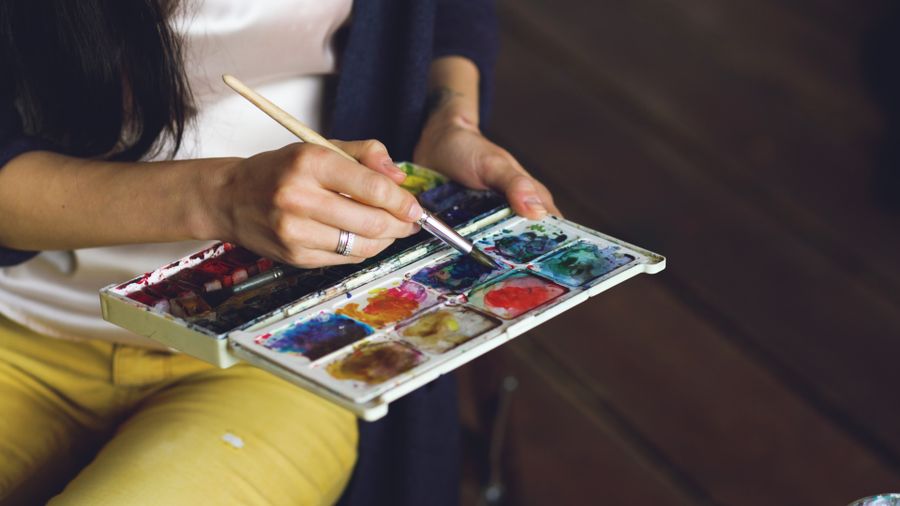
Pencil down, idea captured. Create a Design handles the fiddly part, you keep the vision
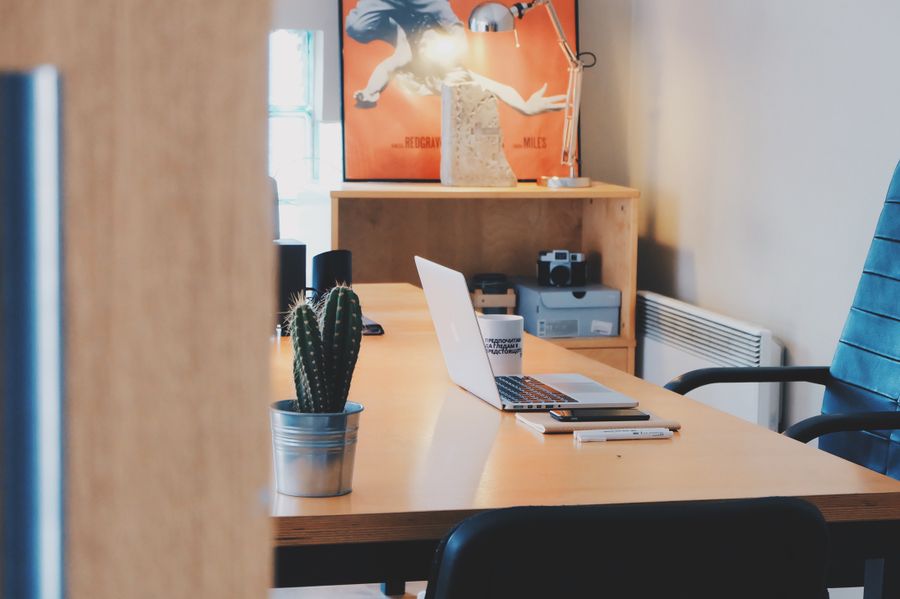
Desk check — Create a Design, applied exactly where the eye lands
Proof of Create a Design, exhibit A: On the laptop screen
Faces first — Create a Design earns its place in the toolbar here
Chasing the good light — Create a Design, tuned until it feels invisible
Made to be looked at. This is the output Create a Design was built for
Before Create a Design: a blank canvas. After: Pure geometry, no noise
Create a Design at full stretch — Fresh off the brush, zero compromises
Pure geometry, no noise. Create a Design makes the complicated look casual
From rough to Desk check: the Create a Design workflow, end to end
Pure geometry, no noise — one click of Create a Design and the layout snaps into place
Texture you can almost feel — Create a Design at its most useful
Create a Design under the hood, Color, turned all the way up on the surface
Create a Design, no learning curve — Color, turned all the way up says it better than a manual
Inside the studio. Create a Design, and the revision cycle just got shorter
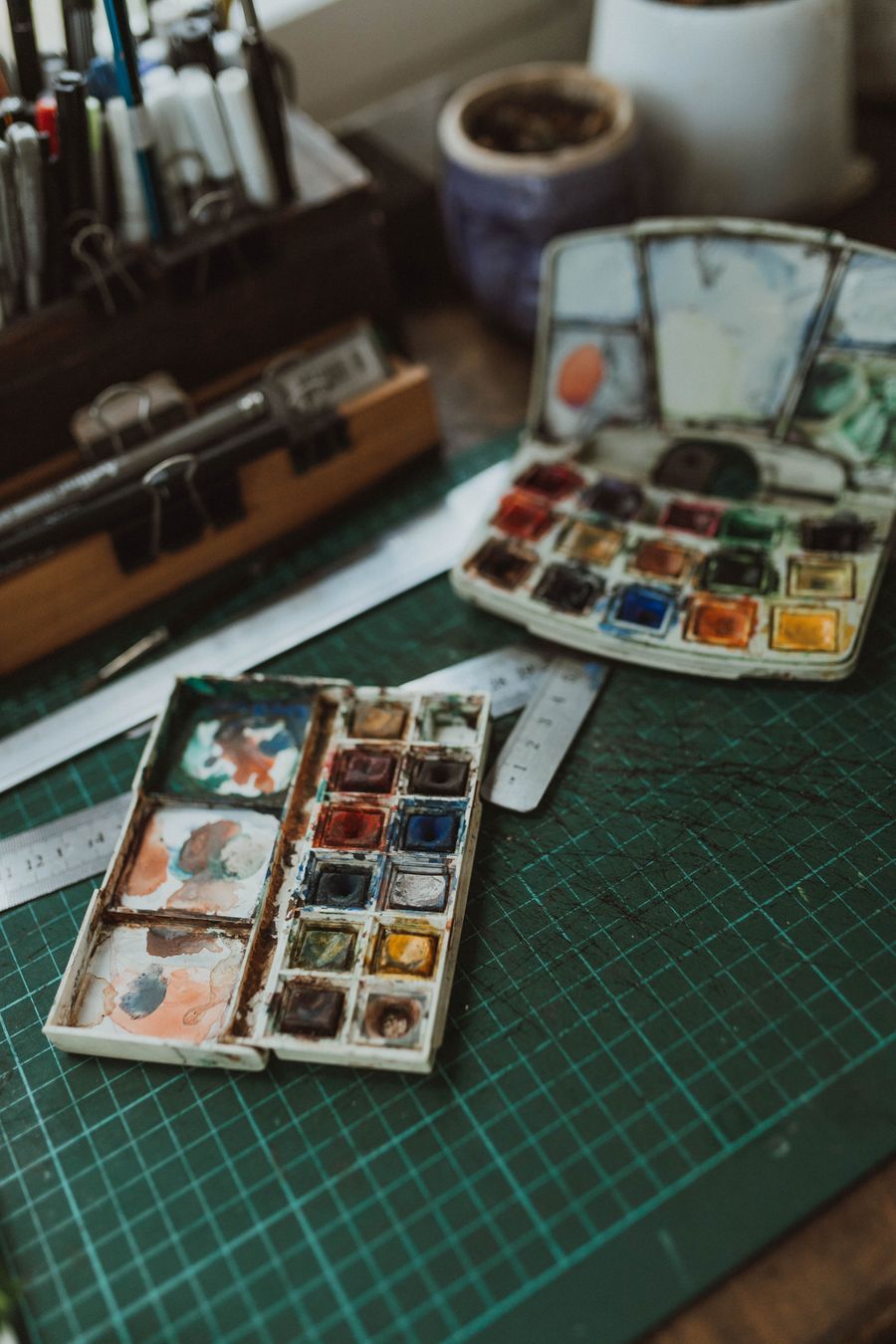
Create a Design, dialed in — Paper first, pixels after, no guesswork
 photoaicompany