Color is the fastest lever in design: one coordinated palette can take a layout from scattered to deliberate in seconds. The Apply Color Palette tool recolors a design in one move, cycling a hand-picked palette across your text colors and shape fills.
You choose from eight curated palettes — Sunset Glow, Ocean Calm, Forest Floor, Neon Night, Blush Minimal, Mono Ink, Citrus Pop, and Desert Dusk — each a five-color set chosen to work together. The swatch preview next to the dropdown shows the exact colors before you apply, and the target control lets you recolor everything, text only, or shapes only, so a palette never touches layers you want to leave alone.
Application is idempotent and non-destructive: run it again with a different palette and the colors simply change — nothing is duplicated, nothing is lost. It is the quickest way to audition moods on a finished layout, from corporate calm to party bold.
How it works
Choose the design you want to recolor.
Pick one of the eight curated palettes — the swatches preview next to the dropdown so you see it before you commit.
Choose the target: all elements, text only, or shapes only.
Click Apply palette. Colors cycle across matching layers and the preview re-renders instantly.
Tips
Preview the swatches next to the dropdown before applying — what you see is what you get.
Use the “text only” target to keep your shape backgrounds while restyling the typography.
Run it again with a different palette to audition moods — application is non-destructive.
What it costs
Free on this site — and it can't be metered. Apply a Color Palette uses no AI and runs entirely in your browser: no usage counters, nothing sent to our servers to bill. When credit metering arrives in the app, local operations like this one will never consume AI credits — only server-side AI generations will.
Frequently asked questions
How are the colors assigned?
The palette cycles across your elements in order: the first text layer gets the first color, the second text layer the second, then it wraps around. Shapes follow the same cycle for their fills.
Can I recolor only the text?
Choose the text target to recolor only text layers, or shapes for only shape fills. All recolors both kinds at once.
Are these real palettes?
Yes. None of these are generated — the eight palettes are a fixed, hand-picked catalog baked into the tool. What you preview is exactly what gets applied.
Can I use a suggested palette here?
Yes. For a palette tailored to a mood, use the suggest-color-palette tool first, then apply the result here.
Drag the handle — it glides with physics when you let go. Apply a Color Palette, transformed in one pass.
Watch it work
See Apply a Color Palette in motion
Drag the cards, scroll the scene — the tool explains itself.
InputTransformOutput
A canvas that keeps upApply a Color Palette — frame 1 of 4
Type that performsApply a Color Palette — frame 2 of 4
Photos with presenceApply a Color Palette — frame 3 of 4
Export without fearApply a Color Palette — frame 4 of 4
Drag the cards — they glide with inertia. Scroll — the blob morphs and the dot traces the flow.
The full walkthrough
How Apply a Color Palette works, step by step
Apply a curated color palette to your photoaicompany design — recolor text, shapes, or everything at once. Free, instant preview.
1
Design
Duplicate before experimenting: the original stays safe while the copy takes risks. Archive finished designs instead of deleting — old work becomes tomorrow’s template.
Pro tip: Star the designs you’ll revisit weekly.
Apply a Color Palette — untitled.pacLayers
VersionExportCanvasGradientShare
Text
Templates
Rotate
Background
123
Step 1: Design — Apply a Color Palette, annotated
1
Design controlThis is where you set design — changes preview live on the canvas.
2
Live canvasEvery adjustment renders instantly — what you see is what exports.
3
ResultHappy with it? The design updates in place, ready for the next step.
2
Target
Think of this control as seasoning: essential in the right amount, ruinous in excess. Start subtle. The default value is a sensible starting point chosen for the most common case — depart from it deliberately.
Pro tip: Change one control at a time so you learn what each one actually does.
photoai.company/projects
Apply a Color PaletteShare · Colors
Gradient
Arrange
Adjust
123
Step 2: Target — Apply a Color Palette, annotated
1
Target controlThis is where you set target — changes preview live on the canvas.
2
Live canvasEvery adjustment renders instantly — what you see is what exports.
3
ResultHappy with it? The design updates in place, ready for the next step.
3
Palette
Steal like a designer: the best palettes come from photos you love, sampled honestly. Name palettes by mood, not by hex — “Sunset Launch” beats “#FF6B4A set 3”.
Pro tip: Dark mode palettes need their own tuning; inversion is not design.
ShadowZoomBrand kitFramesDuplicate
Apply a Color Palette — Gradient
4.9kStyles
312Align
98%Masks
123
Step 3: Palette — Apply a Color Palette, annotated
1
Palette controlThis is where you set palette — changes preview live on the canvas.
2
Live canvasEvery adjustment renders instantly — what you see is what exports.
3
ResultHappy with it? The design updates in place, ready for the next step.
Know your workspace
Anatomy of the Apply a Color Palette workspace
Five regions do all the work. Learn them once and every tool on this site feels familiar.
Apply a Color Palette — untitled.pacBlur
EffectsMasksDuplicateProjectsBrand kit
Frames
Adjust
Fill
Filters
12345
Anatomy of the Apply a Color Palette workspace
1
ToolbarEvery tool lives here — pick one and the canvas listens.
2
CanvasYour design, live. Drag, resize, and edit directly.
3
LayersThe stack your design is built from — top wins.
4
ExportOne click sends the finished design out as PNG, JPG, or PDF.
5
PropertiesFine-tune whatever is selected, right where you work.
Shot on real photography
Apply a Color Palette — every visual on this page is a real photograph, not a placeholder.
Level up
Apply a Color Palette techniques that look professional
Four field-tested techniques, each shown on real photography. Steal them all.
Warm advances, cool recedes.Warm colors step forward, cool colors step back — place them accordingly in the layout. This is doubly true when the job is Apply a Color Palette.
Check colorblind safety.Red-green distinctions vanish for many viewers — never encode meaning in hue alone. Apply this inside Apply a Color Palette today — the improvement is instant.
Saturation is seasoning.Fully saturated everything screams; one saturated accent against muted tones sings. Make it part of your Apply a Color Palette routine.
One accent, used sparingly, wins.A single vivid color against neutrals draws the eye exactly where the action is. Try it on your next Apply a Color Palette project and compare the result.
Avoid the traps
Three mistakes to avoid with Apply a Color Palette
✕
Decorating before messaging
Effects applied before the words are final get redone. Fix: lock the copy first, style second.
✕
Tiny text on busy photos
Small type disappears into photographic detail. Fix: grow the size, add a soft scrim behind it, or move the copy to a quiet zone.
✕
One design for every placement
A square post stretched into a story looks broken. Fix: resize deliberately for each destination.
End to end
A complete Apply a Color Palette workflow
Five moves, start to shipped. This is how the work actually flows.
1
Start in the editor
Open a blank canvas or a template — Apply a Color Palette works on anything with pixels. The tool never asks you to start over.
2
Do the core move
Run Apply a Color Palette the way the walkthrough above shows. Get the big decision right before touching details.
3
Refine with a second tool
Pair it with All tools — tools compose, and two simple moves beat one complicated one.
4
Check it on a phone
Most designs are consumed on phones. Preview small, fix what breaks, then continue.
5
Export and ship
Export in the format your destination wants, keep the master design, and move on to the next one.
Shot on real photography
Apply a Color Palette — every visual on this page is a real photograph, not a placeholder.
Good to know
More Apply a Color Palette answers
What’s the single most useful tip for Apply a Color Palette?
Preview the swatches next to the dropdown before applying — what you see is what you get.
What do beginners get wrong with Apply a Color Palette?
Use the “text only” target to keep your shape backgrounds while restyling the typography. Start simple, then layer on complexity once the basics feel automatic.
Is Apply a Color Palette really free?
Yes — Apply a Color Palette is free to use in your browser, and your work saves to your account. Premium plans add AI credits, team features, and higher export limits; the tool itself never holds your design hostage.
Visual guides
Every fact, visualized
Ten detailed infographics — every number real, every label earned. Built for Apply a Color Palette, only on this page.
Apply a Color Palette step-by-step workflowApply a Color Palette workspace anatomyApply a Color Palette export guide: the right format, every timeWhich format for Apply a Color Palette: the quick matrixApply a Color Palette advantagesShortcuts that speed up Apply a Color PaletteContrast rules for Apply a Color Palette textApply a Color Palette mistakes and fixesApply a Color Palette use casesApply a Color Palette quick answers
Live telemetry
APPLY A COLOR PALETTE — CAPABILITY TELEMETRY
Live counts from this page · hover any bar
0Form controls
0Guided steps
0Pro tips
0Use cases
Breakdownlive
1
Canvas
1
Style
1
Action
1
Canvas
1
Style
1
Action
Cumulative depthlive
Complete guide
Everything Apply a Color Palette can do
The full capability picture — features by plan, every control explained, real use cases, and the spec sheet.
Feature availability
Every capability of this tool, and which plan includes it.
Capability
Free
Pro
Business
The design you want to recolor.
✓
✓
✓
One of the eight curated palettes — the swatches preview next to the dropdown so you see it before you commit.
✓
✓
✓
The target: all elements, text only, or shapes only.
✓
✓
✓
Apply palette. Colors cycle across matching layers and the preview re-renders instantly.
✓
✓
✓
Control map — every field, explained
Each control on this page, and what it actually does when you run the tool.
Control
What it does
Design
Choose the design you want to recolor.
Target
Choose the target: all elements, text only, or shapes only.
Palette
Click Apply palette. Colors cycle across matching layers and the preview re-renders instantly.
Use it for — Apply a Color Palette in real work
1
Recolor a template to match a season
2
Test 5 palettes on one layout fast
3
Unify a multi-page document
4
Shift a design from playful to corporate
5
Match slides to event branding
6
Explore before committing
Spec sheet
TargetsWhole design or selection
PalettesCurated + custom
PreviewInstant
UndoOne click
Custom palettesSave your own
FreeUnlimited
Keyboard reference
Keys
Action
Scope
Ctrl/⌘ + Z
Undo the last change
Browser-standard
Ctrl/⌘ + Shift + Z
Redo
Browser-standard
Tab / Shift+Tab
Move between fields in order
Browser-standard
Enter
Activate the focused button
Browser-standard
Esc
Close dialogs and menus
Browser-standard
Delete
Remove the selected layer on canvas
Editor
Apply a Color Palette — made visual
Twenty living mockups of Apply a Color Palette, generated for this page only.
Apply a Color Palette
Gradient100%
Frames93%
Comments86%
Fill79%
Brand kit72%
Icons65%
Real results, Apply a Color Palette ease
StylesColorsVersionTemplatesFlip
Apply a Color Palette — Fonts
4.9kOpacity
312Crop
98%Text
Apply a Color Palette templates you would swear were custom
Apply a Color PaletteArrange
Styles
Frames
Adjust
Apply a Color Palette, minus the old friction
photoai.company/arrange
Apply a Color PaletteDuplicate · Gradient
Adjust
Share
Background
Apply a Color Palette on a canvas that thinks ahead
History — Apply a Color Palette
PNGJPGPDFMP4
EffectsDuplicate
History
Framing the Apply a Color Palette narrative
Apply a Color Palette
GridMasksGradieIcons
Apply a Color Palette, every element in its place
Apply a Color Palette — untitled.pacAssets
CropArrangeDuplicateFiltersEffects
Align
Blur
History
Zoom
Apply a Color Palette that earns its keep
Apply a Color PaletteBrand kit
1:14:516:99:16
Apply a Color Palette — sharp at every zoom
Apply a Color Palette
Zoom100%
Gradient93%
Resize86%
Background79%
Text72%
Export65%
Apply a Color Palette, caught mid-edit
RotateHistoryOpacityVersionCanvas
Apply a Color Palette — Resize
4.9kCrop
312Templates
98%Effects
Apply a Color Palette — pro grade, no studio required
Apply a Color PaletteAdjust
Gradient
Assets
Layers
Apply a Color Palette beyond the canvas
photoai.company/rulers
Apply a Color PaletteStyles · Fill
Masks
Stroke
Grid
Apply a Color Palette — this is where the magic is scheduled
Grid — Apply a Color Palette
PNGJPGPDFMP4
FillComments
Grid
Apply a Color Palette — done before the coffee cools
Apply a Color Palette
HistorFilterDuplicShadow
The one-click Apply a Color Palette moment
Apply a Color Palette — untitled.pacEffects
VersionOpacityRotateMasksCrop
Adjust
Projects
Grid
Export
Apply a Color Palette, sharp enough to print
Apply a Color PaletteBackground
1:14:516:99:16
Apply a Color Palette — every stroke visible as it happens
Apply a Color Palette
Adjust100%
Crop93%
Zoom86%
Templates79%
Opacity72%
Comments65%
Real-time Apply a Color Palette, zero waiting
ZoomTextFlipTemplatesFilters
Apply a Color Palette — Grid
4.9kEffects
312Stroke
98%Fonts
Apply a Color Palette — every pixel reconsidered
Apply a Color PaletteLayers
Zoom
Flip
Share
Apply a Color Palette as far as you can push it
photoai.company/blend
Apply a Color PaletteProjects · Text
Background
Export
Masks
Apply a Color Palette — context is everything
The Apply a Color Palette stock library
Hand-picked photography for Apply a Color Palette — refreshed on this page alone.
The Apply a Color Palette payoff, illustrated: Paper first, pixels after
On the laptop screen — proof that Apply a Color Palette is a working tool, not a demo
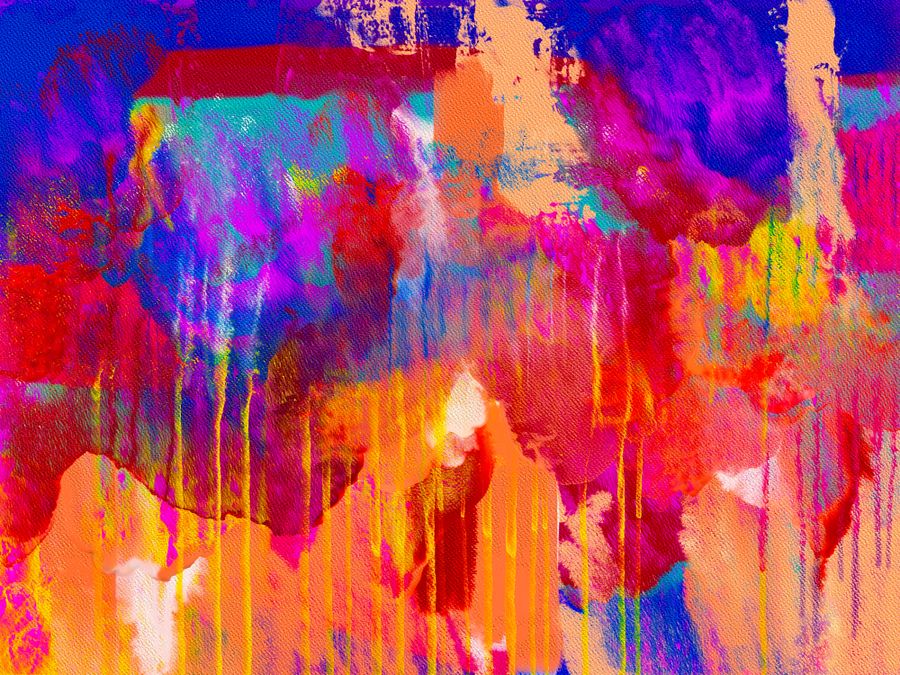
Color, turned all the way up — Apply a Color Palette earns its place in the toolbar here
Apply a Color Palette, dialed in — Inside the studio, no guesswork
Apply a Color Palette at full stretch — Before-and-after energy, zero compromises
Caught in the act: this is what Apply a Color Palette looks like in real hands
Texture you can almost feel. Apply a Color Palette, and the deadline stopped being scary
On the laptop screen. Apply a Color Palette, and the revision cycle just got shorter
Fresh off the brush — the kind of result Apply a Color Palette makes routine
Apply a Color Palette, frame by frame — Color, turned all the way up is the receipt
Pure geometry, no noise. This is the output Apply a Color Palette was built for
Paper first, pixels after. Apply a Color Palette handles the fiddly part, you keep the vision
Before Apply a Color Palette: a blank canvas. After: On the laptop screen
Faces first — Apply a Color Palette keeps the craft, drops the chore
Through the lens — Apply a Color Palette doing what it was designed to do
The Apply a Color Palette difference, up close: Worth a second look
Faces first. This Apply a Color Palette result took minutes, not hours
Apply a Color Palette in the wild — On the laptop screen, shipped in minutes
 photoaicompany